Scanned PDF Quality Checklist: 25 Points Before You Share
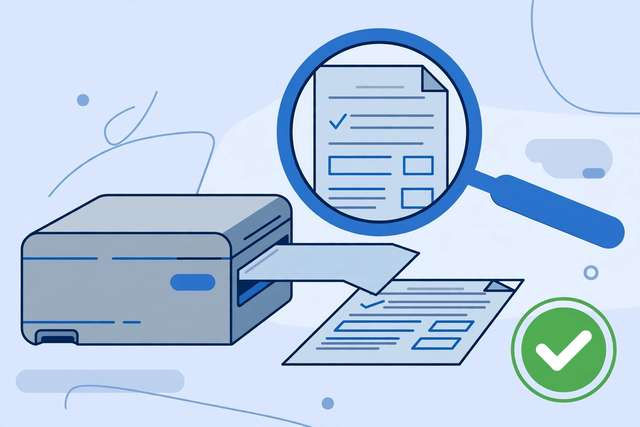
A bad scan is worse than no scan. The crooked page with gray shadows, the text you cannot select or search, the 80 MB file that bounces back from every email — everyone has received one, and everyone has quietly cursed the sender. Whether you are archiving contracts, submitting paperwork, or sharing research, a quick quality pass before you hit send is the difference between looking professional and looking sloppy. This 25-point checklist covers the four things that make or break a scanned PDF: capture quality (resolution, alignment, lighting), the text layer (OCR, searchability), file optimization (size, format), and the final pre-share review. Run through it once and your scans will be crisp, searchable, and emailable every time.
What’s inside this checklist
The checklist is organized into the four stages of a quality scan. Capture checks (8 points) cover scanner settings before and during the scan: DPI, color mode, page alignment, lighting, and what to do about double-sided originals. Text layer checks (6 points) verify OCR actually worked — selecting text, searching for a known word, and checking reading order so screen readers and copy-paste behave. Optimization checks (6 points) bring file sizes down without hurting readability: compression, page size, and when to split multi-hundred-page scans. Pre-share checks (5 points) are the final gate: file name, page count, blank pages, and a last visual skim. Office managers, freelancers, students, and anyone who handles paperwork get a repeatable routine that turns “good enough” scans into professional documents.
8 sample quality checks
A taste of the pack — the full 25-point checklist is in the free download below.
- Scan text documents at 300 DPI in grayscale — crisp text, small files.
- Check page alignment: no page should be tilted more than 1 degree.
- Run OCR and verify: select a sentence — if it highlights, the text layer works.
- Search the PDF for a word you know is there — no hits means no real text.
- Delete blank pages — they inflate size and confuse readers.
- Keep the file under 10 MB for email; compress or split if larger.
- Zoom to 100% and skim every page — catch shadows, cut-off edges, and smudges.
- Name the file descriptively before sharing: 2026-10-22-contract-acme-signed.pdf
How to use this checklist
- Set your scanner defaults once: 300 DPI, grayscale for text, color only for photos — most checklist failures start at the wrong settings.
- Scan, then immediately run OCR before doing anything else; an image-only PDF is a dead document.
- Work through the four sections in order — capture, text layer, optimization, pre-share — checking each point.
- Do the 100% zoom skim last: it catches the visual problems no automated check finds.
- Save these scanner settings as a preset named “Quality Scan” so every future scan starts compliant.
The checklist takes about three minutes per document once the habit forms. That is dramatically less time than re-scanning a 40-page contract because page 17 was upside down.
Frequently asked questions
Can I fix a bad scan without rescanning? Partially. You can deskew, crop, and compress an existing scan, and you can add OCR afterward. But you cannot recover detail that was never captured — a 100 DPI blurry scan stays blurry. Rescanning is faster than fighting a bad original.
Should I scan in color or black and white? Grayscale for text documents (best size-to-quality ratio), pure black-and-white for simple forms and receipts, color only when color carries information — photos, highlighted annotations, stamps, or signatures in colored ink.
What file size is reasonable per page? Roughly 50–150 KB per page for grayscale text at 300 DPI after compression. If your 10-page scan is 50 MB, something is wrong — usually full-color mode or 600+ DPI.
Download the full 25-point checklist
Keep reading
How to Remove Annotations and Comments from a PDF Online Free
Remove highlights, sticky notes, and comments from a PDF online free — clean up marked-up documents before sharing, without installing software.
Read more →
How to Validate a PDF File Online Free (Check for Corruption Before You Send It)
Validate a PDF online free: check for corruption, broken pages, and unreadable files before you send an important document — in seconds, in your browser.
Read more →
Livestream Equipment Checklist for Beginners
A free livestream equipment checklist for beginners: 30 steps covering software, connection, camera, lighting, audio, and going live with confidence.
Read more →