How to Remove Annotations and Comments from a PDF Online Free
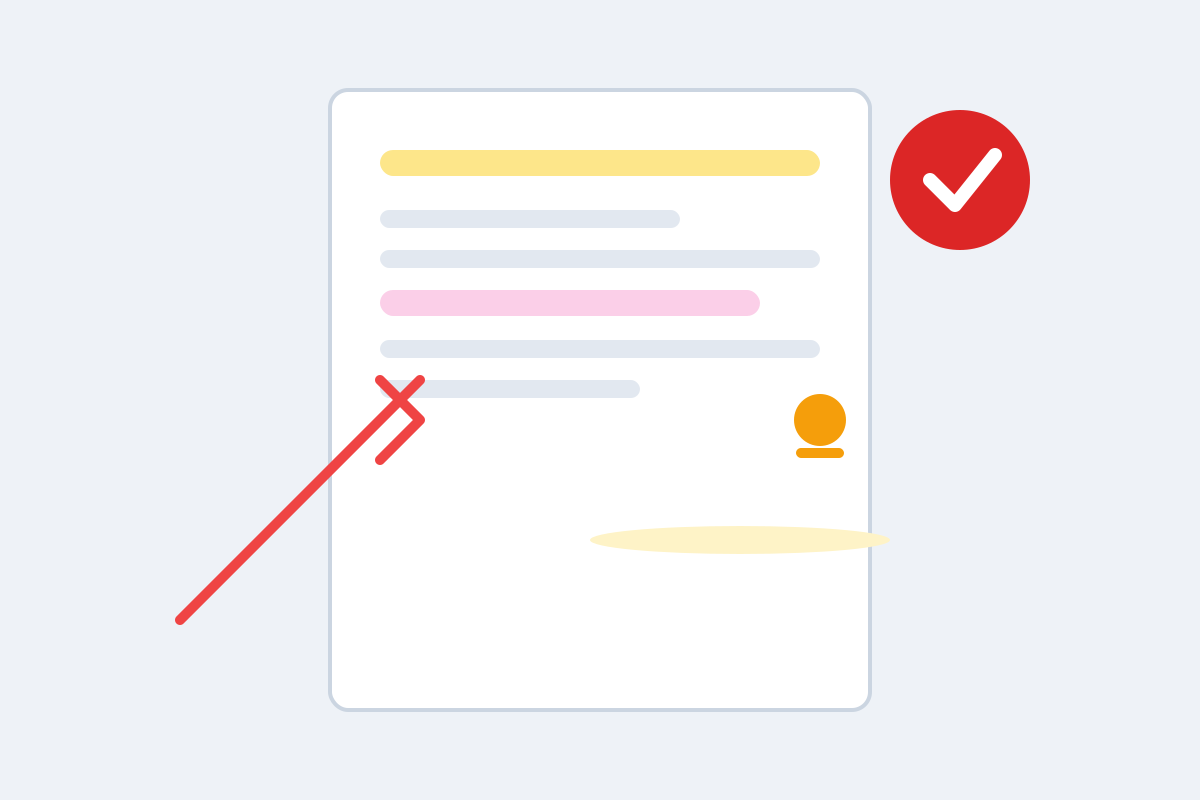
You finished reviewing a contract, a manuscript, or a stack of lecture slides, and the PDF is now covered in highlights, sticky notes, underlines, and margin comments. That markup was useful during review — but now you need to send the document to a client, a professor, or a colleague, and you do not want them reading your private notes. The fix is simple: strip the annotation layer off the PDF before you share it.
This guide explains what PDF annotations actually are, how to remove them in a few clicks with a free online tool, and what to check before you hit send.
What counts as a PDF annotation?
Annotations are objects layered on top of a page, separate from the page’s actual content. The most common kinds are:
- Highlights, underlines, and strikethroughs — colored markup over text.
- Sticky notes and text comments — pop-up notes attached to a spot on the page.
- Freehand drawings and shapes — circles, arrows, and ink scribbles from a stylus or mouse.
- Text boxes and callouts — added text floating above the page.
- Links and stamps — clickable areas and “Approved” or “Confidential” stamps.
The key point: none of these are part of the document’s text. That is why a PDF can look clean in one viewer and cluttered in another, and why removing annotations never damages the underlying content. It also means annotations can leak information — a reviewer once left salary comments in a “final” report that went to the whole company. Always clean a file before distributing it widely.
Remove annotations in four steps
The fastest way is our free browser-based tool, which processes your file on your own device:
- Open the tool. Go to our PDF annotation remover — no account, no install, and your file never leaves your browser.
- Upload your PDF. Drag the file onto the page or click to browse. You can process one file or a batch of files at once.
- Choose what to remove. Pick all annotation types, or keep some — for example, remove sticky notes but keep highlights if your recipient still needs them.
- Download the cleaned PDF. Save the result, open it, and confirm the markup is gone before you share it.
Because the tool runs entirely in your browser, even confidential documents stay on your machine. There is no upload, no server copy, and no waiting for a queue.
What to check after cleaning
A quick review pass avoids embarrassing surprises:
Open the file in a second viewer. Some apps hide certain annotation types. If the file looks clean in two different viewers — say, your browser and a desktop reader — it is clean.
Check for hidden layers. A few tools store comments in optional content layers or embedded files rather than standard annotations. If your reviewer used an unusual app, skim the whole document once after cleaning.
Keep the original. Save the annotated version under a different filename before you clean it. Review notes are often worth keeping for your own records, and you cannot undo a cleaning pass on the shared copy.
Watch the file size. Annotation removal usually shrinks a PDF slightly. If the cleaned file is dramatically smaller, something else may have been stripped too — compare page counts to be safe.
When removing annotations is not enough
Sometimes markup is not an annotation at all. If someone “highlighted” text by editing the document in Word and exporting, or if comments were burned into a scanned image, annotation removal will not touch them. In those cases you need different tools:
- Redaction permanently blacks out text and removes it from the file — use this for sensitive content, not just comments. Our PDF redactor handles this.
- Flattening merges annotations into the page image, making them permanent. Never flatten a file you intend to clean — flattening does the opposite of what you want.
- Re-exporting from the source is the cleanest option when you still have the original Word or design file: export a fresh PDF without comments enabled.
Also note that some PDFs carry metadata — author names, edit history, and software tags — that can reveal who reviewed a file. If that matters, clear the document metadata too before sharing.
Everyday situations where this saves you
Students clean up annotated lecture slides before printing or sharing study packs. Lawyers strip internal review notes from drafts before sending them to clients. Editors remove proofreading marks from manuscripts before publication. Managers clean feedback notes off reports before wider distribution. In every case the pattern is the same: markup is a working tool, not a publishing format, and a thirty-second cleaning pass is the professional finish.
One more habit worth building: make cleaning part of your send checklist, right alongside spell-checking and confirming the right attachment. It takes seconds, and it is the difference between sharing a document and sharing your thought process about it.
Frequently asked questions
Does removing annotations change the PDF’s text?
No. Annotations are a separate layer on top of the document. Removing them leaves the original text, images, and layout untouched — only the markup disappears.
Can I remove only highlights but keep sticky notes?
Some tools let you pick annotation types to remove. If yours only offers remove-all, make a copy of the file first so you keep the annotated original.
Will the cleaned PDF still show tracked changes or comments in other apps?
Once annotations are properly removed and the file is saved, they are gone from the document itself. No viewer can recover them from the cleaned file, so it is safe to share.
Is it safe to upload a confidential PDF to an online annotation remover?
Prefer a tool that processes files entirely in your browser, so nothing is uploaded to a server. If a tool does upload files, check its privacy policy and avoid it for sensitive documents.
Keep reading
How to Validate a PDF File Online Free (Check for Corruption Before You Send It)
Validate a PDF online free: check for corruption, broken pages, and unreadable files before you send an important document — in seconds, in your browser.
Read more →
PDF Merge Order Checklist
A free PDF merge order checklist: 28 steps to combine PDFs in the right order, catch missing pages, and send a clean final file.
Read more →
PDF Print Settings Cheat Sheet
A free PDF print settings cheat sheet: the right color, quality, paper, and scaling for drafts, official forms, photos, and booklets — plus fixes for common problems.
Read more →