How to Convert FLV to WebM Online Free
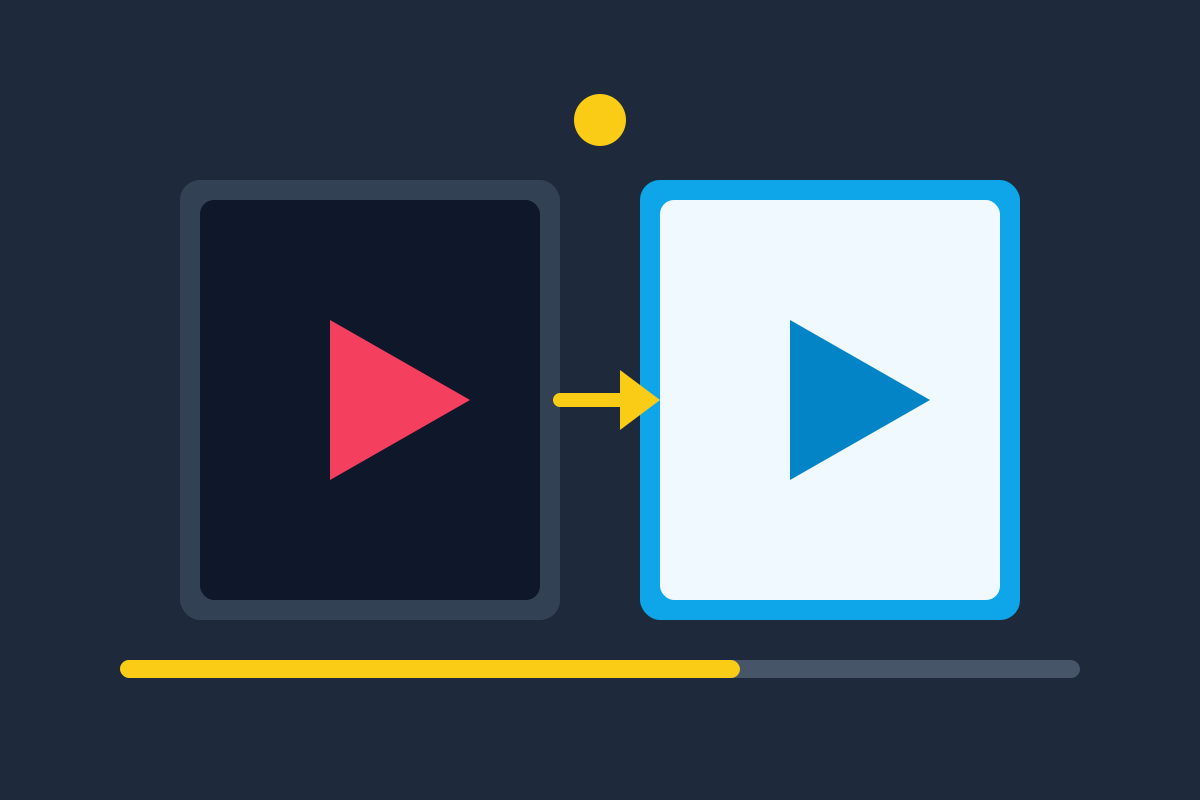
If you have ever dug up an old video from the Flash era — a clip downloaded in 2010, a screen recording from a long-dead site, a backup from an old hard drive — you have probably met the FLV file. It was the standard web video format of its time. The problem is that its time ended: browsers removed Flash support years ago, and today an FLV file will not play anywhere by default. The good news is that converting it to WebM, the modern open web format, takes just a few minutes and costs nothing.
Why WebM is the right target
WebM was designed for the web from the start. It uses the VP9 (or newer AV1) video codec with Opus or Vorbis audio, in a container built for streaming. Practically, that means three things:
- It plays natively in browsers. Chrome, Edge, Firefox, Opera, and recent Safari all play WebM without plugins — the exact thing FLV can no longer do.
- It is open and royalty-free. No licensing fees, no patent worries, which is why sites like YouTube and Wikipedia use it.
- It compresses well. WebM files are typically smaller than the same video in older formats at similar quality, so they load faster on a page.
The one caveat is older Safari versions, which did not support WebM until Safari 17. If your audience includes people on very old Apple devices, also keep an MP4 copy — but for most uses, WebM alone is fine.
Convert FLV to WebM in four steps
Our free converter runs entirely in your browser, so your video never uploads to a server:
- Open the converter. Go to our FLV to WebM converter — no account, no install.
- Add your FLV file. Drag it onto the page or click to browse. The tool accepts one file or a batch.
- Choose your settings. For most old footage, keep the original resolution and pick a quality preset around the middle of the range. If the file is destined for a website, a slightly lower bitrate keeps the page fast.
- Convert and download. Press convert, wait for the progress bar, and download the finished WebM file. Play it back once to confirm sound and picture are in sync.
Because processing happens locally, there is no file-size limit imposed by a server and no queue — though very large files will take longer on slower machines.
Choosing settings that preserve quality
Old FLV footage was usually low resolution — 480p or 720p at most — and already heavily compressed. That limits what conversion can do, but the right settings avoid making it worse:
Do not upscale. Converting a 480p FLV to 1080p WebM does not add detail; it just makes a bigger file with the same blurry picture. Keep the original resolution.
Use a generous bitrate. For 480p footage, 1,500–2,500 kbps video bitrate preserves nearly everything the source had. Dropping to a few hundred kbps to save space will visibly degrade it.
Keep the frame rate. Old FLV files are often 24 or 30 frames per second. Match the source frame rate rather than forcing a higher one, which only adds duplicated frames.
Mind the audio. FLV audio is often low-bitrate MP3 or AAC. Converting to Opus at 128 kbps keeps it sounding the same while staying compact. If the original audio is already poor, no setting will rescue it — but it will not get worse either.
What about quality loss?
Every conversion from one lossy format to another loses a little quality — this is called generation loss, and it is unavoidable. But context matters: FLV footage from the Flash era was compressed aggressively to stream over slow connections, so it was never pristine. A careful WebM conversion at a sensible bitrate loses so little that most viewers cannot tell the difference, especially on the small screens where this footage is usually watched.
The one mistake to avoid is converting the same file repeatedly — FLV to WebM to MP4 to WebM again compounds the loss each time. Convert once from the original FLV, keep the original as your archive master, and make any future versions from that original rather than from a converted copy.
What to do with your converted videos
Once your old clips are in WebM, they are useful again:
- Embed them on a website with a plain HTML5
<video>tag — no player plugin needed. - Upload them to modern platforms that accept WebM, or to editors that refuse FLV outright.
- Archive them properly. WebM is a far safer long-term format than FLV, which depends on dead software. Store the WebM alongside the original FLV if you have space.
- Edit them. Most modern video editors accept WebM directly, while almost none accept FLV anymore.
If you have a whole folder of old FLV files, work through them in batches with the converter’s multi-file mode. It is the kind of weekend cleanup job that feels surprisingly good when it is done — a shelf of unplayable files becomes a library you can actually watch again.
Frequently asked questions
Will converting FLV to WebM reduce video quality?
Any re-encode loses a little quality, but with sensible settings the difference is invisible for most old FLV footage, which was already heavily compressed. Keep the original resolution and a generous bitrate to minimize loss.
Does WebM play in all browsers?
WebM plays natively in Chrome, Edge, Firefox, and Opera, and in Safari 17 and later. For maximum compatibility on a website, offer both WebM and MP4 versions of your video.
Why not just keep the FLV file?
Flash is dead — browsers removed Flash support years ago, so FLV files no longer play on the web. Converting to WebM or MP4 is the only way to make old Flash videos watchable again.
How long does an FLV to WebM conversion take?
It depends on the file’s length and resolution. Short clips convert in under a minute; a long video can take several minutes. Conversion happens in your browser, so a faster computer finishes sooner.
Keep reading
Podcast Video Repurposing Checklist
A free podcast and video repurposing checklist: turn one episode into clips, posts, articles, and guides with 28 steps, start to finish.
Read more →
Video Title Templates Pack for Creators
40 video title templates for creators: how-tos, mistake hooks, lists, stories, comparisons, challenges, and questions. Free download for YouTube and Reels.
Read more →
Screen Recording Checklist for Tutorials
Free 30-step screen recording checklist for tutorials: setup, audio, capture settings, recording technique, editing, and publishing.
Read more →