How to Convert an Image to SVG Vector Online Free
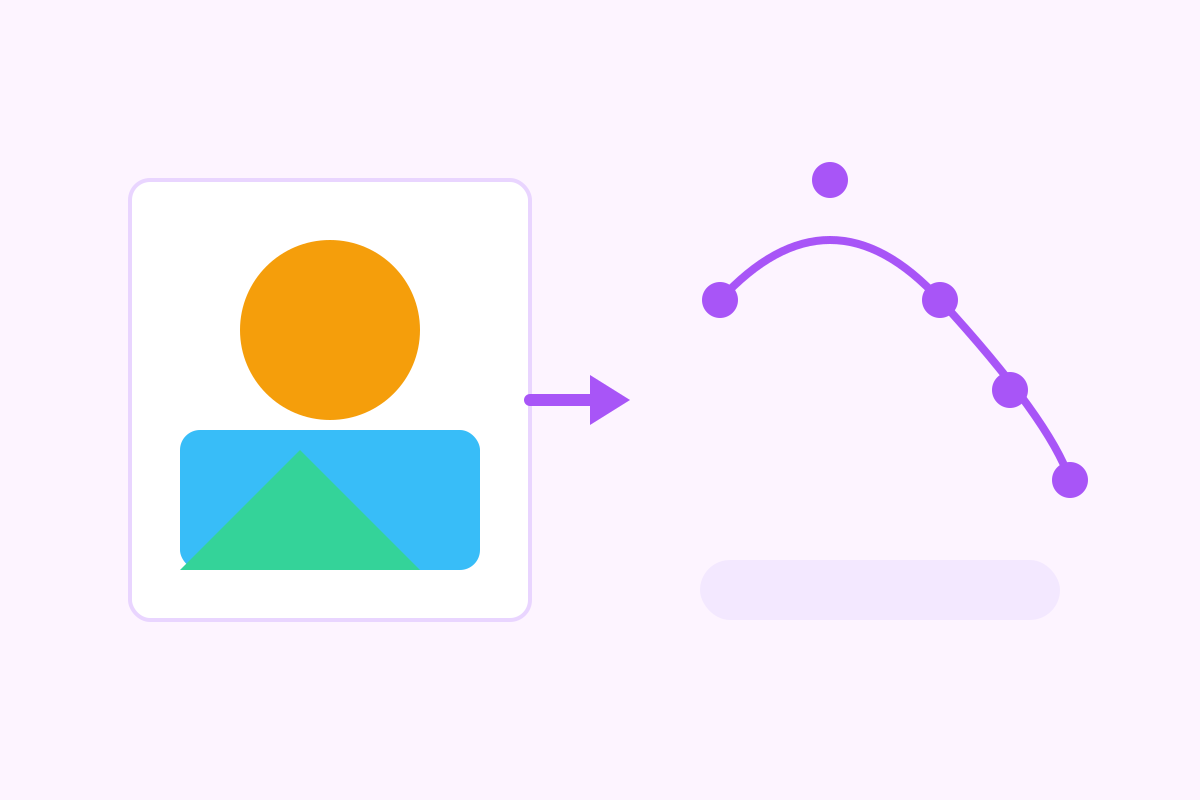
A logo that looks crisp on a business card turns to mush on a billboard. A PNG icon that is perfect at 48 pixels is a blurry mess at 480. That is the fundamental limit of raster images — pictures made of fixed pixels — and the reason vector graphics exist. An SVG file describes shapes mathematically, so it scales to any size without losing quality.
Converting a raster image to SVG is called tracing, and free online tools can do it in seconds. But honesty matters here: automatic tracing produces a simplified approximation of your image, not a perfect vector twin. This guide explains how to get the best possible result, and when to accept the limits of tracing versus hiring a designer.
How tracing actually works
A tracing tool looks at your image and tries to find edges between colors, then draws vector paths along those edges. Think of it like a careful person placing tracing paper over a drawing and outlining each region of color. For a simple logo with three flat colors, the result is excellent — clean shapes that scale beautifully. For a photograph with millions of colors and soft gradients, the tool must either create an enormous number of tiny paths (huge file, slow to render) or simplify aggressively (posterized, blotchy result).
That trade-off — detail versus file size — is the central fact of image-to-vector conversion. Every setting in a tracing tool is a way of choosing where you land on that spectrum.
Convert an image to SVG in four steps
Our free converter runs entirely in your browser, so your artwork never uploads to a server:
- Open the converter. Go to our image to SVG converter — no account, no install.
- Upload your image. JPG, PNG, and other common formats work. For the best result, start with the highest-resolution version you have.
- Tune the settings. Choose how many colors to keep and how much detail to preserve. Fewer colors and less detail mean a smaller, cleaner file; more colors and detail mean a closer match to the original.
- Download and inspect the SVG. Open it at several sizes — small, medium, and very large — and compare it with the original. Adjust the settings and re-run if the result is too rough or too heavy.
Because the conversion happens locally, there is no server queue and no file-size limit beyond what your browser can handle.
Getting the best trace: source preparation matters more than settings
The single biggest factor in trace quality is the source image itself. A few minutes of preparation beats any amount of slider tweaking:
Start with a clean, high-resolution image. A 2000-pixel logo traces far better than a 200-pixel thumbnail of the same logo. If you only have a small version, accept that fine details will be lost.
Increase contrast before tracing. Tracing finds edges between colors, so a washed-out image with subtle shading traces poorly. Boosting contrast — or converting to a few flat colors first in any photo editor — gives the tracer clear boundaries to follow.
Remove backgrounds first. A busy background creates thousands of extra paths. Cut the subject out onto a plain background before tracing, and the result will be dramatically cleaner.
Simplify the artwork. If you are tracing a logo, remove gradients, shadows, and textures first. Flat, bold shapes trace beautifully; soft effects do not.
Choose the right color count. For a logo, 2–6 colors is usually right. For a flat illustration, 8–16 colors works well. Beyond that, file size balloons and the visual gain is small.
What tracing is good for — and what it is not
Great uses: converting a simple logo to SVG for a website header, making an icon scalable for an app, turning a line drawing into a cut file for a vinyl cutter or laser engraver, creating a stylized poster effect from a photo, and producing placeholder vectors for mockups.
Poor uses: converting a detailed photograph and expecting it to look like a photo, reproducing fine text (small letters trace as blobby shapes), preserving photorealistic gradients, and producing print-ready artwork for professional branding. In these cases, a traced SVG will disappoint — and a human designer redrawing the artwork is the honest answer.
A practical rule: if the traced file is larger than the original raster file, you have probably traced something that should stay raster. Vector is not automatically better; it is better for shapes, worse for photographs.
After conversion: cleaning up the SVG
A raw trace usually benefits from a quick cleanup in a vector editor like Inkscape (free), Figma, or Illustrator:
- Delete stray paths. Tracers often produce tiny specks from image noise. Select and delete them.
- Merge and simplify. Many editors offer a path-simplification command that reduces point counts without visibly changing shapes.
- Recolor precisely. Replace the tracer’s approximated colors with your exact brand hex codes.
- Smooth rough edges. Small wobbles in traced curves can be smoothed by hand for a professional finish.
Even ten minutes of cleanup can take a trace from “obviously automatic” to “good enough for the website.” For a logo that represents your business, though, consider the cleanup a stopgap and commission a proper redraw when you can — the difference shows at large sizes.
Frequently asked questions
Is a converted SVG as good as a professionally drawn vector?
No. Automatic tracing produces a simplified approximation with many shapes and rough edges. A designer redrawing the artwork by hand will always produce a cleaner, smaller, and more editable file.
What kind of images convert best to SVG?
Simple, high-contrast artwork: logos, icons, line drawings, and flat illustrations with few colors. Detailed photographs convert poorly and produce huge files.
Can I edit a traced SVG afterwards?
Yes. SVG files open in vector editors like Inkscape, Illustrator, and Figma, where you can recolor shapes, delete stray paths, and smooth rough edges.
Why is my converted SVG file so large?
Tracing creates thousands of small paths for detailed images. Reduce the color count, simplify the source image, or lower the detail setting to shrink the file dramatically.
Keep reading
50 Flat Vector Illustration Prompts for Bloggers
50 original flat vector illustration prompts for bloggers — hero images, section art, and thumbnails. No brand names. Free prompt pack download.
Read more →
How to Create a Favicon From Text or Emoji Online Free
Create a favicon from text or emoji online free. Make a custom browser tab icon in seconds — type a letter or emoji, pick colors, download.
Read more →
How to Make Duotone Images Online Free
Make duotone images online free in seconds. Turn any photo into a two-color design with our browser-based duotone maker — no signup, no cost.
Read more →