PDF Print Settings Cheat Sheet
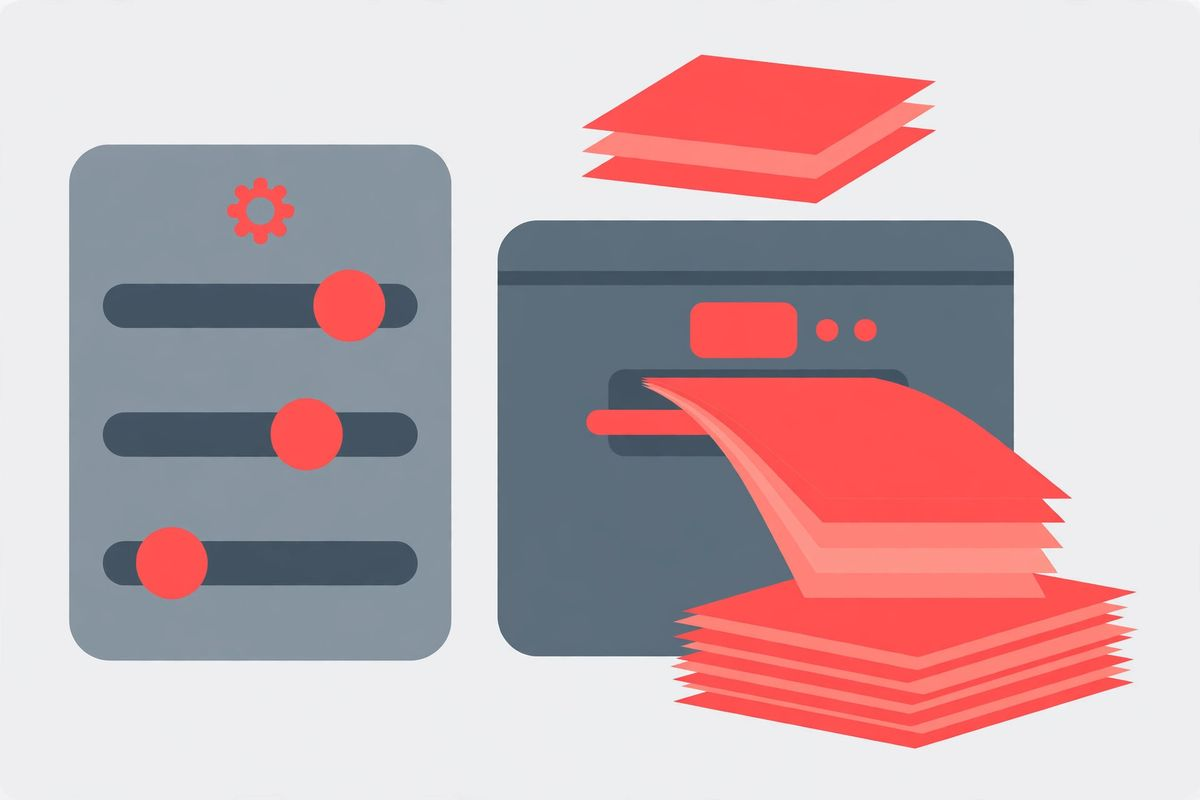
Few things are as annoying as printing a twenty-page document only to discover the text is cut off, the colors are washed out, or an official form printed at the wrong size and is now unusable. Print dialogs are full of options — scaling, quality, duplex, margins — and most people leave them all at defaults, which are wrong for at least half of all jobs. The fix is not learning printer engineering; it is knowing which four settings matter for which kind of job. This cheat sheet gives you exactly that: ready-made settings for everyday printing, official documents, photos and certificates, and booklets, plus plain-English explanations of each setting and fixes for the five most common printing problems. Keep it beside your printer or save it on your phone, and you will stop wasting paper, ink, and reprints. The key settings are below; the free download holds the complete sheet.
What’s inside this cheat sheet
The sheet opens with four quick-setting tables — one per job type — so you can set color, quality, paper, and scaling in seconds without guessing. Everyday printing favors grayscale and draft quality to save ink; official documents demand actual size so form fields land where they should; photos need the best quality and the right paper; booklets need double-sided printing with the correct flip edge. Then comes a plain-English explanation of each setting, so you understand why the defaults fail and when to override them. Finally, a before-you-print checklist and a problem-fix table cover the issues that waste the most paper: cut-off text, washed-out color, wrong page order, stray blank pages, and shrunken forms. It is the whole print dialog, translated.
PDF print settings (quick reference)
The four job types at a glance. The full explanations and problem fixes are in the free download.
Everyday:  Grayscale | Normal | Single-sided | Fit to page
Official:  Color/Grayscale | Normal | Single-sided | Actual size (100%)
Photos:    Color | Best | Photo paper | Fit / borderless
Booklets:  As needed | Normal | Double-sided, long edge | Booklet mode
How to use this resource
- Identify your job type first: everyday, official, photo, or booklet — then apply that row of settings.
- Always open the print preview and check page count, orientation, and paper size before printing.
- For long documents, print one test page first to catch scaling or margin problems early.
- For official forms, never use Fit to page — use Actual size so fields and boxes print at true size.
- If something looks wrong, check the problem-fix table in the download before reprinting the whole job.
Tape the cheat sheet to the wall near your printer — the whole household or office will use it within a week.
Frequently asked questions
Why does my PDF print smaller than it looks on screen?
Your scaling is set to Fit to page, which shrinks the document to fit the printable area. Switch to Actual size (100%) when the true size matters, such as for forms.
Should I print official forms in color?
Only if the form has color elements that matter, like stamps or colored fields. Most official forms are designed for black-and-white printing and are accepted either way.
What does flip on long edge mean?
It controls how double-sided pages turn. Flip on long edge is for portrait documents you read like a book; flip on short edge is for landscape pages or documents bound at the top.
Download the PDF Print Settings Cheat Sheet
Keep reading
How to Remove Annotations and Comments from a PDF Online Free
Remove highlights, sticky notes, and comments from a PDF online free — clean up marked-up documents before sharing, without installing software.
Read more →
How to Validate a PDF File Online Free (Check for Corruption Before You Send It)
Validate a PDF online free: check for corruption, broken pages, and unreadable files before you send an important document — in seconds, in your browser.
Read more →
PDF Merge Order Checklist
A free PDF merge order checklist: 28 steps to combine PDFs in the right order, catch missing pages, and send a clean final file.
Read more →