Scanned Document Naming Template Pack
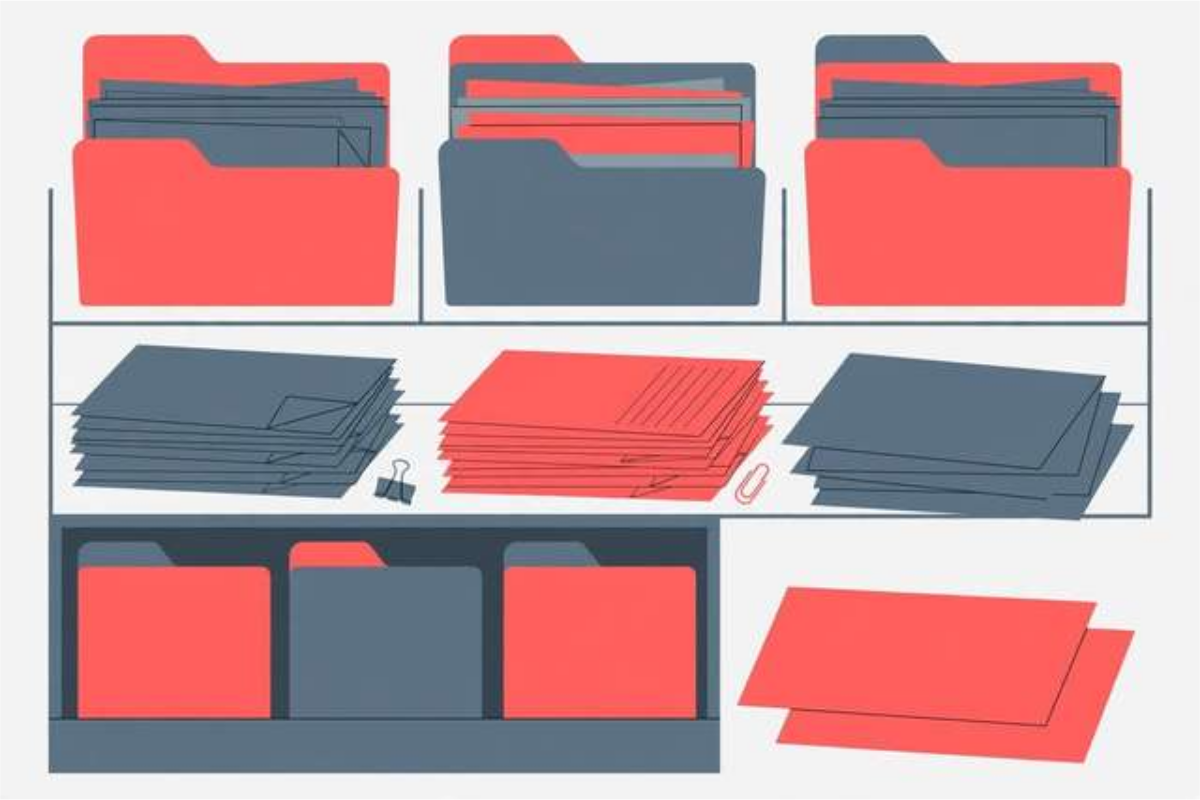
Everyone has a folder full of files named scan001.pdf, IMG_4829.pdf, and document-final-really-final.pdf — and everyone has wasted an afternoon hunting through it for one paper they urgently need. The problem is not the scanner; it is that files get saved faster than they get named. A simple naming system, applied at the moment of scanning, turns that chaos into a folder you can actually search, sort, and trust. This pack gives you a date-first naming formula, eight category folders that cover nearly every household document, twenty ready-made examples you can copy, and scanning tips for quality and searchability. It suits students, freelancers, families, and small offices — anyone with a growing pile of scanned paper. The formula and a few examples are below; the free download holds the complete pack.
What’s inside this naming pack
The core of the pack is the formula itself: date, category, document name, version, separated by underscores, with hyphens inside names and no spaces anywhere. Because the date comes first, files sort chronologically on any device without special software. The category word tells you what kind of document it is at a glance, and the version tag ends the ‘final2’ problem forever. The pack also defines eight folders — Tax, Work, Home, Medical, School, Finance, Legal, Travel — so every document has exactly one home. Twenty worked examples show the formula in action across all eight categories, and the scanning tips cover resolution, color versus grayscale, text recognition, and backups. Together they form a system you can teach a whole household or office in ten minutes.
Scanned document naming formula (sample)
The formula, plus five examples. The full pack with all 20 examples and scanning tips is in the free download.
Formula: YYYY-MM-DD_Category_Document-Name_Version.pdf

2026-10-25_Tax_W2-Form_v1.pdf
2026-10-25_Work_Employment-Contract_v1.pdf
2026-10-25_Home_Electricity-Bill-Oct_v1.pdf
2026-10-25_Medical_Blood-Test-Report_v1.pdf
2026-10-25_School_Degree-Certificate_v1.pdf
How to use this resource
- Create the eight category folders on your computer or cloud drive before you scan anything new.
- After each scan, name the file immediately using the formula — never leave a scan with its default name.
- Use the date the document was issued, not the date you scanned it, so sorting reflects the document’s life.
- When a document changes, save it as v2 instead of overwriting v1, so you can always go back.
- Once a month, spend ten minutes moving strays into the right folder and backing everything up.
The system only works if naming happens at scan time — a file named later is a file named never.
Frequently asked questions
Why put the date first in the filename?
Because date-first names sort chronologically on every device and operating system, with no special software. It is the single change that makes a folder searchable at a glance.
Should I scan in color or grayscale?
Grayscale for most documents: it keeps files small and text sharp. Use color only when color carries information, like signatures, stamps, or photographs.
What resolution should I scan at?
300 DPI for documents you may print or submit officially, 150 DPI for reference copies. Higher than 300 DPI mostly just creates huge files with no visible benefit.
Download the Scanned Document Naming Template Pack
Keep reading
How to Remove Annotations and Comments from a PDF Online Free
Remove highlights, sticky notes, and comments from a PDF online free — clean up marked-up documents before sharing, without installing software.
Read more →
How to Validate a PDF File Online Free (Check for Corruption Before You Send It)
Validate a PDF online free: check for corruption, broken pages, and unreadable files before you send an important document — in seconds, in your browser.
Read more →
PDF Merge Order Checklist
A free PDF merge order checklist: 28 steps to combine PDFs in the right order, catch missing pages, and send a clean final file.
Read more →