PDF Compression Presets Cheat Sheet: Target Sizes by Use Case
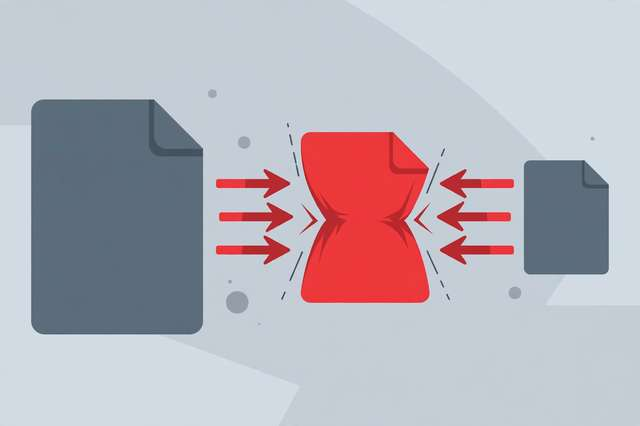
Nobody wants a 40 MB PDF in their inbox, and nobody wants a blurry printout either. The trick is compressing for the destination: a PDF headed to WhatsApp needs very different settings than one headed to a printer. This cheat sheet gives you ten ready-made presets — each with a target size per page, exact image settings, and the use case it serves. It’s built for freelancers sending client work, students sharing notes, office workers emailing reports, and anyone who’s ever watched an upload bar crawl. Pick your preset, apply the settings, and stop guessing.
What’s inside this cheat sheet
Ten presets cover every common destination: quick drafts, WhatsApp and messaging apps, fast web viewing, email attachments, mobile reading, slide decks, everyday office sharing, client delivery, high-quality print, and long-term archiving. Each preset lists a target size per page (assuming a typical mixed text-and-images page), the image DPI and JPEG quality to use, the right color mode, and a one-line note. The cheat sheet also includes a seven-step method for hitting these targets — downsampling, font subsetting, metadata stripping — plus sanity checks to run after compressing so you never send a broken file.
The compression presets
| Use case | Target size per page | Image settings | Color mode |
|---|---|---|---|
| Draft / quick share | 30-60 KB | 72-96 DPI, JPEG 50-60 | Grayscale |
| WhatsApp / messaging | 80-150 KB | 96 DPI, JPEG 60-65 | RGB |
| Web viewing (fast load) | 50-100 KB | 96-110 DPI, JPEG 60-70 | RGB |
| Email attachment | 100-200 KB | 110-150 DPI, JPEG 70 | RGB |
| Mobile reading | 100-150 KB | 110 DPI, JPEG 70 | RGB |
| Presentation slides | 100-200 KB | 110 DPI, JPEG 70 | RGB |
| General office sharing | 200-400 KB | 150 DPI, JPEG 75 | RGB |
| Client delivery | 300-600 KB | 200 DPI, JPEG 80 | RGB |
| High-quality print | 800 KB - 1.5 MB | 300 DPI, JPEG 85-90 | RGB |
| Archival (long-term) | 200-500 KB | 150-200 DPI, JPEG 75-80 | RGB or grayscale |
Copy any row’s settings into your PDF tool of choice — the free download below has the full table plus the step-by-step compression method and a quick decision guide for picking the right preset.
How to use this cheat sheet
- Identify the destination: email, chat app, website, client, or printer — that picks your preset.
- In your PDF compressor, set image downsampling to the preset’s DPI and JPEG quality first; that’s where 90% of the savings come from.
- Subset embedded fonts and strip metadata for an extra size cut with zero visible change.
- Compress a copy, then run the sanity checks: zoom to 100% and read a page, confirm every page rendered, and open it on a phone.
- Keep two versions of anything important: a small sharing copy and a full-quality master.
The most common mistake is using one aggressive setting for everything — a preset meant for WhatsApp will look terrible printed, and a print preset will choke an email server. Match the preset to the destination and both problems disappear.
Frequently asked questions
What is a good file size for a PDF sent by email? Aim for 100-200 KB per page, which keeps a 20-page document under about 4 MB — safely inside most email attachment limits. Downsample images to 110-150 DPI at JPEG quality 70 to hit it.
Does compressing a PDF reduce its quality? It reduces image resolution, not text quality. Vector text stays perfectly sharp at any compression level. Problems only appear if you rasterize text pages into images or push JPEG quality below 60.
What DPI should I use for a print-ready PDF? 300 DPI at JPEG quality 85-90. Anything lower looks soft in print; anything higher just inflates the file with no visible gain.
Keep reading
How to Remove Annotations and Comments from a PDF Online Free
Remove highlights, sticky notes, and comments from a PDF online free — clean up marked-up documents before sharing, without installing software.
Read more →
How to Validate a PDF File Online Free (Check for Corruption Before You Send It)
Validate a PDF online free: check for corruption, broken pages, and unreadable files before you send an important document — in seconds, in your browser.
Read more →
PDF Merge Order Checklist
A free PDF merge order checklist: 28 steps to combine PDFs in the right order, catch missing pages, and send a clean final file.
Read more →