PDF Compression Checklist: 30 Steps to Smaller Files
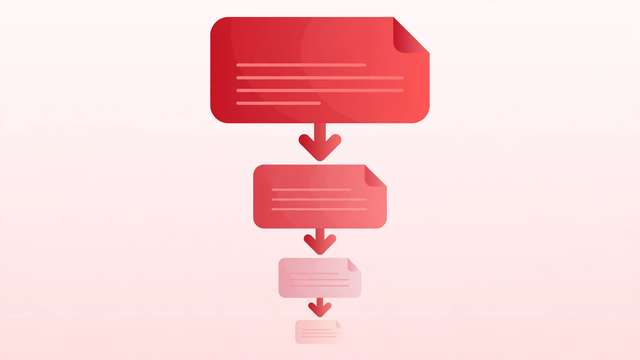
Oversized PDFs are everywhere: email attachments that bounce back, uploads that hit portal limits, and downloads that make readers wait. The fix is compression, but blindly running a file through a “make smaller” button often trades quality for bytes — blurry images, broken fonts, or text that no longer selects. Done properly, compression is a method: you shrink the parts of the file that waste space and leave everything else untouched.
This free checklist gives you 30 steps in the right order, from preparing the file to verifying the result. It is written for office workers, freelancers, students, and anyone who shares PDFs and is tired of size limits. Each step is one clear action, and every item has a copy button so you can paste the workflow into your own notes.
What’s inside this checklist
The checklist runs in five phases. Phase 1 prepares the file: back it up, measure what is actually eating the space, and remove the obvious waste. Phase 2 tackles images, which cause most PDF bloat — resizing, recompressing, and converting them correctly. Phase 3 handles fonts, the second biggest offender, by subsetting and cleaning them up. Phase 4 strips structural waste like unused layers, form data, and embedded thumbnails. Phase 5 verifies the result: visual quality, text selection, and the final size.
The full 30-step PDF compression checklist
Work through the phases in order — the early steps make the later ones far more effective.
Phase 1 — Prepare and measure
- Save a backup copy of the original PDF before compressing anything.
- Check which objects eat the most space: images, fonts, or embedded files.
- Delete blank pages, duplicate pages, and pages you do not need.
- Remove embedded file attachments that are not part of the document.
- Decide your target: screen viewing (smallest), general sharing (balanced), or print (largest).
- Note the original file size so you can measure the improvement honestly.
Phase 2 — Optimize images
- Downsample images above 200 DPI for screen use — 300 DPI is only needed for print.
- Resize images that are larger than they display; a full-page photo rarely needs 4000 pixels.
- Recompress color photos as JPEG at 70-80% quality for a strong size-to-quality balance.
- Convert screenshots and flat graphics to a lossless format instead of JPEG to avoid artifacts.
- Compress black-and-white scanned pages with JBIG2 or CCITT Group 4, not JPEG.
- Remove images hidden behind other objects or outside the visible page area.
- Flatten transparency where it bloats the file, keeping a backup of the original.
- Avoid compressing the same image twice — start from the highest-quality source you have.
Phase 3 — Subset and clean fonts
- Subset embedded fonts so only the characters actually used are stored.
- Replace multiple similar fonts with one consistent family across the document.
- Remove fully embedded font files that subsetting left behind as duplicates.
- Convert text-heavy decorative headings to outlines only if file size actually drops.
- Verify text still selects and searches correctly after font optimization.
Phase 4 — Clean the file structure
- Flatten form fields into static content if the form no longer needs to be fillable.
- Remove unused layers, optional content groups, and hidden page elements.
- Delete document metadata, thumbnails, and private application data you do not need.
- Discard unused bookmarks, destinations, and named actions.
- Run an object-level cleanup or "optimize" pass to remove duplicate and orphaned objects.
- Save with object streams and compressed cross-reference tables enabled.
Phase 5 — Verify the result
- Compare the new size against the original and confirm it meets your target.
- Flip through every page at 100% zoom and check images for blur or artifacts.
- Test text selection, search, and copy-paste across several pages.
- Open the compressed file in a second PDF viewer to catch rendering problems.
- Confirm links, bookmarks, and the table of contents still work.
How to use this checklist
- Back up the original PDF and measure what is eating the space — images, fonts, or attachments — so you compress the right things first.
- Work through phases 1 to 4 in order: remove waste, optimize images, subset fonts, then clean the structure.
- Choose your quality target up front (screen, sharing, or print) and do not compress below it for a smaller number.
- Run the phase 5 verification on the compressed file: zoom to 100%, test text selection, and open it in a second viewer.
- If quality fails anywhere, go back to the relevant phase and redo it from the backup — never compress the compressed file again.
The golden rule of PDF compression is simple: shrink the waste, not the content. Most of the bytes in a bloated PDF are images stored at print resolution, fonts embedded in full, and objects nobody needs. Remove those first and you get dramatic savings with zero visible change — which is the entire point.
Frequently asked questions
How much can I realistically shrink a PDF? A typical office PDF with images usually shrinks 50 to 80 percent with no visible quality loss. Scanned documents and print-ready files can shrink 90 percent or more because they start with massive uncompressed images. Text-only PDFs barely shrink at all, since text compresses efficiently already — in that case, check for fully embedded fonts and stray images.
Will compressing a PDF make it look worse? Not if you follow the right order. Resize oversized images first, then recompress them once at a sensible quality, and leave text and vector graphics alone. Almost all visible quality damage comes from recompressing an already-compressed image at low quality. The phase 5 verification step exists to catch exactly that before you share the file.
Is an online compressor safe for sensitive documents? Uploading a file means a copy exists on someone else’s server, even if they promise to delete it. For contracts, medical records, financial statements, or anything with personal data, use a desktop tool or a fully client-side web tool that processes the file inside your browser. Save online compressors for public or non-sensitive files.
Download the PDF Compression Checklist: 30 Steps to Smaller Files
Keep reading
How to Remove Annotations and Comments from a PDF Online Free
Remove highlights, sticky notes, and comments from a PDF online free — clean up marked-up documents before sharing, without installing software.
Read more →
How to Validate a PDF File Online Free (Check for Corruption Before You Send It)
Validate a PDF online free: check for corruption, broken pages, and unreadable files before you send an important document — in seconds, in your browser.
Read more →
Livestream Equipment Checklist for Beginners
A free livestream equipment checklist for beginners: 30 steps covering software, connection, camera, lighting, audio, and going live with confidence.
Read more →