How to Split PDF Files Online for Free (3 Easy Methods)
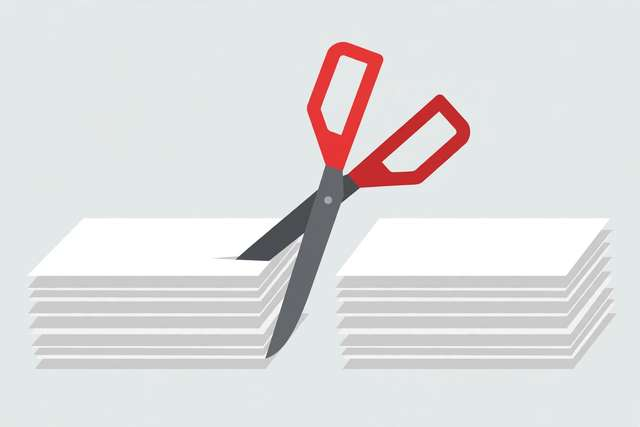
A 400-page course manual when your professor only asked for chapter 3. One long PDF containing twelve invoices your client needs separately. A scanned family document that mixes birth certificates with old utility bills. Splitting PDFs is one of those small tasks that pops up constantly — and the good news is you can split pdf online in minutes, for free, without installing anything.
Here are the three best methods, starting with the fastest one.
Why you’d split a PDF
Splitting isn’t just about making files smaller. The most common reasons:
- Send only what matters: share chapter 4 of a textbook instead of the whole 800-page file, or send just the signed page of a contract.
- Separate invoices and receipts: an accounting export that lumps every monthly invoice into one file is far easier to file (and forward) as individual documents.
- Shrink uploads: portals for job applications, visas, and university admissions often cap attachments at 2–5 MB. Splitting a large PDF into parts is a quick way to get under the limit.
- Extract a form: pull the one application form buried inside a 60-page government document pack.
- Fix mixed scans: phone scanner apps sometimes save several documents as one PDF — splitting puts each document back where it belongs.
Method 1: Split in your browser (fastest)
DollarWise’s free split-PDF tool cuts PDFs 100% in your browser — your document is never uploaded to a server, which matters when you’re splitting contracts, IDs, or financial records:
- Open the split PDF tool and add your PDF file.
- Choose a split mode: by page ranges (e.g. pages 1–5, 6–12), extract specific pages, or split into individual pages.
- Type the ranges or page numbers you want in each output file.
- Click Split PDF and download each part separately.
No sign-up, no watermarks, no page limits. Since the splitting runs locally with the pdf-lib library in your browser, even a 1,000-page document splits in seconds on an ordinary laptop or phone.
Method 2: Built-in options on Windows and Mac
No extra tools needed — both major operating systems can extract pages through printing:
- Windows: open the PDF in Microsoft Edge or your browser, press Ctrl+P (Print), and under Pages select the range you want (e.g. 3–7). Set the printer to Microsoft Print to PDF, click Print, and save. Repeat for each part. It’s tedious for many splits but works for a quick one-off.
- Mac: open the PDF in Preview, choose File → Print, enter the page range, then click the PDF button in the print dialog and select Save as PDF. Preview also lets you drag pages from the thumbnail sidebar into a new window and save that as a separate file.
These methods are fine for one or two extracts. For anything more involved, the browser tool above is much faster.
Method 3: Adobe Acrobat
Adobe Acrobat (the paid desktop app) has the most polished splitting workflow: Organize Pages → Split, with options to split by number of pages, file size, or top-level bookmarks. If you already have a subscription for work, it’s excellent.
The free Adobe Acrobat online splitter is more limited — it handles one file at a time, requires an Adobe account, and uploads your document to Adobe’s servers. Fine for a public brochure; not ideal for anything sensitive.
Mistakes to avoid when splitting
- Scanned vs. text PDFs: splitting a text-based PDF (real selectable text) preserves everything perfectly. Splitting a scanned PDF also works — but remember the scans are just images of text. If you need to search or copy text afterward, you’ll need OCR on the output, not the original.
- Losing bookmarks: Acrobat’s bookmark-based splitting keeps your document’s table of contents intact. Simple range-based splitting usually drops bookmarks and internal links. If the document’s navigation matters, keep the original file too.
- Forgetting which range is which: name your output files descriptively as you download them (e.g.
invoices-january.pdfinstead ofpart-1.pdf). It takes five seconds and saves a headache later. - Splitting before removing passwords: a locked PDF can’t be split by any tool. Unlock it first, then split the unlocked copy.
Frequently asked questions
How can I split a PDF for free? Open a free PDF splitter, load your file, choose the pages or ranges you want, and download each part as a new PDF. DollarWise’s free split-PDF tool does this entirely in your browser, so nothing is uploaded anywhere.
Does splitting a PDF reduce its quality? No. Splitting extracts existing pages without re-rendering them, so text, images, and layout stay exactly as they were. Quality only drops if you re-compress or convert the output afterward.
Can I split an encrypted or password-protected PDF? Not until you unlock it. PDF tools can’t read a file that’s locked, so enter the password in your PDF reader first, save an unlocked copy, then split that copy.
Is there a page limit for free PDF splitting? Browser-based splitters like DollarWise’s have no page limit — the work happens on your device. Many server-based free tools cap you at 50 or 100 pages or throttle you to a few files per hour.
Keep reading
Free Text to Speech Online: No Sign-Up, No Limits
Convert text to speech online free with no sign-up. Learn how browser TTS works, the best uses, voice tips, and honest limits — plus a free tool.
Read more →
How to Convert JPG to PDF Online for Free (Phone, PC & Mac)
Convert JPG to PDF free in seconds. Learn the fastest browser method plus built-in phone, Windows, and Mac options — with tips for crisp, small PDFs.
Read more →
How to Make a Meme Online for Free (No Watermark, No Sign-Up)
Make a meme online free in under a minute. Learn the anatomy of a great meme, caption tips, ideal sizes, and a private meme maker with no watermark.
Read more →