Free Text to Speech Online: No Sign-Up, No Limits
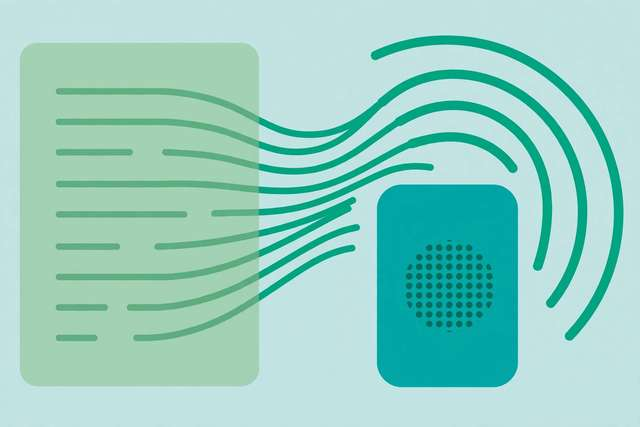
Paste text, press play, listen. Free text to speech online with no sign-up sounds almost too simple — and for everyday uses, it genuinely is that simple. But not all TTS is the same, and knowing what free browser-based speech can and can’t do saves you from signing up for a paid service you never needed.
Here’s the honest guide.
What free TTS can (and can’t) do
It can:
- Read any text aloud instantly — articles, documents, your own writing
- Help you proofread by catching errors your eyes skip
- Make long articles listenable while you cook, commute, or exercise
- Support accessibility for low-vision readers and people with reading difficulties
- Help with language learning by modeling pronunciation
It can’t (honestly):
- Sound exactly like a human narrator — browser voices are good but clearly synthetic; the ultra-realistic AI voices you hear in ads run on paid cloud services
- Guarantee the same voice everywhere — available voices vary by device, browser, and operating system
- Handle every name and technical term perfectly — unusual words sometimes get mispronounced
- Export an MP3 directly — the browser API plays audio but doesn’t provide a download (more on the workaround below)
For daily personal use, the free version is plenty. Paid TTS only makes sense when you need studio-quality narration for videos or audiobooks.
Convert text to speech in 3 steps
DollarWise’s free text-to-speech tool reads text aloud 100% in your browser using your device’s built-in voices — no sign-up, no limits, nothing uploaded:
- Open the text to speech tool and paste or type your text into the box.
- Pick a voice from the dropdown (your device’s installed voices appear automatically), and adjust speed and pitch to taste.
- Press Speak — listen, pause, or stop anytime. Use the chunk controls for long texts.
Everything happens locally on your device. Your text is never sent to a server, which is worth knowing if you’re having it read contracts, medical notes, or anything private. Most “free” TTS sites upload your text to their cloud for processing — this one doesn’t.
The best uses for free TTS
- Proofreading your writing: hearing your essay, email, or report read aloud exposes awkward sentences, repeated words, and missing punctuation that silent reading misses. Writers call this the single best free editing trick.
- Listening to long articles: paste a 20-minute read into the tool and listen while doing chores. It turns dead time into reading time.
- Accessibility: for anyone with low vision, dyslexia, or reading fatigue, TTS turns any webpage text into spoken audio on demand.
- Language learning: listen to sentences in your target language to internalize pronunciation and rhythm. Slow the speed down to catch every syllable, then speed up as you improve.
- Reviewing documents: contracts, terms of service, rental agreements — listening forces you to go through them at a steady pace instead of skimming past the important clause.
- Presentations and speeches: hear how your talk flows out loud before you deliver it. Timing your speech this way is far more accurate than reading silently.
Tips for the best listening experience
- Chunk long text: paste a few paragraphs at a time rather than a whole chapter. Shorter chunks mean better pacing, easier navigation, and fewer mispronunciations compounding.
- Pick the right voice: try several voices before settling — some handle your language or accent better than others. A natural-sounding voice at 1x speed beats a robotic one at 1.5x.
- Adjust speed gradually: start at normal speed, then nudge up to 1.1x or 1.2x for familiar material. Above 1.5x, comprehension drops fast for dense text.
- Clean the text first: remove URLs, excessive punctuation (!!!), and ALL-CAPS headings — TTS reads them literally (“h-t-t-p-s colon slash slash…”). A 30-second cleanup dramatically improves the listen.
- Use punctuation as direction: commas and periods control pauses. Adding a period where you want a breath makes synthetic speech sound noticeably more natural.
- Headphones help: synthetic voices are easier to follow with headphones than through laptop speakers, especially at higher speeds.
The download workaround (honest answer)
The most-asked question about free TTS: “can I save the audio?” With browser-based tools, the honest answer is not directly — the Web Speech API that powers them plays sound but doesn’t hand you a file.
The practical workaround: record your device’s audio while it plays.
- Windows: open the tool, start speaking, and record with the built-in Sound Recorder or free Audacity set to your system audio (loopback).
- Mac: use QuickTime Player → File → New Audio Recording with a virtual audio device, or simply record with your phone placed near the speaker.
- Phone: use your device’s screen recorder with internal audio enabled while the tool speaks.
The quality is perfectly fine for personal listening. If you need pristine downloadable narration for a commercial project, that’s the one case where a paid TTS service earns its price.
Frequently asked questions
Is online text to speech really free? Browser-based TTS is genuinely free with no sign-up — it uses the voices already built into your device. Server-based services charge because they run expensive AI voice models in the cloud.
Can I download the audio from a free TTS tool? Not directly from browser-based tools: the Web Speech API plays audio but doesn’t expose a downloadable file. The workaround is to record your device’s audio output while it plays.
Does text to speech work offline? It depends on your device. Many phones and computers have built-in voices that work offline, but some browsers fetch premium voices from the cloud — those need an internet connection.
Which languages does free text to speech support? Most devices ship with voices for dozens of languages — English, Spanish, French, German, Hindi, Urdu, Arabic, Chinese, and many more. Available languages depend on your operating system’s installed voices.
Keep reading

How to Split PDF Files Online for Free (3 Easy Methods)
Need to split PDF online? Learn how to extract pages, split chapters, and separate documents for free — including a private tool that never uploads your files.
Read more →
How to Convert JPG to PDF Online for Free (Phone, PC & Mac)
Convert JPG to PDF free in seconds. Learn the fastest browser method plus built-in phone, Windows, and Mac options — with tips for crisp, small PDFs.
Read more →
How to Make a Meme Online for Free (No Watermark, No Sign-Up)
Make a meme online free in under a minute. Learn the anatomy of a great meme, caption tips, ideal sizes, and a private meme maker with no watermark.
Read more →