How to Open HEIC Files on Windows and Android (4 Free Ways)
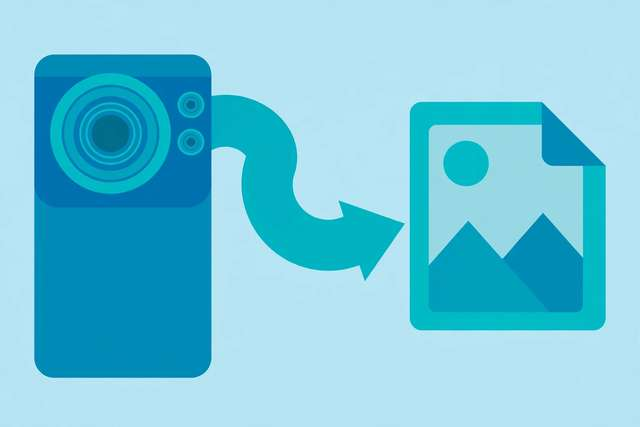
You moved photos off your iPhone and now half of them won’t open. Windows Photos shows an error, your Android gallery shows a blank thumbnail, and your email client refuses the attachment. Welcome to HEIC — Apple’s photo format that saves space on your phone but creates headaches everywhere else.
Here’s what HEIC is, why it exists, and four free ways to open HEIC files or convert them to JPG.
What is HEIC, and why does the iPhone use it?
HEIC (High Efficiency Image Container) is a modern image format based on the HEVC video codec. Apple made it the default camera format on iPhones years ago for one simple reason: it stores the same photo quality at roughly half the file size of JPG. On a 128 GB phone, that means thousands more photos before storage runs out.
HEIC can also hold things JPG can’t — multiple images in one file (like Live Photos), transparency, and 16-bit color. It’s technically superior. The problem is purely one of compatibility.
Why Windows and Android choke on HEIC
JPG has been the universal photo standard since the 1990s — everything reads it. HEIC arrived much later, and support is patchy:
- Windows: the built-in Photos app can’t open HEIC unless you install the HEIF Image Extensions from the Microsoft Store (a small paid download in some regions).
- Android: some newer phones handle HEIC in their gallery, but many apps — WhatsApp, older editors, upload forms — still reject it.
- The web: most upload forms (job portals, marketplaces, government sites) accept JPG and PNG only. Attach a HEIC and it bounces.
So when someone AirDrops you iPhone photos or you transfer them to a PC, converting HEIC to JPG is the fix that works everywhere.
Way 1: Convert HEIC to JPG in your browser (easiest)
DollarWise’s free HEIC-to-JPG converter converts your photos 100% in your browser — the images never leave your device, which matters for personal photos:
- Open the HEIC to JPG tool and add your .heic files (batch conversion supported).
- Choose your quality setting — high quality for photos you’ll print or keep, balanced for everyday sharing.
- Click Convert and download the JPGs, ready to open anywhere.
No sign-up, no watermarks, no file limits. Because the conversion runs locally using the heic2any library in your browser, your photos stay private — unlike most online converters, which upload your pictures to their servers first.
Way 2: Stop future HEIC at the source (iPhone setting)
If the HEIC files are still on your iPhone, you can make it save future photos as JPG:
- On the iPhone, open Settings → Camera → Formats.
- Switch from High Efficiency to Most Compatible.
From now on, new photos save as JPG. (This doesn’t convert existing HEIC photos — use Way 1 for those.) The trade-off: photos take roughly twice the storage space. If you’re short on space, keep High Efficiency and convert when sharing instead.
Way 3: The Windows HEIF extension
If you mainly need to view HEIC on a Windows PC rather than convert them:
- Open the Microsoft Store and search for HEIF Image Extensions.
- Install it (free in most regions; a small fee applies in some).
- The Photos app can now open HEIC files directly.
Note the caveat: viewing isn’t converting. The file is still HEIC, so it still won’t upload to most websites or open in older software. Convert to JPG for anything you need to share.
Way 4: Google Photos
Upload your HEIC files to Google Photos (via photos.google.com or the app). Google converts them to a viewable format automatically, and when you download them back, you get JPGs. It works on both Windows and Android.
The downsides: it requires a Google account, it uploads your personal photos to Google’s servers, and it eats into your storage quota. For private photos, the browser-based converter in Way 1 keeps everything on your device.
Everyday tips for dealing with HEIC
- Sharing with non-iPhone users: always convert to JPG first — don’t assume the recipient can open HEIC.
- Emailing photos: most email clients handle JPG attachments flawlessly; HEIC attachments frequently arrive as unopenable files.
- Printing: print shops and online printing services universally accept JPG. Send HEIC and you’ll likely get a “file not supported” reply.
- Backing up: if storage space matters, keep the HEIC originals (they’re smaller) and convert only the copies you share.
- Check the extension: a file ending in
.heicor.heifis HEIC. If a photo “looks like JPG but won’t open,” the extension is the giveaway.
Frequently asked questions
Does converting HEIC to JPG lose quality? Barely — a high-quality conversion preserves virtually all visible detail. JPG is simply less efficient at storing it, so the converted file is usually larger than the original HEIC.
What’s the difference between HEIC and JPG file sizes? HEIC compresses roughly twice as efficiently as JPG: the same photo as HEIC is about half the size of a JPG at similar quality. That’s exactly why iPhones switched to it.
Can Android phones open HEIC files? Some newer Android phones open HEIC natively in their gallery apps, but support is inconsistent. Converting to JPG is the reliable option for sharing and uploading.
Is it safe and private to convert HEIC online? Only if the conversion happens in your browser. Many online converters upload your photos to their servers — for personal photos, use a browser-based tool that processes locally and never uploads anything.
Keep reading

How to Convert JPG to PDF Online for Free (Phone, PC & Mac)
Convert JPG to PDF free in seconds. Learn the fastest browser method plus built-in phone, Windows, and Mac options — with tips for crisp, small PDFs.
Read more →
How to Make a Meme Online for Free (No Watermark, No Sign-Up)
Make a meme online free in under a minute. Learn the anatomy of a great meme, caption tips, ideal sizes, and a private meme maker with no watermark.
Read more →
How to Split PDF Files Online for Free (3 Easy Methods)
Need to split PDF online? Learn how to extract pages, split chapters, and separate documents for free — including a private tool that never uploads your files.
Read more →