How to Redact a PDF Online Free: Black Out Sensitive Text
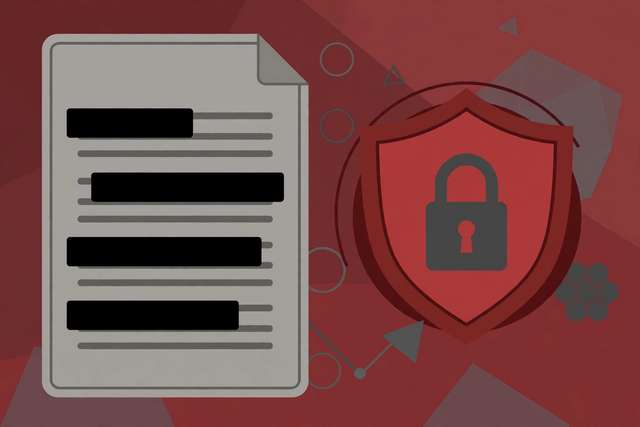
Redaction is one of those tasks where doing it almost right is the same as not doing it at all. Every year, “redacted” court filings, contracts, and reports leak their secrets because someone drew a black rectangle over the text instead of actually removing it. The rectangle looks final. It is not — the text underneath is fully selectable, copyable, and searchable.
Here is how to redact a PDF properly and free, and how to verify the job is actually done.
Redaction vs. black boxes: the critical difference
A black box is a shape layered on top of the text. The PDF still contains every character underneath — select the area, copy, paste into a text editor, and the “hidden” text appears. News organizations have been embarrassed by exactly this, repeatedly.
True redaction deletes the text from the PDF’s content layer first, then draws the black bar over the empty space. There is nothing underneath to recover because the characters no longer exist in the file.
If you remember one thing from this guide: never “redact” by drawing shapes in a PDF editor, Word, or an image tool. Use a tool whose entire job is redaction.
How to redact a PDF properly (step by step)
Our free PDF redactor performs true redaction in your browser — the file is processed locally and never uploaded, which matters when the document is sensitive by definition.
- Upload the PDF in the tool. Work on a copy, not the original — keep the unredacted version somewhere safe and private.
- Select the text to redact. Click or drag over names, ID numbers, account numbers, addresses — anything sensitive. Be thorough: redact every occurrence, not just the first one.
- Check headers, footers, and metadata. Sensitive data hides in page headers, document properties (author name!), and filenames. Redact the visible text, then check the file’s metadata separately.
- Apply the redaction and download. The tool removes the underlying text and burns in the black bars.
- Verify (non-negotiable). Open the downloaded file, try to select the blacked-out area, and try Ctrl+F for the redacted terms. If anything selects or matches, the redaction failed — redo it.
The hidden leak channels most people miss
Visible text is only one place sensitive data lives. A careful redaction pass also checks:
- Metadata: author, title, and creation software in document properties. A contract redacted of names but authored by “John Smith, Legal Dept” is not redacted.
- OCR text layers: scanned PDFs carry an invisible text layer from optical character recognition. Redact the OCR layer too, or the “blacked out” scan still contains searchable text.
- Comments and annotations: review comments often quote the exact text you just redacted. Strip all annotations before publishing.
- Previous versions: some PDFs embed revision history. Flatten the document during redaction.
- File names:
Smith_vs_Jones_redacted.pdfis a classic self-own. Rename neutrally.
When redaction is legally required
This is not just best practice — in many contexts it is the law. Legal discovery, FOIA releases, medical records (HIPAA), financial disclosures, and HR documents all have formal redaction requirements, and botched redaction in these contexts creates real liability. If you are redacting for legal or compliance purposes, have a second person run the verification step independently. Two pairs of eyes catch what one misses.
For everyday use — hiding your address on a shared bill, masking account numbers on a bank statement before sending it to your landlord — the same verify-after-redacting habit keeps you safe.
Redaction checklist (save this)
- Work on a copy; archive the original securely.
- Redact ALL occurrences of each sensitive item.
- Redact headers, footers, watermarks, and page numbers if they leak identity.
- Strip metadata (author, title, software).
- Remove comments, annotations, and revision history.
- Rename the file neutrally.
- Verify: no text selection under bars, no search hits, metadata clean.
Redacting scanned PDFs (images, not text)
Scanned PDFs are images, not text — there is no text layer to delete, which changes the technique. The redaction tool must burn the black bars permanently into the image pixels and then strip any OCR text layer sitting invisibly underneath. After redacting a scan, verify twice: visually (zoom in — no ghost text showing through) and with search (Ctrl+F for the redacted terms should find nothing). If your scan has an OCR layer you want to keep for the non-redacted text, make sure the tool removes OCR only under the redaction zones.
Frequently asked questions
What does it mean to redact a PDF?
Redaction permanently removes sensitive text or images from a PDF and replaces them with black bars. Done properly, the underlying data is destroyed — unlike drawing a black box over text, which can be undone.
Is drawing a black box over text the same as redacting?
No — and this is the most common mistake. A black rectangle drawn over text just covers it; anyone can select, copy, or delete the shape to reveal the original text. True redaction deletes the underlying content.
Can redacted text ever be recovered?
Not from a properly redacted PDF — the text layer is removed before the black bar is drawn. But metadata, OCR layers, and unflattened annotations can leak the same information, so verify with a text-selection test.
How do I redact a PDF for free without Adobe Acrobat?
Use a free browser-based redaction tool that removes the selected text from the file itself. Our free PDF redactor works entirely in your browser, so sensitive documents are never uploaded anywhere.
Keep reading
How to Compress a PDF to 1MB Online Free
Compress a PDF to 1MB or less online free — shrink oversized PDFs for email, uploads, and forms without readable quality loss.
Read more →
How to Send a PDF on WhatsApp Without Losing Quality
Send a PDF on WhatsApp without losing quality — as a document, not a photo. Avoid compression, size limits, and blurry pages.
Read more →
How to Compress a PDF to 1MB Online Free
Compress a PDF to 1MB online free — shrink oversized PDFs for email, uploads, and forms. Keep quality high with smart compression settings.
Read more →