How to Send a PDF on WhatsApp Without Losing Quality
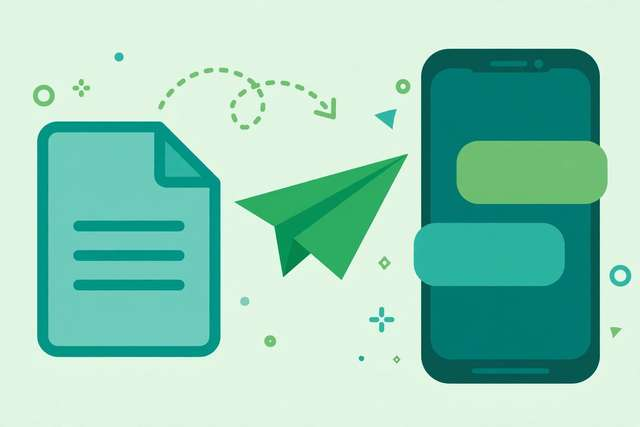
The number-one way people ruin a PDF on WhatsApp is also the most common: they screenshot the pages and send the screenshots. WhatsApp compresses images aggressively, so the recipient gets blurry, barely-readable pages — when the app would have delivered the original PDF perfectly untouched. The fix takes ten seconds once you know where the button is.
The golden rule: send as a document, never as photos
WhatsApp treats documents and media completely differently:
- Documents (PDF, DOCX, etc.) are delivered byte-for-byte identical. No compression, no quality loss, full text selectable and searchable on the recipient’s phone.
- Photos and videos are recompressed to save bandwidth. A crisp PDF page becomes a soft, artifact-covered image.
So the entire technique is: attach the PDF file itself through the document picker, not screenshots or photos of it.
How to send a PDF on WhatsApp (step by step)
On Android:
- Open the chat and tap the paperclip icon.
- Tap Document (not Gallery, not Camera).
- Browse and select your PDF — recent files appear first, or use Browse other docs.
- Optionally add a caption, then hit send.
On iPhone:
- Open the chat and tap the + icon.
- Tap Document.
- Choose the PDF from Files (iCloud Drive, On My iPhone, or wherever it is saved).
- Send.
The recipient gets a clean file card with the PDF’s name and size. Tapping it opens the full-quality document — every page sharp, every word selectable.
If the PDF is too big to send
WhatsApp’s document limit is 2GB, which covers nearly every real-world PDF. If you somehow exceed it (a giant scanned archive, a video-embedded portfolio):
- Compress it. Our free PDF compressor shrinks oversized PDFs in your browser — handy when you need it under a specific size for a form or email after sharing.
- Split it. Send chapters or sections as separate PDFs. For a 500-page manual, nobody wants one giant file on their phone anyway.
- Use a cloud link. Upload to Google Drive or Dropbox and share the link in chat — best for files the recipient will reference repeatedly.
Make the PDF phone-friendly before sending
A PDF that looks great on a monitor can be miserable on a phone. Before sending to someone who will read it on mobile:
- Check text size. If body text is under 10pt in the original layout, phone readers will be pinch-zooming constantly. A reflowed or mobile-optimized export helps.
- Keep the file lean. Recipients on mobile data will thank you for a 2MB file over a 40MB one.
- Name the file clearly.
Q3-Report-Final.pdfbeatsdocument(1).pdf— the filename is all the context the chat shows. - Password-protect sensitive PDFs. WhatsApp chats can be viewed on linked devices; a password on a bank statement or contract is cheap insurance. Share the password through a different channel.
Common problems and fixes
- “Document option is missing” — update WhatsApp. The document picker has been standard for years; a missing option means an ancient app version.
- PDF arrives but will not open — the recipient’s phone lacks a PDF reader. Most phones open PDFs natively now; if not, any free reader app fixes it.
- File appears as “unsupported” — the extension may have been stripped during transfer. Rename it to end in
.pdfand try again. - Sending from WhatsApp Web/Desktop — drag and drop the PDF directly into the chat window. Desktop sends it as a document automatically.
Sending multiple PDFs at once
WhatsApp lets you attach several documents in one go — tap Document, select the first PDF, then keep tapping to add more before hitting send. Each file arrives as its own downloadable card, all at full quality. For a batch of related files (say, the chapters of a report), send them in reading order and add a short caption like “Part 1 of 4” so the recipient knows the sequence. If the total batch is huge, consider compressing each file first — your recipient’s phone storage will thank you.
Keep the original after sending
WhatsApp stores the sent file in the chat, but do not treat the chat as your archive. Chat media gets purged by storage-cleanup settings, and re-downloading a months-old attachment sometimes fails. Keep the original PDF in your files or cloud drive — the two-second habit of saving originals separately has rescued more than one deadline.
Frequently asked questions
Does WhatsApp compress PDFs?
No — WhatsApp sends PDFs as documents without recompressing them, unlike photos and videos which get heavily compressed. The catch is the file size limit (currently 2GB) and that you must send it as a document, not as images.
How do I send a PDF on WhatsApp?
Open the chat, tap the attachment icon (paperclip on Android, + on iPhone), choose Document, and select your PDF. It arrives as a downloadable file at full original quality.
Why does my PDF look blurry after sending on WhatsApp?
Because it was sent as photos, not as a document. Screenshots or camera photos of PDF pages get WhatsApp’s image compression. Send the actual PDF file via the Document option instead.
What is the maximum PDF size for WhatsApp?
WhatsApp allows document attachments up to 2GB. If your PDF is larger, compress it first or split it into parts.
Keep reading
How to Compress a PDF to 1MB Online Free
Compress a PDF to 1MB or less online free — shrink oversized PDFs for email, uploads, and forms without readable quality loss.
Read more →
How to Redact a PDF Online Free: Black Out Sensitive Text
Redact a PDF online free — permanently black out names, SSNs, and sensitive text so it can never be recovered. Step-by-step guide.
Read more →
How to Compress a PDF to 1MB Online Free
Compress a PDF to 1MB online free — shrink oversized PDFs for email, uploads, and forms. Keep quality high with smart compression settings.
Read more →