How to Compress a PDF to 1MB Online Free
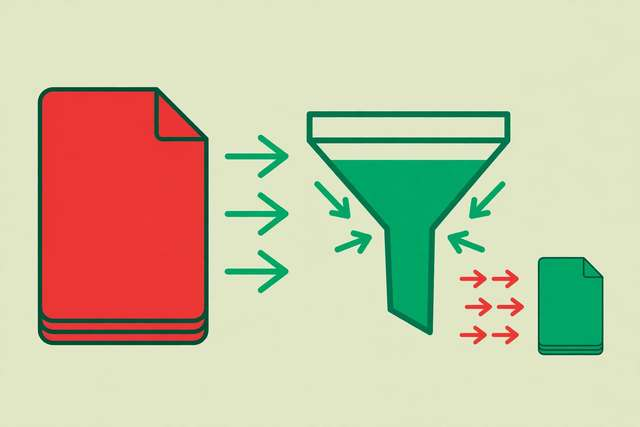
The 1MB limit is everywhere: job applications, visa forms, university portals, email attachments. And PDFs have a habit of ballooning past it — a scanned ten-page document can easily hit 15MB. The good news: getting under 1MB is usually a two-minute job, and it rarely costs you any visible quality. Here is how.
Why PDFs get so big (and why that helps you)
A PDF’s size comes almost entirely from embedded images. Text itself is tiny — a hundred pages of pure text might be 300KB. But every scanned page, photo, logo, and chart is stored as an image, often at print resolution (300 DPI or higher) that screens never need.
That is your leverage: shrinking images from 300 DPI to 150 DPI roughly quarters their size, and on a screen the difference is barely noticeable. A target-size compressor does exactly this math for you automatically.
Method 1: Use a target-size compressor (fastest)
Our free PDF compressor lets you set 1MB as the target size. Upload the PDF, pick your target, and the tool recompresses images and strips bloat until the file fits — all in your browser, so the file never leaves your device.
This is the method to use when a portal says “maximum 1MB” and means it. One upload, one click, one file that fits.
When it works perfectly: scanned documents, image-heavy reports, slide decks exported to PDF. Expect 5–20x size reductions.
When it struggles: a PDF that is already 900KB cannot lose much more without visible damage, and neither can a one-page PDF that is mostly a single photo. If the tool warns about quality loss, believe it.
Method 2: Reduce image resolution before creating the PDF
If you are generating the PDF yourself (from Word, Google Docs, or a scanner app), fix the size at the source:
- Word / Google Docs: compress pictures before exporting (Picture Format → Compress Pictures in Word; in Docs, resize oversized images). Export with the “minimum size” or “screen” quality option.
- Scanner apps: scan at 150 DPI in grayscale instead of 300 DPI in color. For text documents this alone can cut size by 80% with zero readability loss.
- Slide decks: PowerPoint and Google Slides let you compress all images at once before exporting to PDF.
Method 3: The print-to-PDF trick
A quick manual fallback when you have no tool handy:
- Open the PDF in your browser or reader.
- Choose Print and select Save as PDF / Microsoft Print to PDF.
- In the print settings, pick a lower quality or “draft” option if offered.
Re-printing flattens the PDF and often drops embedded bloat (duplicate fonts, layered images, editing history). Results vary — sometimes 30% smaller, sometimes barely — but it takes thirty seconds and needs no software.
What to check after compressing
Before submitting that 1MB file anywhere, do a 20-second quality check:
- Zoom to 150% on a text page. Text should stay razor sharp — compression should never touch text.
- Check photos and charts. Fine lines in graphs and small text inside images are the first casualties. If a chart becomes unreadable, try a slightly larger target (1.5MB) or compress only the worst pages.
- Verify page count. A good compressor never drops pages; a quick scroll-through confirms nothing went missing.
- Test the upload. Some portals validate the file on upload — submit early rather than at the deadline.
What if it will not go under 1MB?
A few honest options when a stubborn file resists:
- Split it. Many portals accept multiple files. Two 800KB halves beat one rejected 1.6MB file.
- Rebuild image-heavy pages. A page that is one giant photo can often be re-exported at lower resolution from the source.
- Remove unnecessary pages. Appendices and cover pages add up; submit only what is required.
Built-in OS options (no tools needed)
If you cannot use an online tool, both major operating systems have a native path:
- Mac (Preview): open the PDF, choose File → Export, then pick the Quartz Filter: Reduce File Size option. It is aggressive — great for hitting small targets, but check image quality afterward.
- Windows: open in Microsoft Edge or Word and Print → Save as PDF. As covered above, re-printing flattens bloat. Word additionally lets you compress pictures before saving.
- Phone (iPhone/Android): the Files app (iPhone) and most Android PDF apps can re-export or “optimize” a PDF at a smaller size — handy when the file is already on your phone and the deadline is in ten minutes.
Native options are blunt instruments compared to a target-size compressor, but they work offline and need no new software.
Frequently asked questions
How can I compress a PDF to exactly 1MB?
Use a target-size PDF compressor: upload the file, set 1MB as the target, and the tool adjusts image quality and resolution until the file fits. Scanned PDFs compress the most; text-only PDFs are usually already small.
Will compressing a PDF to 1MB make it unreadable?
Usually not. A 1MB target keeps text perfectly sharp — compression mainly reduces embedded image resolution. Problems only appear if the original is already tiny or image-heavy with fine detail.
Why do I need my PDF under 1MB?
Many email systems, job portals, government forms, and upload fields cap attachments at 1MB or 2MB. Compressing ahead of time avoids rejected submissions and bounced emails.
Is it safe to compress a PDF online?
Use a tool that processes files locally in your browser, so the document is never uploaded to a server. That keeps contracts, resumes, and IDs private during compression.
Keep reading
How to Redact a PDF Online Free: Black Out Sensitive Text
Redact a PDF online free — permanently black out names, SSNs, and sensitive text so it can never be recovered. Step-by-step guide.
Read more →
How to Send a PDF on WhatsApp Without Losing Quality
Send a PDF on WhatsApp without losing quality — as a document, not a photo. Avoid compression, size limits, and blurry pages.
Read more →
How to Compress a PDF to 1MB Online Free
Compress a PDF to 1MB online free — shrink oversized PDFs for email, uploads, and forms. Keep quality high with smart compression settings.
Read more →