How to Print a PDF as a Poster: Tile Printing on Multiple Pages
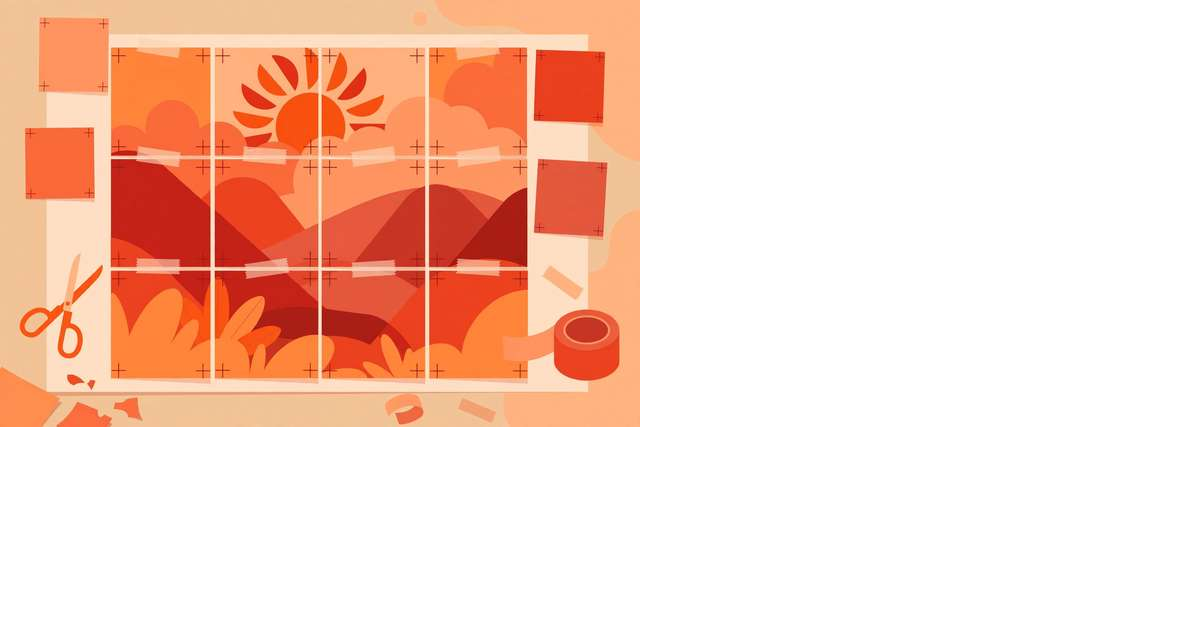
Your printer maxes out at Letter or A4 paper, but you want a two-foot-wide poster. The solution is tile printing (also called poster printing): split the big page into a grid of smaller “tiles,” print each tile on its own sheet, then tape them together into one large poster. No wide-format printer, no print shop, no cost beyond paper and ink.
What Tile Printing Actually Does
Imagine a 24×36-inch poster design. Tile printing slices it into a grid — say 3 columns × 4 rows — producing 12 normal-size pages. Each page carries one slice of the artwork, optionally with a small overlap margin (usually 0.25–0.5 inch) and crop marks so you can align the tiles precisely when assembling.
The result won’t look like a professionally printed poster up close, but from a few feet away on a classroom wall, office door, or event booth, it’s impressively good.
The Easiest Free Method: Tile It in Your Browser
The fastest route uses our free tool — no software to install, and your file never leaves your browser:
- Open our PDF poster printing tool.
- Upload your PDF (drag and drop works).
- Choose your poster size — e.g., 24×36 in, A1, or a custom size.
- Pick your paper size (Letter, A4, Legal) and set an overlap margin.
- Generate the tiles and download the tiled PDF.
- Print every page at 100% scale — this is critical. Check “Actual size” in your print dialog; “Fit to page” will shrink tiles and break the poster.
- Trim, align, and tape the tiles together (see tips below).
Because the tool runs entirely in your browser, even confidential designs are safe — nothing is uploaded anywhere.
The Adobe Reader Method (Also Free)
If you already have Adobe Acrobat Reader installed:
- Open the PDF and press Ctrl+P (Cmd+P on Mac).
- Under Page Sizing & Handling, select Poster.
- Set the Tile Scale to 100% (or scale up/down to change the final poster size).
- Optionally enable Cut marks and Labels (tile coordinates print on each sheet — handy for assembly).
- Print.
This works on any PDF and handles multi-page documents too — though for precise poster sizing, the browser tool above gives you more control over the final dimensions.
Doing the Tile Math Yourself
Not sure how many sheets you need? Divide and round up:
- Columns = poster width ÷ paper width
- Rows = poster height ÷ paper height
- Total sheets = columns × rows
Examples on US Letter (8.5×11 in, printable area ~8×10.5 in):
| Poster size | Tiles needed |
|---|---|
| 16×20 in | 2×2 = 4 sheets |
| 24×36 in | 3×4 = 12 sheets |
| 36×48 in | 5×5 = 25 sheets |
On A4, the numbers land similarly. Overlap margins eat a little printable area, so round generously.
Assembly Tips for Clean Results
- Print a test tile first. One sheet at 100% scale confirms your settings before you burn 20 pages of ink.
- Use the overlap, not the white margin. Overlap tiles by 0.25–0.5 inch so the image continues seamlessly; crop marks show you exactly where to trim.
- Tape the back first. Lay tiles face-down, align using overlap guides, and tape the seams with removable tape. Flip and check from the front, then secure.
- Consider paper weight. Standard 20 lb paper curls at the seams; 24–28 lb paper or cheap cardstock gives a sturdier poster.
- Mind the ink. Posters with big dark backgrounds eat cartridges. For draft posters, try your printer’s “draft” or “economy” mode.
Scaling Your Design Up or Down
Tile scale is your creative control. At 100%, each tile prints at the design’s native size; at 200%, every dimension doubles and the tile count roughly quadruples. Want a 24×36-inch poster from a Letter-size design? Set tile scale to ~300% and you’ll get a 3×4 tile grid.
Going the other way is useful too: shrink a huge architectural drawing to 50% tile scale and you can proof the whole layout on a few Letter sheets before committing to the full poster run. Always re-check the tile count after changing scale — doubling the scale quadruples the paper.
Paper, Ink, and Printer Settings That Matter
- Paper size consistency. Mixing Letter and A4 mid-poster throws off the grid. Pick one and stick with it.
- Print quality. “Normal” or “Best” gives smoother gradients; “Draft” saves ink for test runs but banding will show on the final poster.
- Borderless printing: off. You need the printer’s normal margins so every tile is the same size. Borderless modes scale unpredictably and break alignment.
- Same printer, same session. Different printers (or the same printer on different days) can scale microscopically differently. Print all tiles in one sitting on one machine.
- Ink math. A full-coverage 24×36 poster on 12 sheets can drink a surprising amount of ink — for dark designs, a fresh cartridge is worth it. Draft mode for the test, full quality for the final.
Common Tile-Printing Problems and Fixes
Tiles don’t line up. The #1 cause is “Fit to page” or “Shrink oversized pages” being enabled. Reprint with “Actual size” / 100% selected. The #2 cause is mixed paper sizes in the tray.
White hairlines between tiles. Your PDF viewer may render thin gaps that don’t exist on paper — but if they print, increase the overlap margin to 0.5 inch and trim carefully along the crop marks.
The poster is the wrong final size. Measure one printed tile against the expected tile size. If it’s off, your printer driver is scaling — look for a “scaling: none” or “100%” option in the advanced print settings.
Text looks fuzzy. Your source PDF is low-resolution. Tile printing can’t add detail that isn’t there — start from the highest-resolution source you have, ideally a vector PDF.
Frequently Asked Questions
What is tile printing?
Tile printing (also called poster printing) splits one large page across multiple smaller sheets of paper. Each sheet prints one “tile” of the design; you trim and tape the tiles together to assemble a poster far bigger than your printer can print.
How many pages do I need to print a poster?
Divide the poster’s width and height by your paper size. A 24×36-inch poster on US Letter paper (8.5×11 in) needs 3 columns × 4 rows = 12 sheets. A 4×3-foot poster on A4 needs roughly 16 sheets. Overlap settings add a small margin between tiles.
Can I tile-print a PDF for free?
Yes. Use our free PDF poster tool to split the page into tiles in your browser, then print each tile at 100% scale. Adobe Reader also has a free Poster option under Print → Page Sizing & Handling → Poster.
How do I get clean seams when taping poster tiles together?
Print with a small overlap (0.25–0.5 inch), trim one tile’s white margin along the overlap edge, and align using the overlap or crop marks as guides. Tape on the back with removable tape first to check alignment, then secure the front seams.
Keep reading
How to Remove Annotations and Comments from a PDF Online Free
Remove highlights, sticky notes, and comments from a PDF online free — clean up marked-up documents before sharing, without installing software.
Read more →
How to Validate a PDF File Online Free (Check for Corruption Before You Send It)
Validate a PDF online free: check for corruption, broken pages, and unreadable files before you send an important document — in seconds, in your browser.
Read more →
PDF Merge Order Checklist
A free PDF merge order checklist: 28 steps to combine PDFs in the right order, catch missing pages, and send a clean final file.
Read more →