How to OCR a Spanish PDF: Extract Text from Scanned Documents Free
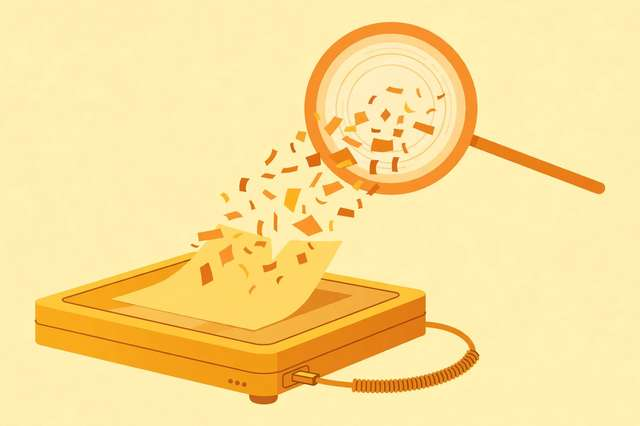
You have a scanned Spanish document — a contract, a birth certificate, a textbook chapter, old family letters — and you need the text: searchable, copyable, editable. A scanned PDF is just pictures of pages, so your computer sees no text at all. OCR (Optical Character Recognition) is the technology that reads those pictures and turns them back into real text.
Spanish documents add one wrinkle: accents. An OCR engine trained on English will confidently turn niño into nino and ¿cómo? into ?como?. This guide shows how to OCR Spanish PDFs free, why the language setting matters more than anything else, and how to squeeze maximum accuracy out of your scans.
Step 1: Use OCR with Spanish language support
This is the step that fixes 80% of bad results. OCR engines load a language model that tells them which characters to expect. With an English model, ñ is not in the vocabulary, so the engine guesses n. With a Spanish model, accents and inverted punctuation are recognized correctly.
Our free Spanish PDF OCR tool runs entirely in your browser with Spanish language support built in:
- Upload the scanned PDF. Drag and drop — processing happens on your device, so nothing uploads to a server.
- Confirm Spanish is selected as the OCR language (it is the default).
- Run OCR and copy or download the text. You get selectable, searchable text you can paste anywhere.
Free alternatives with Spanish support include Google Drive (upload the PDF, open with Google Docs — it OCRs automatically) and the desktop Tesseract engine with the spa language pack. But the browser tool is fastest for a one-off document.
Step 2: Fix accuracy with better scans
OCR accuracy is decided before the software ever runs — it lives in the quality of the scan. The hierarchy of fixes, from most to least impactful:
- Resolution: 300 DPI minimum. Phone photos and 150-DPI scans are the top cause of garbage output. If you are scanning now, choose 300 DPI; if the scan already exists and is blurry, little software can fully save it.
- Straighten the page. Skewed or curved pages (thick books photographed open) confuse line detection. Flatten the page and shoot straight down.
- Good lighting, no shadows. For phone captures, use a scanner app with auto-crop and contrast enhancement rather than the raw camera.
- Clean the source if you can. Coffee stains, handwritten margin notes, and fax artifacts all become “characters” to the engine.
On a clean 300-DPI scan, expect 98%+ character accuracy for printed Spanish text. On a crooked phone photo of a faded receipt, expect to proofread.
Step 3: Proofread the usual suspects
Even good Spanish OCR makes predictable mistakes. A quick find-and-replace pass over these patterns catches most of them:
- Accents dropped:
informacion→información,mas→más. Search for common unaccented words. - ñ → n:
ano(which means something very different fromaño) is the classic. Search everynnear vowels in suspicious words. - Inverted punctuation lost:
¿and¡at sentence starts often vanish or become?and!. - l/I/1 and O/0 confusion: universal to all OCR, worse in some fonts.
- Hyphenated line breaks: words split across lines keep their hyphen (
informa-ción) — join them.
For long documents, run a Spanish spell-checker over the result afterward — most remaining OCR errors are not valid Spanish words, so they light up immediately.
Batch OCR: handling multi-page and multi-file scans
Real-world Spanish documents rarely arrive as one tidy PDF. A few workflow tips for the messy cases:
- Multi-page PDFs are handled page by page automatically — run the whole file through the OCR tool in one pass rather than splitting it first.
- Multiple files (e.g., a folder of scanned letters): OCR them one at a time and save each result with a matching filename (
carta-1987-ocr.txt) so the text stays paired with its source. - Mixed Spanish/English documents (contracts, bilingual forms): pick the dominant language for the OCR pass. A Spanish model still reads English words reasonably well, but an English model butchers Spanish accents — when in doubt, choose Spanish.
- Very long documents (100+ pages): OCR in chapters and proofread each chunk before moving on. Errors compound when you batch everything and review nothing until the end.
What to do with the text afterward
Once you have clean text, the scanned PDF becomes genuinely useful:
- Make it searchable. Paste the OCR text back as an invisible text layer to create a searchable PDF (many PDF tools offer “OCR → searchable PDF”).
- Translate it. Clean Spanish OCR feeds directly into translation tools with far better results than screenshots.
- Archive it. Text-based PDFs are a fraction of the size of scanned images and work with full-text search in Google Drive, Dropbox, and your OS.
One privacy note: scanned documents are often sensitive (IDs, contracts, medical records). Prefer tools that process on your device — like the browser-based one above — over services that upload your document to a server.
Frequently asked questions
How do I OCR a Spanish PDF for free? Use an OCR tool with Spanish language support enabled — generic OCR misreads accented characters like á, é, ñ. Our free tool at /tools/spanish-pdf-ocr/ is tuned for Spanish documents and runs entirely in your browser.
Why does OCR mess up Spanish accents? The OCR engine was probably trained on English. Accented characters (á, é, í, ó, ú, ü, ñ) and inverted punctuation (¿, ¡) need a Spanish language model — enabling it fixes most accent errors instantly.
Can I OCR a scanned PDF without uploading it to a server? Yes. Browser-based OCR tools using engines like Tesseract.js process the document on your device, so sensitive documents never leave your computer.
How accurate is free Spanish OCR? On clean scans at 300 DPI, Spanish OCR typically reaches 98%+ character accuracy. Handwriting, low-resolution scans, and decorative fonts lower accuracy — rescanning at higher resolution is the biggest single fix.
Keep reading
How to Remove Annotations and Comments from a PDF Online Free
Remove highlights, sticky notes, and comments from a PDF online free — clean up marked-up documents before sharing, without installing software.
Read more →
How to Validate a PDF File Online Free (Check for Corruption Before You Send It)
Validate a PDF online free: check for corruption, broken pages, and unreadable files before you send an important document — in seconds, in your browser.
Read more →
PDF Merge Order Checklist
A free PDF merge order checklist: 28 steps to combine PDFs in the right order, catch missing pages, and send a clean final file.
Read more →