How to Flatten PDF Forms Online Free (Lock Fillable Fields)
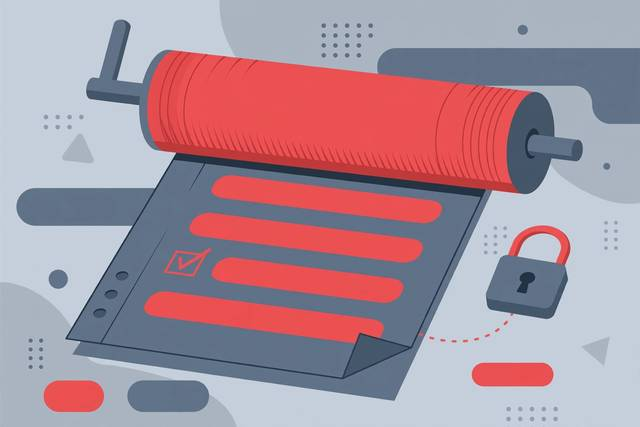
You have filled out a PDF form — an application, a contract, a tax worksheet — and now you need to send it somewhere final. If you send the fillable version as-is, anyone who opens it can click into your fields and change the answers, accidentally or on purpose. Some PDF readers even render your entries differently or drop them entirely when printing. Flattening solves all of that: it converts every form field into permanent, non-editable text baked into the page. The document looks exactly the same, but nothing can be changed. Here is why flattening matters, when to do it, and how to do it free in your browser.
What flattening actually does
A fillable PDF has two layers: the static page content (background text, lines, logos) and an interactive layer of form fields sitting on top. Flattening merges the interactive layer into the page. Your typed answers become ordinary text — still selectable and printable, still exactly where you typed them — but no longer tied to a field anyone can click and edit.
Think of it like the difference between a pencil sketch and an inked drawing. The pencil version can be erased and redrawn; the inked version is final. Flattening is the inking step.
When you should flatten a PDF
Flatten before the document becomes a record — any point where the answers must be final:
- Signed contracts and agreements. After both parties sign, flatten so terms cannot be altered.
- Job and rental applications. Submit a final version so nothing shifts between your screen and the reviewer’s.
- Tax and government filings. Locked figures prevent accidental edits that could cause rejection.
- Invoices and receipts. A flattened invoice is a trustworthy record; an editable one is a draft.
- Archiving. Years from now, the fillable fields may not render the same way. Flattened text is stable forever.
- Printing at a shop. Print kiosks and office printers sometimes drop unflattened field content entirely.
The rule of thumb: if you would not hand someone the document with a pencil, do not send it unflattened.
What stays the same after flattening
A good flattening process preserves everything that matters: the exact position of every answer, fonts and formatting, checkboxes and radio buttons (they become fixed marks), dropdown selections, and digital signature appearances. Page size, margins, and vector quality stay intact.
What changes: fields can no longer be clicked, tabbed through, or edited; some JavaScript actions attached to fields stop working; and the file may get slightly smaller since the interactive layer is gone.
How to flatten a PDF online free
Our PDF form flattener does the whole job in your browser — your document never leaves your device:
- Open the tool. Go to the PDF form flattener page. No sign-up, no install.
- Upload your filled PDF. Drag the file onto the page or browse to select it. Fill in any fields first if you have not already.
- Flatten. Click the flatten button. The tool merges every field into the page layer.
- Download the flattened copy. Save it with a clear name like
contract-signed-FINAL.pdf.
Quick checklist before you flatten
- Proofread every field — after flattening, fixing a typo means starting over from the original.
- Confirm checkboxes and dropdowns show the right selections.
- Keep the original. Save the fillable version somewhere safe before flattening, in case edits are ever needed.
The sign-then-flatten workflow
For contracts and official forms, the order of operations matters. Fill every field first, then collect signatures — digital or scanned — and only then flatten. Flattening after signing locks both the answers and the signature appearances into the page together, producing a single tamper-evident record. If a document needs countersignatures, keep the fillable original until the last signature lands, flatten once, and distribute the flattened copy to all parties. Everyone then holds the identical final version, and nobody can quietly alter a field after the fact.
Flattening vs. print-to-PDF
Many people flatten by choosing “Print → Save as PDF.” It works in a pinch, but it has real downsides: printers can rescale the page (shrink-to-fit surprises), vector elements may rasterize at lower quality, and metadata gets stripped. A dedicated flattener rewrites the PDF structure directly — no virtual printing, no rescaling, no quality loss. For a contract or an official filing, that fidelity is worth the extra thirty seconds.
Frequently asked questions
What does it mean to flatten a PDF form?
Flattening converts editable form fields into permanent, non-editable page content. The text stays exactly where it was, but nobody can click a field and change it afterward. The document looks identical — it simply cannot be edited.
Why would I flatten a PDF instead of sending the fillable version?
Flattened PDFs cannot be accidentally or deliberately edited after signing, look identical on every device and printer, and are safe to archive as final records. A fillable PDF is always a draft in disguise.
Can a flattened PDF be unflattened?
No — not reliably. Flattening permanently bakes the field content into the page layer, and there is no undo. Always keep a copy of the original fillable PDF if you might need to edit the answers later.
Is flattening a PDF the same as printing to PDF?
Similar result, different quality. Print-to-PDF also flattens fields, but it can rescale pages and lose vector sharpness. A dedicated flattener preserves the original page size and quality exactly.
Keep reading
How to Check PDF Metadata and Properties (Free Methods)
Learn how to check PDF metadata and properties free: author, title, creation date, fonts, and how to inspect or clean hidden data before sharing.
Read more →
How to Shrink a PDF to 100KB Online Free
Need a PDF under 100KB for an application portal? Learn why portals set size limits and how to compress a PDF to exactly 100KB free.
Read more →
How to Split a PDF Into Single Pages Online Free
Split a PDF into single pages free: extract each page as its own file in seconds, keep quality and filenames tidy, all in your browser.
Read more →