How to Shrink a PDF to 100KB Online Free
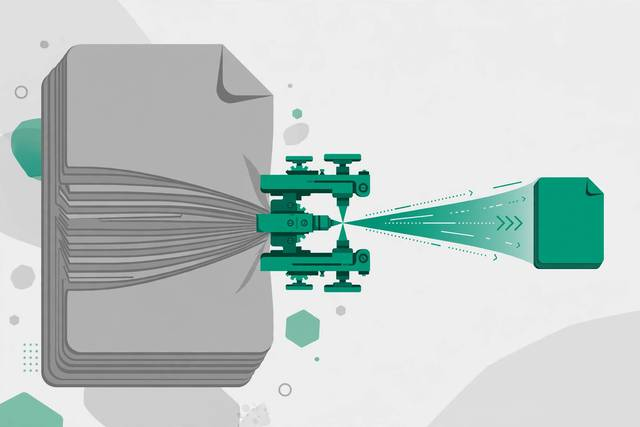
“Maximum file size: 100KB.” Those five words have ruined more job applications, visa filings, and university admissions than any tricky essay question. You scan your documents, export the PDF, and discover it is 2.4MB — twenty-four times the limit. The portal rejects it, the deadline looms, and you have no idea how to make a PDF that small without turning it into an unreadable blur. Good news: getting a PDF down to 100KB is a solved problem, and you can do it free in your browser in under a minute. Here is why portals set these limits, how compression actually works, and the exact steps to hit your target size.
Why portals insist on tiny PDFs
The 100KB limit is not arbitrary cruelty. Government portals, university systems, and job boards process millions of uploads, and small files solve real problems at that scale: they store cheaply, upload quickly on slow mobile connections, open instantly for reviewers, and keep databases from ballooning. A 100KB cap is also a quiet quality filter — it forces applicants to submit focused, single-purpose documents instead of 40-page portfolios.
Common places you will hit the limit: government job applications, visa and immigration document uploads, university admissions, scholarship forms, and exam registrations. Knowing the target before you scan saves a round trip.
How PDF compression actually works
A PDF is a container, and most of its weight comes from images. Compression attacks the size in three ways:
- Image recompression. Photos and scans get re-encoded at lower quality or resolution. This is where 90% of the savings come from — a 300 DPI scan of a photo page can shrink tenfold at 150 DPI with barely visible change.
- Downsampling. Reducing image resolution from print-quality (300 DPI) to screen-quality (100-150 DPI) slashes bytes with minimal readability loss for text.
- Structural optimization. Removing duplicate fonts, unused objects, and redundant metadata trims the container itself.
Text itself compresses to almost nothing — a full page of text is a few kilobytes. If your PDF is huge, it is the images, not the words.
Shrink your PDF to 100KB: the steps
Our PDF compress-to-100KB tool targets an exact file size instead of offering vague “low/medium/high” presets:
- Open the tool. No sign-up, no install — it runs entirely in your browser, so sensitive documents never leave your device.
- Upload your PDF. Drag it in or browse. The tool shows the current size so you know how far you have to go.
- Set the target to 100KB. The compressor recompresses images and optimizes structure iteratively until the output lands at or under 100KB.
- Preview and download. Check that text is crisp and photos are acceptable, then download the result.
If the result looks bad
Try these in order: remove unnecessary pages (the biggest win), delete decorative images or colored backgrounds, then re-run compression. A cleaner source always beats heavier compression.
Scan it right the first time
Most oversized PDFs start life as bad scans. If you control the scanning step, set the scanner or phone app to 150 DPI grayscale for text documents — that alone often produces a file already near the 100KB target with zero compression needed. Turn off “enhance” filters that add color backgrounds, crop tightly to the document edges instead of capturing your desk, and save directly as PDF rather than photographing to JPG and converting. A clean 150 DPI grayscale scan of a two-page form typically lands between 80KB and 120KB before you even touch a compressor.
What survives 100KB — and what does not
Be realistic about the physics. What compresses well: 1-3 page text documents, forms, resumes, certificates, and ID scans. Text stays razor-sharp at any compression level, and simple graphics survive fine.
What struggles: 10+ page scanned bundles, documents full of color photographs, and pages with complex backgrounds or watermarks. A 100KB budget for a 20-page photo-heavy scan is simply not enough bytes — the math does not work, and the result will be mush.
For stubborn files, reduce before you compress: scan at 150 DPI instead of 300, choose grayscale for documents that do not need color, and split multi-part submissions into separate files if the portal allows it.
Hitting a 100KB target is about removing weight before you squeeze, not squeezing harder. Clean up the document, let the compressor do its iterative work, and preview before you submit — the portal will accept it, and the reviewer will still be able to read every word.
Frequently asked questions
How can I reduce a PDF to exactly 100KB?
Use a compressor that lets you set a target file size. It recompresses images and optimizes the file structure iteratively until the output lands at or under your target, instead of guessing with generic quality presets.
Will compressing to 100KB make my PDF unreadable?
Not if the source is reasonable. Text stays perfectly readable; only photos get recompressed. A 10-page scanned document may struggle, but a 2-3 page form, resume, or certificate usually compresses cleanly.
Why do upload portals demand PDFs under 100KB?
Small files store cheaply, upload fast on slow connections, open instantly for reviewers, and keep government and university databases manageable at massive scale. The cap also keeps submissions focused.
What if my PDF won’t go below 100KB?
Reduce the page count, split it into parts, or rescan at lower resolution. Extremely image-heavy documents have a hard compression floor — clean up the source (fewer pages, grayscale, 150 DPI) and try again.
Keep reading

How to Check PDF Metadata and Properties (Free Methods)
Learn how to check PDF metadata and properties free: author, title, creation date, fonts, and how to inspect or clean hidden data before sharing.
Read more →
How to Flatten PDF Forms Online Free (Lock Fillable Fields)
Flattening a PDF locks fillable form fields into permanent text. Learn why it matters and how to flatten PDF forms free, right in your browser.
Read more →
How to Split a PDF Into Single Pages Online Free
Split a PDF into single pages free: extract each page as its own file in seconds, keep quality and filenames tidy, all in your browser.
Read more →