How to Split a PDF Into Single Pages Online Free
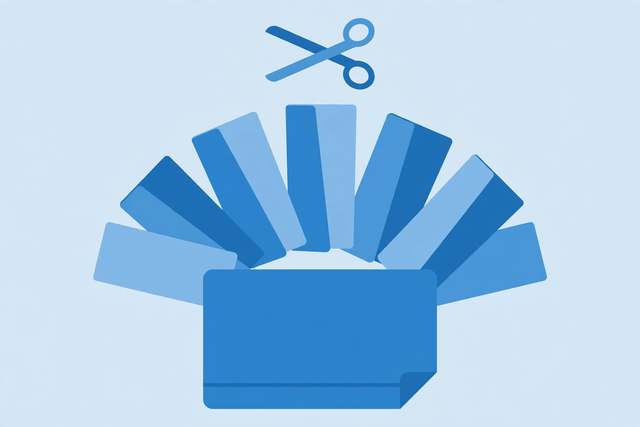
Maybe you scanned a whole stack of receipts into one PDF and now need them as separate files. Maybe a 60-page report arrived and you only need to send three of its pages to different people. Or maybe your printer chokes on big files and you want to print one page at a time. Whatever the reason, splitting a PDF into single pages — one file per page — is a two-minute job when you use the right tool. Here is how to do it free, keep the quality intact, and avoid the usual naming mess.
What “split into single pages” actually does
Splitting a PDF into single pages takes a multi-page document and produces one separate PDF file for every page inside it. A 25-page PDF becomes 25 files: page 1, page 2, page 3, and so on. Each output file contains exactly one page, with its text, images, and layout preserved.
This is different from two related operations people often confuse:
- Splitting by range — dividing a PDF into a few chunks (pages 1–10, 11–20) rather than one file per page.
- Extracting specific pages — pulling out only pages 4, 9, and 12 and discarding the rest.
Single-page splitting is the right choice when every page needs to live on its own: individual invoices, separate homework pages, one-per-page handouts, or feeding pages one at a time into a system that only accepts single-page uploads.
The fastest way: use a free browser-based splitter
The simplest method needs no software at all. Our PDF splitter runs entirely in your browser: upload the PDF, choose the single-pages mode, and download the results. Because the processing happens on your device, your file is never uploaded to a server — useful when the document contains anything private.
The whole flow takes under a minute:
Step 1: Add your PDF. Drag the file into the upload area or click to browse. Large files are fine; the tool reads the page count first so you know what to expect.
Step 2: Choose single-page mode. Select the option that splits into individual pages (rather than page ranges). Some tools call this “every page” or “burst”.
Step 3: Download the results. You get each page as its own numbered PDF — typically document-1.pdf, document-2.pdf — either as individual downloads or bundled in a ZIP archive for big documents.
Will splitting hurt quality or change the layout?
No. Splitting is a lossless rearrangement: the tool copies each page’s existing content into a new file without re-compressing images or re-rendering text. Fonts stay embedded, vector graphics stay crisp, and the page looks pixel-identical to the original.
Two edge cases worth knowing:
- File size adds up. Each single-page PDF carries its own file overhead, so 50 one-page files together are slightly larger than the original 50-page file. For most uses the difference is negligible.
- Bookmarks and links may not carry over. Internal navigation links that pointed across pages can break once pages live in separate files. If cross-page links matter, keep a copy of the original.
Naming and organizing the output files
A folder full of split-page-1.pdf through split-page-47.pdf is only useful if the names sort correctly and stay meaningful. A few habits that save headaches:
- Rename the batch with a clear prefix before downloading, if the tool allows it —
receipt-,contract-page-, whatever describes the content. - Check zero-padding for big documents. Files named
page-1throughpage-100sort as 1, 10, 100, 2… in some file managers. Padding (page-001) keeps the order correct. - Keep the original. Always keep the unsplit source file until you are sure the outputs are correct — re-splitting is instant, but re-scanning is not.
- Verify the page count. Open the first and last output files and confirm the count matches the original before deleting anything.
What to do when a PDF will not split
Password-protected files. Splitting tools cannot bypass encryption. Unlock the PDF with its password first (most readers offer Print → Save as PDF after unlocking), then split the unlocked copy.
Corrupted or scanned oddities. If a tool rejects your file, try re-exporting it: open in any reader, print to a new PDF, and split the fresh copy. This fixes most malformed-structure issues.
Very large files. A thousand-page PDF can strain a browser tab. Split it in halves first (pages 1–500, 501–1000), then burst each half into single pages. Desktop tools handle the biggest jobs more comfortably if your browser struggles.
Scanned pages that look blurry. Splitting never changes image quality, so blurriness means the scan itself was low-resolution. Re-scan at 200–300 DPI if the pages need to stay readable.
Frequently asked questions
How do I split a PDF into individual pages for free?
Upload the PDF to a free splitter, choose the single-pages (or “every page”) mode, and download each page as its own numbered file. Our free splitter does the whole thing in your browser with no upload and no sign-up.
Will splitting a PDF reduce its quality?
No. Splitting copies each page into its own file without re-compressing anything, so text stays sharp and images keep their original resolution. Output pages are identical to the original.
Can I split a password-protected PDF?
Only with the password. Unlock the file first — in most readers you can print it to a fresh unlocked PDF — then split the unlocked copy. No legitimate tool bypasses PDF encryption.
How are the split pages named?
Typically with sequential numbered names like document-1.pdf, document-2.pdf, preserving page order. For large documents, zero-padded numbering (001, 002) keeps files sorting correctly in your file manager.
Keep reading
How to Check PDF Metadata and Properties (Free Methods)
Learn how to check PDF metadata and properties free: author, title, creation date, fonts, and how to inspect or clean hidden data before sharing.
Read more →
How to Flatten PDF Forms Online Free (Lock Fillable Fields)
Flattening a PDF locks fillable form fields into permanent text. Learn why it matters and how to flatten PDF forms free, right in your browser.
Read more →
How to Hit an Exact Video File Size (Target-Size Compression Guide)
Need a video under 25MB or exactly 100MB? Learn target-size compression: how bitrate math works and how to hit any size free.
Read more →