How to Compress a Video for WhatsApp (Under the 16MB Limit)
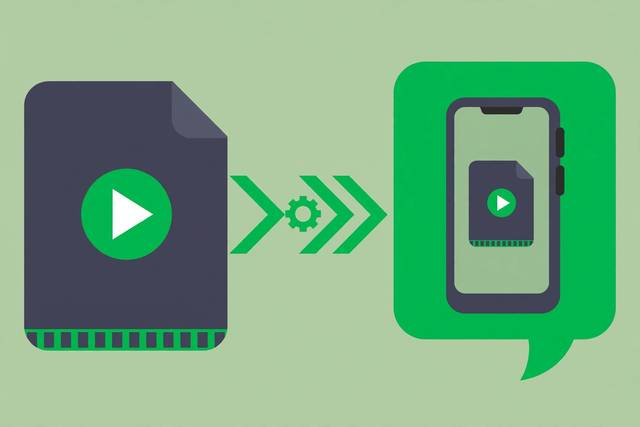
You filmed a great two-minute video on your phone, hit send in WhatsApp, and got the dreaded message: the file is too large. WhatsApp limits regular video messages to 16MB, and modern phones record 1080p or 4K footage that blows past that in under a minute. The fix is compression — shrinking the video’s file size so it slides under the limit while still looking good in a chat window. You can do it free in your browser, no app install needed. Here is why the limit exists, how video compression works, and the exact steps to get any clip under 16MB.
Why WhatsApp caps videos at 16MB
The cap keeps WhatsApp fast and cheap for two billion users. Small videos upload quickly on slow mobile networks, download instantly for recipients, and cost Meta less in storage and bandwidth. The 16MB limit applies to videos sent as media messages — the inline, playable clips in the chat. Sending a video as a document bypasses the 16MB cap (documents allow much larger files), but the recipient gets a downloadable file instead of an auto-playing video. For everyday sharing, compressing to fit the media limit gives the better experience.
How video compression actually works
Video files are huge because they are thousands of images per minute. Compression shrinks them three ways:
- Resolution. Dropping from 1080p to 720p cuts the pixel count by more than half — the single biggest size lever.
- Bitrate. Bitrate is data per second of video. Lower bitrate means a smaller file; modern codecs like H.264 stay sharp at surprisingly low bitrates.
- Length. Trimming 30 seconds off a clip removes 30 seconds of data. Often the easiest win.
A 2-minute 1080p phone clip might be 250MB. At 720p with a sensible bitrate, the same clip lands around 12-15MB — under the limit, and on a phone screen it looks nearly identical.
Compress your video for WhatsApp: the steps
Our compress video for WhatsApp tool is tuned for exactly this job — it targets the 16MB limit automatically:
- Open the tool. Free, no sign-up, and everything runs in your browser — your video never uploads to a server.
- Add your video. Drag the clip in. The tool shows its current size, resolution, and duration.
- Pick the WhatsApp preset. It sets 720p resolution and a bitrate tuned to land under 16MB for typical clip lengths.
- Trim if needed. If the clip is long, cut the dead air at the start and end — every trimmed second saves megabytes.
- Compress and download. Check the output size, preview the quality, and download the file.
When one pass is not enough
For very long clips, combine all three levers: trim harder, drop to 480p for casual sharing, or split the video into parts. A 10-minute 4K recording will not fit 16MB at watchable quality no matter what — split it into two messages instead.
Media message vs. document: which to choose
WhatsApp gives you two ways to send a video, and the choice matters. Media messages (the 16MB cap) show an inline playable preview right in the chat — best for casual sharing where you want people to tap and watch instantly. Documents allow much larger files but arrive as a generic file attachment the recipient must download and open separately — better for preserving original quality, like sending raw footage to an editor. For family videos, event clips, and anything meant to be watched on the spot, compress to fit the media limit. For archival copies or professional handoffs where every pixel counts, send as a document and skip compression entirely.
Quality: what to expect
Be honest with yourself about where the video will be watched: a 6-inch phone screen inside a chat. At that size, 720p compressed video is visually indistinguishable from the original 1080p for most content — talking heads, events, screen recordings. You will only notice compression on fast action, fine detail like distant text, or heavy gradients. And remember: WhatsApp recompresses everything you send anyway. Starting from a well-compressed file means WhatsApp’s second compression pass has less damage to do.
The 16MB limit stops being a problem once compression is a 60-second habit: trim, 720p, sensible bitrate, check the size. Your videos send instantly, your recipients watch them inline, and nobody squints at a blurry mess.
Frequently asked questions
What is WhatsApp’s video size limit?
Videos sent as regular media messages are capped at 16MB. Sending a video as a document raises the limit substantially, but you lose the inline playable preview — the recipient gets a downloadable file instead.
How do I make a video smaller for WhatsApp?
Compress it: lower the resolution to 720p, reduce the bitrate, and trim unnecessary length. A 2-minute 1080p clip usually fits under 16MB after compression, and looks nearly identical on a phone screen.
Will compressing ruin my video quality?
A little, but WhatsApp recompresses everything anyway. A well-compressed 720p video looks nearly identical to the original once it is inside a chat — you will only notice on fast action or fine detail.
Can I send a video larger than 16MB on WhatsApp?
Yes — send it as a document instead of a media message. Documents allow much larger files, though the recipient gets a file rather than an inline playable video.
Keep reading
How to Hit an Exact Video File Size (Target-Size Compression Guide)
Need a video under 25MB or exactly 100MB? Learn target-size compression: how bitrate math works and how to hit any size free.
Read more →
How to Make a Photo Slideshow Video Online Free
Turn your photos into a polished slideshow video with music and transitions. Learn the simple steps — free, right in your browser.
Read more →
How to Convert Any Video Format to Audio Online (Free)
Extract audio from any video free. Learn when to convert video to audio, how to pick M4A, MP3, OGG, or WAV, and the fastest online steps.
Read more →