How to Compare Two PDFs and Find Differences Online
Contracts get revised. Reports go through drafts. Invoices get “updated.” And every time, somebody asks: what actually changed? Reading two 40-page PDFs side by side is nobody’s idea of a good afternoon. A PDF comparison tool does it in seconds — here’s how.
What PDF comparison actually does
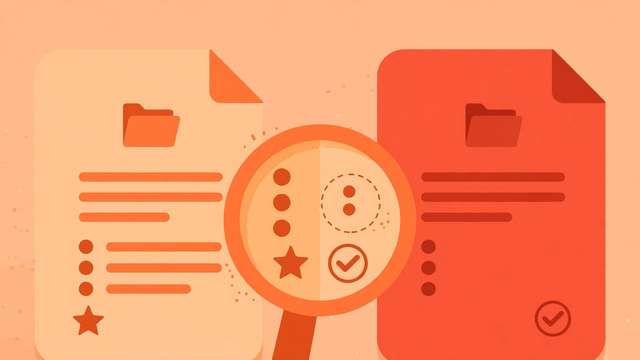
A compare tool extracts the text from both PDFs and runs a difference algorithm over them, producing a side-by-side view where:
- Added text is highlighted in one color (usually green).
- Deleted text is highlighted in another (usually red).
- Modified passages show the old and new wording next to each other.
- Unchanged sections can be collapsed, so you see only what moved.
It’s the same concept as “track changes” in Word — except it works on any two PDFs, even ones you didn’t author.
How to compare two PDFs online (free)
Step 1: Get your two versions ready
You’ll need both files: the original and the revised version. Common pairs:
- Contract v1 vs. contract v2 from the other party.
- Your draft vs. the client’s “final” draft (always check).
- Last month’s report vs. this month’s, to see what was quietly edited.
Step 2: Load them into the comparison tool
Open DollarWise’s PDF compare tool and add both files — first the original, then the new version. The tool reads the text out of each PDF locally in your browser, so nothing is uploaded anywhere. That matters: the documents people compare are often the sensitive ones — NDAs, employment contracts, settlement agreements.
Step 3: Review the differences
The tool presents the two texts side by side with changes highlighted. Work through it systematically:
- Scan the highlighted regions first — these are the only parts that changed.
- Read modified clauses in full, not just the highlighted words. A changed number (“30 days” → “90 days”) can sit inside an otherwise identical sentence.
- Check the beginning and end. Sneaky edits love the fine print: definitions sections, termination clauses, and signature blocks.
- Look for deletions. Removed sentences don’t jump out the way additions do — make sure nothing you cared about quietly vanished.
Step 4: Save or export the comparison
If the tool offers an export (a marked-up report or a list of changes), save it. A dated record of “here’s exactly what changed between v1 and v2” is gold in any dispute.
Where PDF comparison saves you
- Contracts and legal docs. Never sign a “final version” without diffing it against what you agreed to. This is the number one use case.
- Academic and professional writing. Compare your draft against a co-author’s edits to review every change before accepting.
- Financial statements. Spot which figures moved between versions of a report.
- Website terms and privacy policies. Companies update these constantly — diff the old against the new to see what rights changed. For high-stakes contracts, a comparison tool catches the edits, but a qualified professional should still review anything you’re about to sign.
- Translations. Compare a translated document against its source-language version’s structure to catch dropped sections.
Limitations to know about
Scanned PDFs won’t compare. If your PDF is just images of pages (common with scanned contracts), there’s no text to extract. Run it through OCR first, then compare the OCR’d versions.
Formatting changes may not show. Most text-based comparison focuses on words, not fonts, colors, or layout. If someone changed a table’s numbers, that shows; if they changed a logo, it won’t.
Very long documents take longer. A 200-page comparison still runs, but give it a moment — and review the change summary before diving into every highlighted line.
Tables and columns can confuse extraction. Text pulled from complex layouts may read out of order. The differences are still detected, but the side-by-side view might look jumbled on heavily formatted pages. Compare the extracted text carefully in those spots.
A smart workflow for version control
If you handle documents regularly, make comparison part of your routine:
- Name versions clearly:
contract-acme-v1.pdf,contract-acme-v2.pdf— never “final” and “final-final”. - Diff before every signature. No exceptions, even with trusted parties. Mistakes happen.
- Archive the diff report alongside both versions. Future-you will thank present-you.
- Keep the originals. The comparison is a guide; the source files are the record.
Red flags to watch for in compared documents
Once you make diffing a habit, you’ll start noticing patterns. Watch especially for these:
- Changed numbers in payment terms. Amounts, dates, and percentages are the most consequential single-character edits in any document — “net 30” becoming “net 60” or a fee moving from 2% to 3% changes real money.
- Softened language. “Shall” becoming “may,” “guarantee” becoming “aim to,” or a warranty period quietly shortening. These edits rarely get announced.
- New clauses at the end. Fresh paragraphs appended near the signature block — arbitration clauses, auto-renewal terms, or fee schedules that weren’t in the version you reviewed.
- Reordered sections. Sometimes nothing is added or removed, but clauses are moved — which can change how provisions reference each other. Read the surrounding text of anything that shifted position.
None of these are necessarily malicious; people revise documents for legitimate reasons all the time. But each one deserves a conscious read before you sign, and a comparison tool is what makes that read practical instead of punishing.
Frequently asked questions
How can I compare two PDFs to find differences?
Upload both PDFs to a free comparison tool. It extracts the text from each file and highlights every addition, deletion, and change side by side.
Can I compare PDFs for free online?
Yes — free browser-based tools compare two PDFs at no cost, with no account or software install required. Processing happens on your device.
Does PDF comparison work on scanned documents?
Only if the PDF contains selectable text. Scanned images need OCR (optical character recognition) first to turn the image into readable text.
Will comparing PDFs upload my files to a server?
With a browser-local tool, no. DollarWise’s PDF compare tool processes both files entirely on your device, so sensitive contracts stay private.
Keep reading
How to Password-Protect a PDF Online Free
Protect a PDF with a password online for free — step-by-step guide, encryption basics, and tips for sharing secured documents safely.
Read more →
How to Scan Documents to PDF with Your Phone (Free, No App Needed)
Turn paper documents into clean PDFs with your phone's camera — free, no app install, no signup. Get sharp scans in under a minute.
Read more →
How to Add a Text Watermark to PDF Online Free
Add CONFIDENTIAL, DRAFT, or custom text watermarks to any PDF free. Diagonal or horizontal, full control — right in your browser, no signup.
Read more →