How to Password-Protect a PDF Online Free
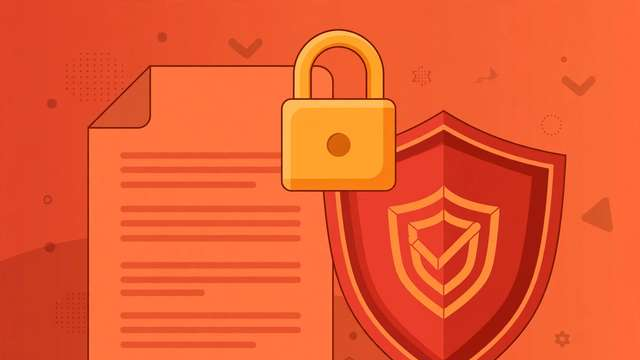
Sometimes you need to share a document — a contract, a tax form, medical records — and plain email just isn’t safe enough. A password on the PDF itself is the simplest way to add a real layer of protection, and you don’t need expensive software to do it. Here’s how to password-protect a PDF online, for free, in about a minute.
Why password-protect a PDF?
A PDF password encrypts the file’s contents. That means:
- Only people with the password can open it. Even if the email or download link leaks, the file stays unreadable.
- It works everywhere. Encrypted PDFs open in Adobe Reader, Preview on Mac, Chrome, and every major PDF app — the recipient just enters the password once.
- It’s compliance-friendly. For contracts, invoices, HR paperwork, and client files, a password is often the minimum expected safeguard.
A password isn’t invincible — a determined attacker with enough computing power could eventually crack a weak one — but against casual snooping, lost USB drives, and forwarded emails, it’s genuinely effective.
How to password-protect a PDF online (step by step)
Step 1: Open the free PDF protector
Head to DollarWise’s PDF protect tool. It’s completely free, requires no account, and — importantly — processes your file entirely in your browser. Your document and your password never leave your device, which is exactly what you want when handling sensitive files.
Step 2: Upload your PDF
Drag your file into the upload area or click to browse. The tool reads it locally, so even large documents work — there’s no upload wait and no file-size ceiling imposed by a server.
Step 3: Choose a strong password
This is the part that actually matters. A PDF password is only as strong as the password itself:
- Use 12 or more characters, mixing uppercase, lowercase, numbers, and symbols.
- Avoid names, birthdays, company names, and dictionary words — these are the first things cracking tools try.
- A passphrase works great: four or five random words like
crisp-lemon-tower-57-mileis both strong and memorable.
Step 4: Apply protection and download
Click the protect button. The tool re-saves your PDF with AES encryption applied and hands you the download. That’s it — the original file on your device is untouched; you now have a secured copy alongside it.
Step 5: Share the password separately
This is the step most people get wrong. Never send the password in the same email as the file. If someone intercepts that message, they get everything. Instead:
- Send the file by email, and the password by text message or a phone call.
- Or use a messaging app with end-to-end encryption for the password.
- For one-time sharing, agree on the password verbally beforehand.
What kind of encryption do you get?
PDF tools that do this properly use AES-128 or AES-256 encryption — the same standard used by banks and governments. Older “PDF encryption” methods (40-bit RC4, from the 1990s) are effectively broken, so a good tool uses the modern standard. DollarWise’s protector applies strong encryption by default, so you don’t have to think about algorithms.
Two password types exist in the PDF spec, and it’s worth knowing the difference:
| Type | What it does |
|---|---|
| User password | Required to open and view the document. This is the one you want. |
| Owner password | Controls permissions (printing, copying text) — but can be stripped by many free tools, so don’t rely on it for real security. |
When you set a user password, the entire document is encrypted. That’s the lock that matters.
Common mistakes to avoid
- Using a weak password.
Password123on a PDF takes seconds to crack. Use the passphrase method above. - Sending the password with the file. Defeats the entire purpose. Use a second channel.
- Forgetting the password yourself. Encryption is a one-way door — if you lose the password and didn’t keep the original, the file is effectively gone. Save it in a password manager.
- Uploading sensitive files to sketchy sites. Many “free PDF” sites send your document to their servers and keep copies. Browser-only tools avoid this entirely — a dedicated password manager is also worth having so you can generate and store long passphrases without trying to memorize them.
Sharing encrypted PDFs professionally
If you send protected documents regularly — invoices, reports, client contracts — build a small routine:
- Keep a consistent naming convention, e.g.
invoice-1042-protected.pdf, so you never confuse secured and unsecured copies. - Maintain a secure password vault (not a spreadsheet) with the passwords you share, or better, use unique passphrases per client.
- Tell recipients in advance: “I’ve sent you a password-protected PDF — the password is coming by text.” That way they don’t think the file is corrupted.
Frequently asked questions
Can I password-protect a PDF for free online?
Yes. Upload your PDF to a free tool like DollarWise’s PDF protector, set a password, and download the encrypted file. The whole process takes under a minute and costs nothing.
Does password-protecting a PDF encrypt the file?
Yes — a proper PDF password applies AES encryption to the document’s contents. Without the password, the file cannot be opened or read, even if someone downloads it.
How do I remove a password from a PDF I protected?
Use a PDF unlock tool: enter the password you set, and it generates a new unprotected copy. Only do this for files you own or have permission to unlock.
Is it safe to protect a PDF in my browser?
Yes, if the tool processes everything locally in your browser. Your file never leaves your device, so no server ever sees your document or your password.
Keep reading
How to Compare Two PDFs and Find Differences Online
Compare two PDFs side by side and spot every text difference online for free. Perfect for contracts, revisions, and version checks.
Read more →
How to Scan Documents to PDF with Your Phone (Free, No App Needed)
Turn paper documents into clean PDFs with your phone's camera — free, no app install, no signup. Get sharp scans in under a minute.
Read more →
How to Add a Text Watermark to PDF Online Free
Add CONFIDENTIAL, DRAFT, or custom text watermarks to any PDF free. Diagonal or horizontal, full control — right in your browser, no signup.
Read more →