How to Add a Text Watermark to PDF Online Free
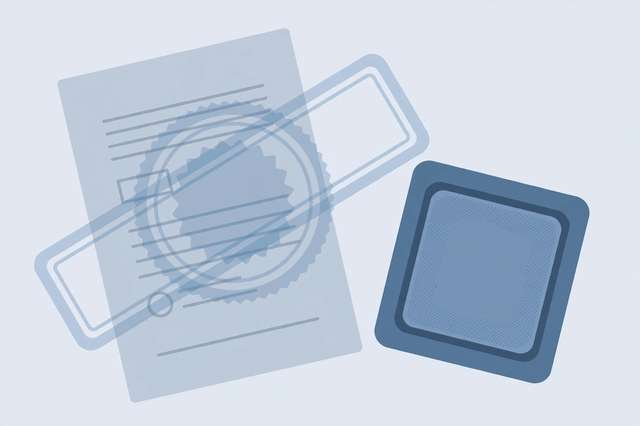
Sending out a draft contract, a price quote, or a design proof? A text watermark — that faint diagonal “DRAFT” or “CONFIDENTIAL” stamped across each page — is the simplest way to mark a document’s status and discourage unauthorized sharing. Here’s how to add one to any PDF free, online, in about a minute.
Why watermark your PDFs?
Text watermarks solve real everyday problems:
- Status signaling. DRAFT, FINAL, APPROVED, or FOR REVIEW tells every reader exactly where the document stands — no confusion, no outdated versions circulating as current.
- Confidentiality. A CONFIDENTIAL or DO NOT DISTRIBUTE watermark reminds recipients the document isn’t for forwarding, and it looks intentional in a way an email note doesn’t.
- Ownership. Stamping your company name (plus a date) across preview copies makes it obvious where a leaked document came from.
- Sample protection. Course creators, photographers, and designers watermark previews so the free sample can’t substitute for the paid product.
A watermark won’t stop a determined thief — but it stops casual misuse, which is 95% of the problem.
How to add a text watermark online (4 steps)
The quickest path is a free browser-based tool — no installs, no accounts, and your file never leaves your device:
- Upload your PDF to our free PDF text watermark tool. It processes everything locally in your browser, so confidential documents stay confidential.
- Type your watermark text. “CONFIDENTIAL,” “DRAFT,” your company name — keep it to 1–3 words for the cleanest look.
- Style it. Pick diagonal (the classic 45° stamp) or horizontal placement, set opacity (15–30% is the sweet spot — visible but not distracting), choose font size and color. Gray is standard; red reads as urgent.
- Apply to all pages and download. The watermark stamps every page at once. Download your watermarked PDF — done.
Getting the look right
A bad watermark screams amateur; a good one is barely noticed until needed. Follow these rules:
- Opacity: 15–30%. Below 15% it’s invisible when printed; above 30% it fights the content for attention. Start at 20%.
- Diagonal for status, horizontal for branding. The 45° angle is the universal “this is a draft/confidential” signal. A subtle horizontal footer watermark works better for persistent branding.
- Size matters. The text should span much of the page width — timid little watermarks in the corner get cropped out of screenshots.
- Color with intent. Medium gray for neutral status marks, red for CONFIDENTIAL/URGENT, your brand color for ownership marks.
- Mind the background. On image-heavy pages, a light watermark can disappear. Slightly higher opacity or a darker tone fixes it — preview a photo page before finalizing.
Text watermark vs image watermark
Text watermarks (this guide) are best for status labels and confidentiality notices — quick to create, easy to read, professional.
Image watermarks (logos, signatures, seals) suit branding and official documents. If you need a logo stamped on every page, use an image watermark tool instead — text can’t replicate a logo.
Many documents benefit from both: a diagonal “DRAFT” text watermark plus a small logo in the footer.
Watermark wording for common situations
Picking the right word matters — it sets the legal and practical tone of the document:
- DRAFT — work in progress; signals the content may change. Standard for contracts and proposals under review.
- CONFIDENTIAL — restricted distribution. Use for internal reports, financials, and anything under NDA.
- SAMPLE / PREVIEW — marketing copies and trial content. Tells the reader this isn’t the full product.
- DO NOT COPY / DO NOT DISTRIBUTE — stronger deterrent for sensitive material, though still not technically enforceable on its own.
- Your company name + date — ownership marking. Ideal for portfolios, quotes, and design proofs where you want credit if the file travels.
Avoid stacking multiple watermarks (“DRAFT CONFIDENTIAL DO NOT COPY SAMPLE”) — one clear word beats four competing ones. If you genuinely need two signals, put the status diagonally and the company name small in the footer.
What watermarks can’t do
Be honest about the limits:
- They don’t prevent copying. Anyone can still copy text or screenshot pages. Watermarks deter; they don’t lock.
- They can be removed by someone with PDF editing software and motivation. For sensitive documents, pair watermarks with real restrictions: password-protect the PDF and disable copying/printing where the format allows.
- They’re permanent. Once applied and saved, the watermark is baked into the pages. Always keep an unwatermarked original.
Frequently asked questions
How do I add a text watermark to a PDF for free? Upload your PDF to a free online watermark tool, type your watermark text (e.g. CONFIDENTIAL), choose position, opacity, size, and rotation, then download the watermarked PDF. It runs in your browser with no signup.
Can I remove a text watermark from a PDF later? Only if you kept the original file. A properly applied watermark becomes part of the page content, so always save a clean copy before watermarking. Watermarks are meant to be permanent.
What’s the best text for a PDF watermark? Use clear status labels: DRAFT, CONFIDENTIAL, SAMPLE, DO NOT DISTRIBUTE, or your company name plus a date. Keep it short — one to three words reads best at an angle across the page.
Will a watermark prevent copying my PDF content? No — a watermark discourages misuse and proves ownership, but it does not technically block copying. For real protection, combine watermarks with password restrictions on copying and printing.
Keep reading
How to Crop PDF Margins Online Free (No Install)
Remove wide white margins from any PDF in seconds. Free online PDF margin cropper trims edges, works in your browser, no signup needed.
Read more →
How to Invert PDF Colors (Dark Mode) Online Free
Turn any PDF into dark mode free: invert colors so white pages become black. Easy on the eyes for night reading — 100% in your browser.
Read more →
How to Compress a PDF to 1MB Online Free
Compress a PDF to 1MB or less online free — shrink oversized PDFs for email, uploads, and forms without readable quality loss.
Read more →