How to Crop PDF Margins Online Free (No Install)
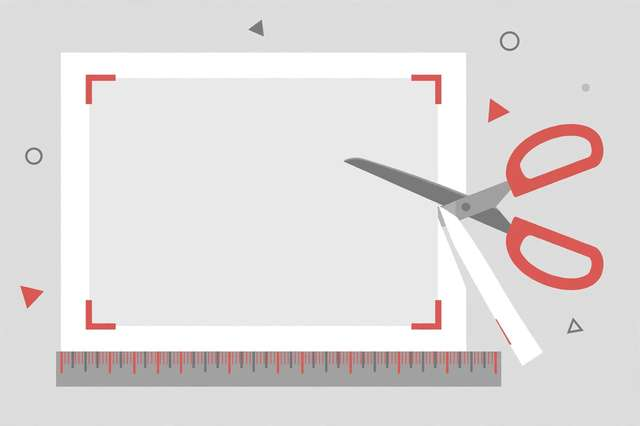
Ever opened a PDF — a scanned book, a research paper, a slide deck exported to PDF — and found it drowning in white space? Wide margins make documents harder to read on phones and tablets, waste paper when printing, and look unprofessional in presentations. Cropping PDF margins trims that dead space so the content fills the page. Here’s how to do it free, online, in under a minute — no software to install.
Why crop PDF margins?
A few scenarios where margin cropping transforms a document:
- Reading on small screens. A PDF with 2-inch margins on a phone shows text in a tiny column. Cropping lets you zoom less and scroll less.
- Printing. Less white space means larger text on the printed page — or fewer pages overall.
- Presentations. Slides exported with printer margins look shrunken on a projector. Crop them and they fill the screen.
- Scanned books. Scans often include the scanner bed or page curl at the edges. Cropping cleans them up instantly.
Unlike resizing or compressing, margin cropping is lossless — it only adjusts the page’s crop box (the defined visible area). Your text, images, and vector graphics are untouched.
How to crop PDF margins online (3 steps)
The fastest method uses a free browser-based tool — no account, no install, and your file never leaves your device:
- Upload your PDF. Drag your file into our free PDF margin cropper. It runs 100% in your browser — nothing is uploaded to any server, so even sensitive documents stay private.
- Set your crop. Choose how much to trim from the top, bottom, left, and right — or use auto-detect, which finds the actual content boundaries on each page and trims to them. Preview the result before committing.
- Apply and download. The tool applies the crop to all pages at once (with options for odd/even pages or skipping the cover) and gives you a download link for the cropped PDF.
That’s it. A 200-page document takes seconds, not the afternoon it would take page-by-page in desktop software.
Auto-detect vs manual crop: which to choose?
Auto-detect analyzes each page’s content and trims to the tightest bounding box. It’s perfect for scanned documents and uniformly-margined files — one click, done. The tradeoff: pages with full-page images or unusual layouts can get over-cropped.
Manual crop lets you set exact trim amounts per edge (e.g., 0.5 inches all around). Use it when:
- You want consistent margins preserved (just smaller)
- Some pages have full-bleed graphics you don’t want clipped
- Auto-detect is too aggressive on certain pages
A good workflow: run auto-detect first, preview a few pages, and switch to manual values if anything looks clipped.
Other ways to crop PDF margins
Adobe Acrobat Pro has a proper crop tool (Tools → Edit PDF → Crop Pages) with per-page control — powerful, but it’s paid software and overkill for a quick trim.
Preview on Mac can crop via the rectangular selection + Command+K, but it applies per page and is tedious for long documents.
Printing to PDF with “fit” or custom scaling is a hack some people use, but it re-renders the document and can blur text.
For most people, the free online tool wins on speed: upload, crop, download, done — with zero quality loss and zero installs.
Batch cropping: handling multiple PDFs
If you’re cleaning up a whole folder — say, a semester’s worth of lecture slides — cropping files one at a time gets old fast. A few strategies help:
- Standardize your settings first. Crop one representative PDF, note the exact trim values that looked right, then apply those same values to the rest. Consistent margins across a document set look far more professional than per-file improvisation.
- Sort by source. PDFs exported from the same software (PowerPoint, LaTeX, a particular scanner) usually share identical margin geometry, so one setting works for the whole batch. Mixed sources need per-file previews.
- Name outputs clearly. Save cropped versions with a suffix like
-cropped.pdfso the originals stay untouched and you can always re-crop with different settings later.
The online cropper handles files sequentially in seconds each, so even a dozen PDFs take less time than opening desktop software once.
Tips for perfect crops
- Preview before applying. Always check the first, middle, and last pages — headers, footers, and page numbers live in the margins and you may want to keep them.
- Keep a small breathing margin. Cropping to the absolute content edge can look cramped; leaving 0.2–0.3 inches feels more polished.
- Watch for page numbers. If they’re in the margin you’re trimming, they’ll vanish. Either keep enough margin or accept their loss.
- Save the original. Cropping is reversible in most tools (the content isn’t deleted, just hidden by the crop box), but keep a backup of the original file anyway.
Frequently asked questions
How do I crop margins from a PDF online for free? Upload your PDF to a free online margin-crop tool, set how much to trim from each edge (or use auto-detect), preview the result, and download the cropped PDF. The whole process takes under a minute and runs in your browser.
Will cropping PDF margins reduce quality? No. Cropping margins only changes the visible page boundaries — the underlying content is not re-rendered or recompressed, so text and images keep their original quality.
Can I crop margins on all pages at once? Yes. Good PDF margin tools apply your crop settings to every page by default, with options to set different crops for odd/even pages or exclude the first page (useful for cover pages).
Is it safe to upload my PDF to an online cropper? With a client-side tool, your file never leaves your browser — there is no upload to a server at all. Avoid tools that require uploading sensitive documents to unknown servers.
Keep reading
How to Add a Text Watermark to PDF Online Free
Add CONFIDENTIAL, DRAFT, or custom text watermarks to any PDF free. Diagonal or horizontal, full control — right in your browser, no signup.
Read more →
How to Invert PDF Colors (Dark Mode) Online Free
Turn any PDF into dark mode free: invert colors so white pages become black. Easy on the eyes for night reading — 100% in your browser.
Read more →
How to Compress a PDF to 1MB Online Free
Compress a PDF to 1MB or less online free — shrink oversized PDFs for email, uploads, and forms without readable quality loss.
Read more →