How to Convert AVI to MP4 Online Free (Fast & Private)
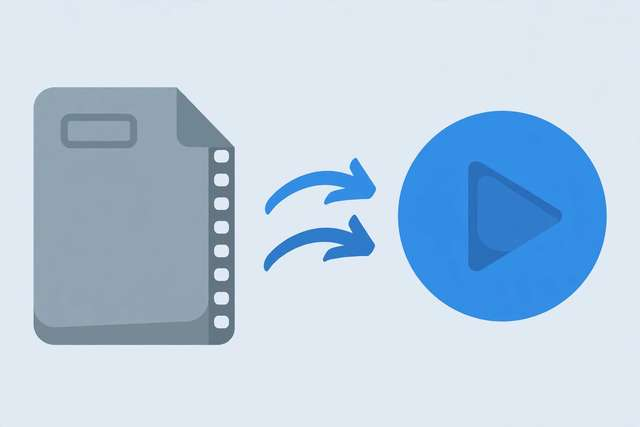
Found an old AVI file that refuses to play? You are not alone. AVI was Microsoft’s video container from 1992, and millions of home videos, downloads, and camera recordings still live in it. The problem: modern phones, browsers, smart TVs, and social platforms increasingly refuse to open AVI files — or play them with no sound, frozen frames, or cryptic errors. The fix takes two minutes: convert AVI to MP4, the universal format that plays everywhere. Here is why AVI fails, what to convert to, and how to do it free without uploading your videos to a stranger’s server.
Why AVI files fail on modern devices
AVI is a container, not a codec — think of it as a box that holds video and audio streams. The trouble is what’s usually inside the box:
- Outdated codecs: Most AVIs use DivX, Xvid, or old MPEG-4 variants that iPhones, Android phones, and browsers never supported. The container opens, but the codec inside is gibberish to the player.
- No streaming support: AVI was designed for local playback, not streaming. Browsers cannot progressively load AVI — another reason Chrome, Safari, and Firefox ignore it.
- Huge files: AVI rarely uses modern compression, so files are often 2–5× larger than the same video in MP4.
- Platform rejection: Instagram, TikTok, YouTube uploads, and most video editors want MP4. AVI gets rejected at the door.
MP4 (with H.264 video and AAC audio) is the opposite: a modern container holding the most universally supported codecs on earth. Convert once, and the video plays on every phone, TV, browser, and platform you will ever meet.
The best settings for AVI → MP4
You want maximum compatibility with minimum quality loss. These settings are the sweet spot:
- Video codec: H.264 — plays on everything; H.265/HEVC is smaller but some older devices choke on it
- Audio codec: AAC at 128–192 kbps — the universal audio standard
- Quality: high/near-lossless preset, or a bitrate matching the source (re-encoding at a higher bitrate than the source only wastes space — it cannot add detail)
- Resolution: keep the original resolution; upscaling an old 480p AVI to 1080p just makes a bigger, blurrier file
- Framerate: keep the original (usually 25 or 30 fps)
One honest note: conversion cannot improve quality. A grainy 2008 AVI becomes a grainy 2008 MP4 — just one that actually plays.
Common AVI conversion problems (and fixes)
“No audio after converting.” The AVI likely used an exotic audio codec (AC3, DTS) that the converter could not decode. Try extracting with the original file’s audio passthrough option, or convert the audio track separately first.
“The MP4 is bigger than the AVI.” You picked too high a bitrate. Match the source bitrate — for old SD footage, 2–4 Mbps H.264 is plenty. Anything higher just inflates the file.
“It plays but looks washed out.” Old AVIs sometimes carry the wrong color-range flags. A slight contrast/S-curve adjustment after conversion usually restores the punch.
“Conversion is slow.” Software encoding on an old laptop takes time — a 2-hour AVI can need 20–40 minutes. Close other apps, plug in the charger (laptops throttle on battery), and let it run.
Batch-converting an old video library
If you are digitizing years of family footage, convert in batches overnight: queue several AVIs, use identical settings for all of them, and name outputs consistently (e.g. 2008-beach.mp4). Store the MP4s in two places — an external drive and a cloud backup — because the original tapes or discs will not last forever, and neither will a single hard drive.
Convert AVI to MP4 free in your browser
Most “free” converters make you upload your video to their server — slow for large files, a privacy problem for personal videos, and often capped at small file sizes unless you pay. Ours works differently:
- Open the free AVI to MP4 converter — no signup, no account.
- Drop in your AVI file. It never leaves your device; conversion happens in your browser.
- Choose your quality preset (high quality is the default).
- Hit convert and download the MP4 when it finishes.
Because the file never uploads, even multi-gigabyte AVIs convert without waiting on your internet connection — your computer’s speed is the only limit.
What about other old formats?
The same logic applies across the board:
- WMV → MP4: old Windows Media files have the same compatibility problems — convert to MP4.
- FLV → MP4: Flash-era web videos are dead outside an MP4 wrapper.
- MKV → MP4: MKV usually plays fine on desktops but fails on iPhones and some smart TVs; MP4 fixes it.
- MP4 too big after converting? Run it through the free video compressor to shrink it for email, WhatsApp, or Discord.
Frequently asked questions
How do I convert AVI to MP4 for free?
Upload your AVI to our free AVI to MP4 converter, pick your quality settings, and download the MP4. The conversion runs in your browser with no signup, no watermark, and no file-size limits on the free tier — your video never leaves your device.
Why won’t my AVI file play on my phone?
AVI is a 1992-era container that often holds codecs (like DivX or Xvid) that modern phones and browsers never learned. MP4 with H.264 video plays on virtually every device made in the last 15 years — which is why converting fixes playback.
Does converting AVI to MP4 reduce quality?
Only slightly, if you use good settings. AVI and MP4 are containers, not quality levels — converting re-encodes the video, and a high bitrate or quality setting keeps the loss invisible. Converting never improves quality beyond the original, though.
What is the best format to convert old AVI videos to?
MP4 with H.264 video and AAC audio. It is the universal standard: it plays on phones, TVs, browsers, and social platforms, and its files are typically much smaller than the original AVI.
Keep reading
WebM vs MP4: Which Video Format Should You Use?
WebM vs MP4 compared honestly: file size, quality, browser support, and platform compatibility — so you pick the right format every time.
Read more →
How to Convert FLV to MP4 Online Free: 3 Easy Methods
Convert FLV to MP4 online free — why FLV is obsolete, 3 free conversion methods that keep your file private, and settings for best quality.
Read more →
AVIF vs WebP: Which Image Format Wins in 2026?
AVIF vs WebP in 2026: real compression numbers, quality comparisons, browser support, and when to choose each format for your website or app.
Read more →