How to Change PDF Page Size from A4 to Letter (Free, No Software)
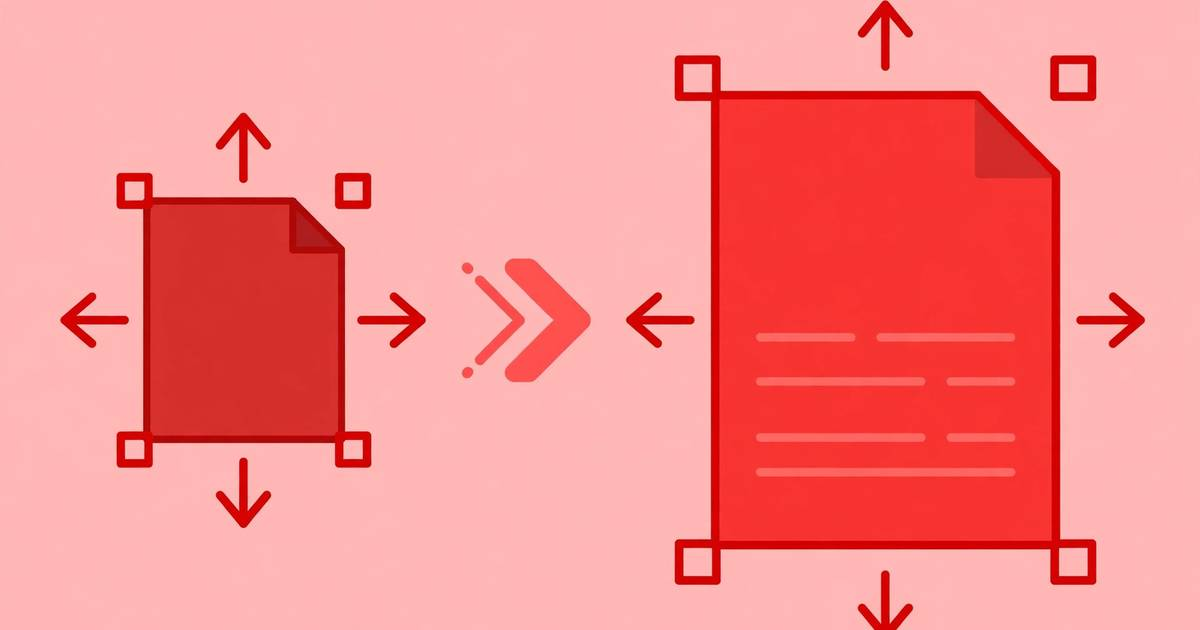
You’ve got a PDF formatted for A4 — the standard just about everywhere — but you need to print it on US Letter paper. Or the reverse: a US document that must fit A4. Print it as-is and you’ll get awkward margins, shrunken text, or cut-off edges.
Changing a PDF’s page size is a two-minute job once you know the right method. Here’s how to do it free, without installing anything.
A4 vs Letter: Why This Matters
Paper sizes differ by region, and PDFs remember the size they were created at:
- A4: 210 x 297 mm (8.27 x 11.69 in) — standard in Europe, Asia, Africa, Australia, most of the world.
- US Letter: 8.5 x 11 in (216 x 279 mm) — standard in the US, Canada, Mexico, and parts of Latin America.
Letter is a bit wider but shorter than A4. That mismatch is exactly what causes printing headaches: an A4 PDF printed on Letter paper gets its bottom clipped, while a Letter PDF on A4 leaves odd margins.
Common situations where you need to convert:
- Submitting a resume or application to a US employer when your template is A4.
- Printing US tax forms, contracts, or manuals on A4 paper.
- Preparing documents for international clients or publishers with a required paper size.
- Fixing a PDF that a printer rejects for “wrong paper size.”
The Easiest Method: Free Online Page Size Changer
The fastest route is a browser-based tool that resizes PDF pages entirely on your device:
- Open the free PDF page size changer.
- Upload your PDF (drag and drop works).
- Select your target size — US Letter or A4 (plus other common sizes).
- Choose a content handling mode:
- Fit to page: scales content proportionally to fill the new page — best for most documents.
- Keep original size, centered: no scaling; content stays the same size with adjusted margins — best when exact text size matters (forms, legal documents).
- Download the resized PDF.
Your file never leaves your browser — everything runs locally on your device, so even sensitive documents stay private.
Fit vs Center: Which Option Should You Pick?
This is the one decision that matters, so let’s make it concrete.
Choose “fit to page” when:
- You’re converting for printing and readability matters most.
- The document is a report, ebook, resume, or manual.
- A tiny scale change (A4 to Letter is roughly a 6% height difference) won’t hurt anything.
Choose “center without scaling” when:
- The document is a form with fields that must align to a printed template.
- It’s a legal document where exact dimensions matter.
- You’d rather have slightly larger margins than resized text.
Avoid “stretch to fill” if a tool offers it — non-proportional stretching distorts text and images. Always scale proportionally.
What About Mixed Page Sizes?
Some PDFs contain pages of different sizes (a report with a wide spreadsheet page, for example). A good page-size tool applies your chosen target to every page. If only some pages need resizing, split those pages out first, resize them, then merge everything back together — or simply accept uniform sizing, which is what printers expect anyway.
Checking Your Result
After converting, do a quick sanity check before you print 50 copies:
- Open the new PDF and flip through it — look for clipped headers, footers, or page numbers.
- Check the page dimensions — in most PDF readers, document properties show the page size; confirm it reads 8.5 x 11 in (Letter) or 210 x 297 mm (A4).
- Print one test page at 100% scale (not “fit to printable area,” which would shrink it again).
Method 2: Print-to-PDF (When You Have No Tool Handy)
If you’re on a computer with a PDF printer driver, you can fake a conversion:
- Open the PDF and choose Print.
- Select “Microsoft Print to PDF” (Windows) or “Save as PDF” (Mac).
- Set the paper size to your target (Letter or A4) and choose “Fit” scaling.
- Print — and save the output as a new PDF.
This works in a pinch, but it rasterizes through the print pipeline: you may lose hyperlinks, form fields, and text selectability. The dedicated tool method preserves everything.
Tips for Clean Conversions
- Fonts: If the original PDF uses embedded fonts (most do), scaling keeps them crisp at any size. Blurry output usually means the source PDF had low-resolution images — resizing can’t fix that.
- Bleed and margins: Documents designed edge-to-edge for A4 may show thin white strips on Letter. “Fit to page” minimizes this; a small margin is normal and harmless.
- Batch jobs: Converting a whole folder of invoices or reports? Process them one at a time with the same settings for consistency.
- Keep the original: Always keep the source PDF. Page-size conversion is one-way in practice — going back and forth accumulates rounding.
Frequently Asked Questions
How do I change a PDF from A4 to Letter size for free? Use a free online PDF page size changer: upload your PDF, select Letter (8.5 x 11 in) as the target size, choose whether to scale content to fit or keep the original size centered, and download the converted file. The whole process takes under a minute and needs no software.
Will changing PDF page size cut off my content? Not if you use the right setting. A4 (210 x 297 mm) is taller and narrower than US Letter (8.5 x 11 in / 216 x 279 mm). Choose ‘fit to page’ scaling so content shrinks slightly to fit, or center the original content if you prefer no scaling but don’t mind small margins.
What is the difference between A4 and Letter size? A4 measures 210 x 297 mm (8.27 x 11.69 in) and is the standard paper size in most of the world. US Letter measures 8.5 x 11 in (216 x 279 mm) and is standard in the US and Canada. Letter is slightly wider but shorter than A4.
Can I change PDF page size without Adobe Acrobat? Yes. Free browser-based tools change PDF page sizes entirely on your device with no Adobe subscription, no account, and no uploads to a server.
Keep reading
How to Remove Annotations and Comments from a PDF Online Free
Remove highlights, sticky notes, and comments from a PDF online free — clean up marked-up documents before sharing, without installing software.
Read more →
How to Validate a PDF File Online Free (Check for Corruption Before You Send It)
Validate a PDF online free: check for corruption, broken pages, and unreadable files before you send an important document — in seconds, in your browser.
Read more →
PDF Merge Order Checklist
A free PDF merge order checklist: 28 steps to combine PDFs in the right order, catch missing pages, and send a clean final file.
Read more →