PDF Compression Cheat Sheet: Target Sizes for Email, WhatsApp, and Forms
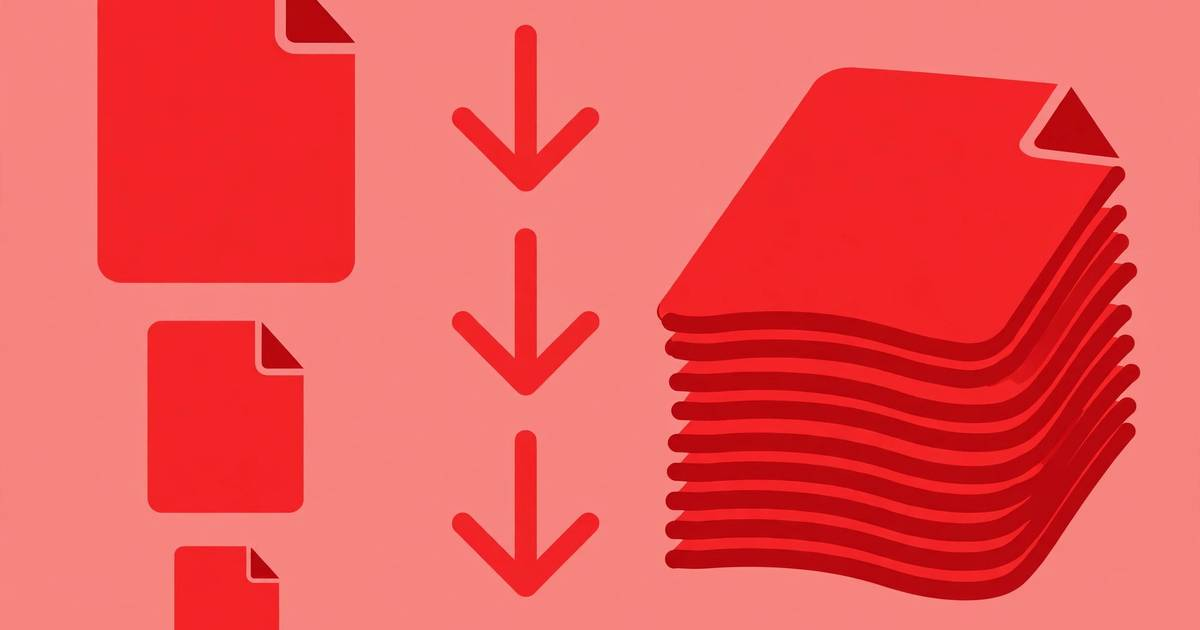
Nothing kills momentum like a rejected upload. Your visa application bounces back because the PDF is 31 MB. The court portal caps filings at 25 MB. WhatsApp refuses your 16.4 MB document. Email attachments vanish into spam or bounce entirely. Every platform has its own limit, and guessing the right compression settings each time wastes hours. This cheat sheet ends the guessing. It lists the exact size target for every common situation — email, WhatsApp, web forms, Kindle, visa and passport applications, court filings — and pairs each target with the DPI, JPEG quality, and color settings most likely to hit it on the first try. Print it, bookmark it, or keep the free download on your desktop.
What’s inside this pack
The cheat sheet covers six everyday scenarios where PDF size limits cause real problems. Email gets two targets because Gmail and Outlook behave differently: the conservative under-10 MB target that always delivers, and the under-25 MB ceiling where attachments start bouncing. WhatsApp’s hard 16 MB document limit is covered with a safety margin built in. Web forms and portals get the common 5 to 10 MB range most government and job sites enforce. Kindle covers Amazon’s personal-document limits and the settings that keep ebooks readable. Visa and passport applications cover the strict per-document caps embassies publish, and court filings cover the 25 to 35 MB ranges most e-filing systems accept. For every target you also get the three settings that matter most — scan DPI, JPEG quality, and when to switch from color to grayscale — plus quick rules of thumb like which pages to split when compression alone is not enough.
The PDF compression cheat sheet (free sample)
These ten entries are the most-used targets from the full cheat sheet — each one pairs a real-world limit with the settings to hit it. The complete cheat sheet with all scenarios, exact setting combinations, and troubleshooting rules is in the free download below.
- Gmail and Outlook email: aim for under 10 MB to guarantee delivery — 150 DPI, JPEG quality 70, grayscale for text-only pages.
- Email absolute ceiling: most providers reject attachments over 25 MB — 200 DPI, JPEG quality 75, keep color only on pages with photos or charts.
- WhatsApp documents: hard limit of 16 MB — compress to under 15 MB for safety with 150 DPI, JPEG quality 65, grayscale where possible.
- Job portals and web forms: most cap uploads at 5 to 10 MB — 150 DPI, JPEG quality 70, grayscale text, and flatten transparency before exporting.
- Kindle personal documents: keep under 50 MB for Send to Kindle — 150 DPI is plenty for e-ink screens, JPEG quality 70, grayscale recommended.
- Visa and passport applications: embassies commonly cap each document at 2 to 5 MB — 150 DPI, JPEG quality 60 to 65, grayscale, one document per file.
- Court e-filing: most systems accept 25 to 35 MB per filing — 200 DPI, JPEG quality 75, keep color only for exhibits and evidence photos.
- Biggest lever — color versus grayscale: switching text pages from color to grayscale typically cuts file size by 50 to 70 percent with zero readability loss.
- DPI rule of thumb: 300 DPI is for print, 150 to 200 DPI is for screens and uploads, and anything above 200 DPI on a web upload is wasted megabytes.
- When compression is not enough: split the PDF into parts under the limit rather than crushing quality — two clean 12 MB files beat one unreadable 24 MB file.
How to use this pack
- Find your scenario in the cheat sheet and note its target size.
- Apply the recommended DPI, JPEG quality, and color settings in your PDF tool or scanner app.
- Compress once, then check the actual file size — if you missed the target, lower JPEG quality by 10 points before touching DPI.
- Open the compressed PDF and zoom to 100 percent: text must stay crisp and photos recognizable.
- If the file is still too large after two passes, split it into parts instead of degrading it further.
Keep the downloaded cheat sheet next to your scanner or PDF tool. After two or three uses you will know your three most common targets by heart, and uploads will stop bouncing.
Frequently asked questions
Why does my scanned PDF end up so much larger than expected? Scanners default to 300 or 600 DPI in full color, which is print quality. A ten-page color scan at 600 DPI can exceed 50 MB. Dropping to 150 DPI grayscale for text pages usually brings the same document under 5 MB with no visible difference on screen.
Should I compress or use a cloud link for large PDFs? Compress when the recipient expects an attachment, like visa officers or courts. Use a cloud link when the file is a portfolio, ebook, or anything over 25 MB that does not need to live inside an email. The cheat sheet targets the attachment cases.
Keep reading

How to Build a Morning Routine That Actually Sticks (7-Day Starter Plan)
Build a morning routine that actually sticks: start tiny, stack habits, and follow a simple 7-day starter plan that survives real life.
Read more →
How to Remove Annotations and Comments from a PDF Online Free
Remove highlights, sticky notes, and comments from a PDF online free — clean up marked-up documents before sharing, without installing software.
Read more →
How to Validate a PDF File Online Free (Check for Corruption Before You Send It)
Validate a PDF online free: check for corruption, broken pages, and unreadable files before you send an important document — in seconds, in your browser.
Read more →