How to Turn a PDF into an HTML Web Page (Free)
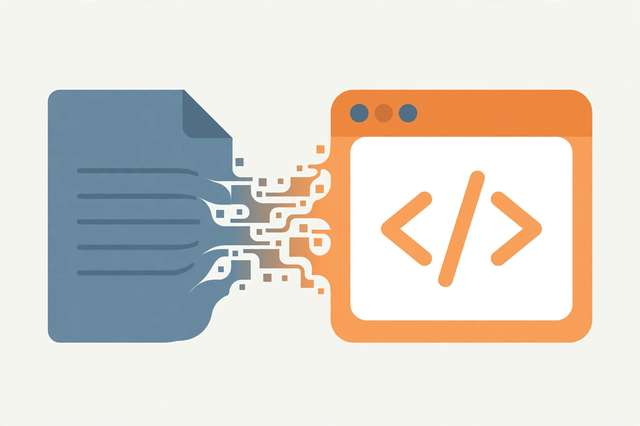
Turning a PDF into an HTML web page is one of the simplest upgrades you can make to content that currently lives in a document. PDFs are fine for printing and downloads, but on the web they fight against everything that matters: they load slowly on phones, search engines struggle to read them, screen readers handle them poorly, and sharing a link to “page 14 of a PDF” is awkward for everyone. Converting that same content to a real HTML page fixes all of that in minutes — and it’s free.
Whether you’re publishing a product manual, a restaurant menu, a portfolio, or a long report, HTML gives your content a second life: searchable, shareable, and mobile-friendly. Here’s how to do it right.
Why HTML beats PDF on the web
SEO. Google can index PDFs, but it doesn’t love them. An HTML page gets a proper title tag, meta description, headings that signal structure, internal links, and schema markup — every tool in the search toolkit. Converted pages can rank for queries your PDF never could.
Mobile readability. PDFs are designed for fixed-size paper. On a phone, readers pinch, zoom, and scroll sideways to read a letter-sized page. HTML reflows to any screen, which is where most of your visitors actually are.
Accessibility. Screen readers work dramatically better with semantic HTML — headings, lists, and tables — than with a PDF. If anyone in your audience uses assistive tech, HTML is the kinder format.
Sharing and engagement. People link to web pages, not PDFs. An HTML version gets shared and bookmarked — plus you can embed videos, forms, and interactive elements a PDF could never hold.
How to convert PDF to HTML online (free)
You don’t need desktop software or an account. A browser-based converter does the whole job client-side:
- Open the PDF to HTML converter in your browser.
- Upload your PDF or drag it into the upload area. Your file stays on your device — nothing is sent to a server.
- Wait for the conversion. Text is extracted into semantic HTML (real headings, paragraphs, and lists where the structure is detectable), and embedded images are pulled out alongside the text.
- Preview the result right in your browser. Check that headings, lists, and images landed where you expect.
- Download the .html file. Open it in any browser to verify, then publish it on your site or send it to anyone — it works offline too.
The whole process usually takes under a minute for a typical document — no signup, no watermark, no page limits.
Tips for clean output
Raw conversion gets you 90% of the way there; a few minutes of polish makes the result look native.
Fix fonts and typography
Swap the converter’s default fonts for a web-safe stack (system-ui, -apple-system, "Segoe UI", sans-serif) or a Google Font, at 16–18px with generous line height.
Handle images properly
Extracted images may come out at print resolution — larger than needed for the web. Compress them, add descriptive alt text (great for SEO and accessibility), and cap their width with CSS (max-width: 100%; height: auto;) so they scale down on phones instead of breaking the layout.
Make it responsive
Add <meta name="viewport" content="width=device-width, initial-scale=1"> in the head if the converter doesn’t include one, and wrap the content in a container with max-width: 720px; margin: 0 auto; padding: 0 1rem;. That one rule makes long documents genuinely readable on a phone.
Simplify the styling
Strip out any legacy print-oriented styles — fixed pixel widths, tiny font sizes, absolute positioning — that came along from the PDF. Lean CSS beats a pixel-perfect replica of a paper page.
Cleanup steps after conversion
Run through this quick checklist before publishing:
- Proofread the top and bottom of each section. Headers, footers, and page numbers from the PDF sometimes leak into the HTML as stray text — delete them.
- Rebuild the table of contents as anchor links. Converted TOCs are often plain text; turning them into jump links makes long documents navigable.
- Check links. Internal “see page 12” references and broken hyperlinks should become real anchor links or be deleted.
- Test on mobile. Open the page on your phone (or use browser dev tools) and confirm nothing overflows horizontally.
- Add metadata. Give the page a proper
<title>, meta description, and Open Graph tags so it looks right in search results and social shares.
Great use cases for PDF to HTML
- User manuals and help docs — searchable, linkable, and easy to update one section at a time.
- Portfolios and resumes — a web version ranks in search and renders perfectly on any device.
- Restaurant menus and event programs — customers actually read these on phones.
- Reports and whitepapers — each section can earn its own search traffic instead of sitting inside one file.
- Price lists and catalogs — update a price without regenerating and re-uploading a document.
Once your content lives as HTML, you can add a newsletter signup, embed a contact form, or link each section to related pages — things a PDF never allowed.
Ready to convert? Try the free PDF to HTML converter — it runs entirely in your browser, so your documents stay private.
Frequently asked questions
How do I turn a PDF into an HTML web page for free? Use a free online converter: upload or paste your PDF, let it extract the content into semantic HTML, then download the .html file. Polish fonts, images, and responsive styles before publishing.
Is an HTML page better than a PDF for SEO? Yes. HTML gets proper titles, meta descriptions, headings, and schema markup that search engines use to rank pages. PDFs are indexable but rank poorly compared to equivalent HTML content.
Will my PDF images and formatting carry over to HTML? Text-based PDFs convert very cleanly — images, headings, links, and lists carry over. Scanned PDFs (images of text) and complex multi-column layouts may need manual cleanup.
Can I make the converted HTML mobile-friendly? Yes. Add a viewport meta tag, use a max-width content container, and make images fluid. The converted page then reflows beautifully on any screen size.
Keep reading
How to Convert PDF to PNG Online Free (No Signup)
Convert PDF to PNG online free with no signup. Turn every PDF page into a high-quality PNG image in your browser — step by step, plus quality and privacy tips.
Read more →
How to Convert TXT to PDF Online Free
Convert TXT to PDF free: paste or upload your text file, pick page size and fonts, and download a clean PDF in seconds. No signup needed.
Read more →
How to Choose a Color Palette for Your Website or Brand
Choose website colors like a designer: anchor color, harmony formulas, the 60-30-10 rule, and contrast checks — with a worked example.
Read more →