How to Convert TXT to PDF Online Free
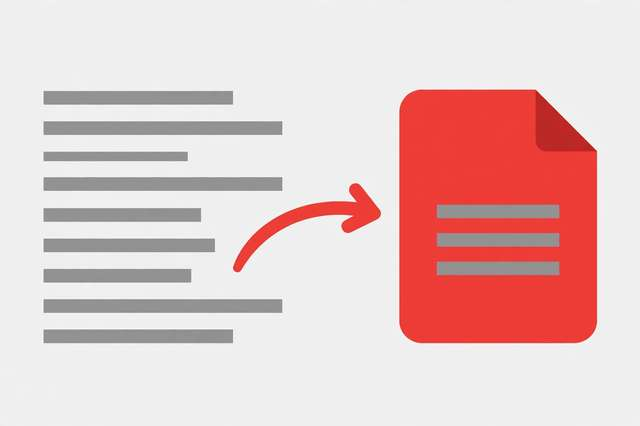
Plain text files are wonderfully simple — they open anywhere, weigh almost nothing, and never break. But when you need to share your writing with someone else, print it, or submit it formally, a .txt file feels unfinished. Text wraps oddly, there’s no page structure, and formatting depends on whatever app opens it. Converting TXT to PDF solves all of that: your words land in a fixed, professional layout that looks identical on every device.
The good news is that the conversion is completely free and takes less than a minute. Here’s how.
How to convert TXT to PDF online (free)
- Open the TXT to PDF converter in your browser — no signup or install needed.
- Add your text. Either paste your text directly into the editor or upload a
.txtfile from your device. The content loads instantly. - Choose your page setup. Pick a page size (Letter, A4, or Legal), set the font and font size, and adjust the margins to taste. Serif fonts read well for long documents; sans-serif works great for resumes and notes.
- Preview the layout. Check that paragraphs break cleanly across pages and that nothing runs into the margins.
- Convert and download. Hit convert, and your PDF downloads immediately — ready to print, email, or submit.
Your file never leaves your browser: the conversion happens locally on your device, so even sensitive documents stay private.
Use cases: when TXT to PDF shines
- Notes and study guides — turn lecture notes or meeting notes into tidy documents you can print or annotate.
- Scripts and screenplays — lock your dialogue into a fixed layout before sharing with collaborators.
- Ebooks and manuscripts — draft in plain text (many writers swear by it), then convert for distribution.
- Resumes and cover letters — a PDF preserves your layout exactly, so it never looks broken on the hiring manager’s screen.
- Code snippets and logs — share terminal output or config files in a format that won’t rewrap mid-line.
- Contracts and letters — plain-text drafts become formal, signable-looking documents.
Formatting tips for a professional result
Plain text has no bold, italics, or headings — but a few habits make converted PDFs look polished anyway.
Structure with spacing. Use blank lines between paragraphs and logical sections. Since .txt has no paragraph styles, consistent spacing is your main design tool.
Mind your line length. Very long lines wrap unpredictably. Keep lines under ~80 characters in your source text for predictable breaks, or let the converter’s margins handle wrapping.
Use simple heading markers. Conventions like CHAPTER 1 on its own line, or === Section Title ===, survive conversion and scan well. You can restyle them after conversion if needed.
Choose readable typography. For body text, 11–12pt in a clean font (Georgia, Times New Roman, or a good sans-serif) with 1.3–1.5 line spacing is the sweet spot for print and screen.
Watch special characters. Curly quotes, em dashes, and symbols from word processors sometimes appear as odd glyphs in plain text. A quick find-and-replace for straight quotes and hyphens keeps the output clean.
Batch conversion made simple
Need to convert a whole folder of .txt files? You have two practical paths. The fastest is to combine first, convert once: paste each file’s content into one document with clear separators (like a centered * * * line) and convert the whole thing — perfect for chapters or sequential notes.
Alternatively, convert files one at a time and merge the PDFs afterward with any free PDF merger. This preserves individual documents as separate PDFs when you need them standalone, like a set of resumes or per-client letters.
Privacy: why local conversion matters
Many online converters upload your file to a remote server, process it, and (hopefully) delete it. For a grocery list that’s harmless; for a resume, contract, or unpublished manuscript, it’s an unnecessary risk. A converter that runs entirely in your browser never transmits your text anywhere — the file goes from your device straight into a PDF on your device. For anything personal or work-related, that’s the only kind of converter worth using.
Ready when you are: the free TXT to PDF converter handles the whole job locally in seconds.
Frequently asked questions
How can I convert a TXT file to PDF for free? Paste your text or upload the .txt file into a free online converter, choose page size, font, and margins, then convert and download. No account or payment is required.
Can I convert multiple TXT files to PDF at once? Combine them into one document for a single conversion, or convert each separately and merge the resulting PDFs. Either approach takes only a few minutes.
Will my text formatting be preserved when converting TXT to PDF? Plain text has no rich formatting, but line breaks and paragraphs carry over, and you control the font, size, and margins — enough for clean, professional output.
Is it safe to convert personal documents in an online converter? Choose a browser-based converter that processes files locally on your device. Your content is never uploaded, making it safe even for resumes, contracts, and private notes.
Keep reading
How to Convert PDF to PNG Online Free (No Signup)
Convert PDF to PNG online free with no signup. Turn every PDF page into a high-quality PNG image in your browser — step by step, plus quality and privacy tips.
Read more →
How to Turn a PDF into an HTML Web Page (Free)
Convert PDF to HTML free: why HTML beats PDF for SEO and mobile, plus step-by-step conversion, cleanup tips, and responsive output.
Read more →
How to Convert JPG to PDF Online for Free (Phone, PC & Mac)
Convert JPG to PDF free in seconds. Learn the fastest browser method plus built-in phone, Windows, and Mac options — with tips for crisp, small PDFs.
Read more →