How to Make a Favicon for Your Website in 2026
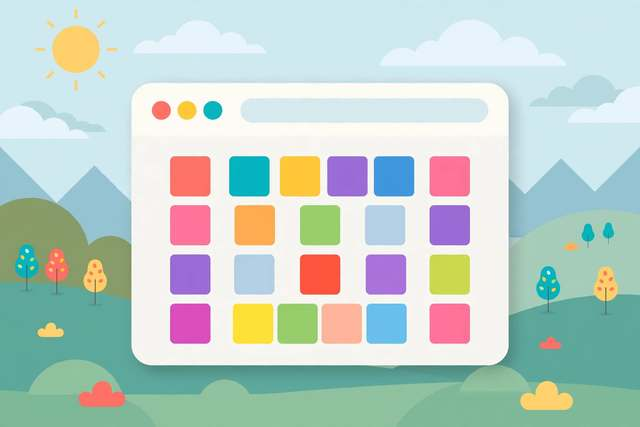
That tiny icon in the browser tab — the one that makes your site recognizable in a sea of tabs — is the favicon. It is 16 pixels square and somehow one of the most visible pieces of your brand. A missing or blurry favicon makes a site look unfinished; a crisp one quietly signals professionalism every time someone glances at their tabs. Here is how to make one properly in 2026: the right sizes, the right formats, design rules for tiny canvases, and a free generator that does the tedious multi-size work for you.
What a favicon actually needs to cover in 2026
The humble favicon.ico in the site root still matters, but modern devices ask for more:
- favicon.ico — the classic: contains 16×16 and 32×32 versions. Every browser reads it; keep it for compatibility.
- 180×180 PNG — Apple’s touch icon for home-screen bookmarks on iPhone and iPad.
- 192×192 and 512×512 PNG — Android/Chrome icons, also used by progressive web apps.
- SVG favicon — crisp at every size in modern browsers, and it can even adapt to dark mode with a little CSS inside the SVG.
- site.webmanifest — a small JSON file that ties the Android icons together for installable web apps.
You do not need to hand-craft each of these. The sane workflow is: design once at high resolution, then generate every size automatically.
Designing for 16 pixels (the hard part)
A favicon is not a shrunken logo — it is a pictogram. What works at 16×16:
- Simplify ruthlessly. Use one bold shape, one letter, or one symbol. Your full logo with tagline will be an unreadable smear.
- Go high-contrast. The icon sits on varied tab backgrounds; strong contrast between mark and background keeps it legible.
- Use flat, solid shapes. Fine lines, gradients, and thin typography vanish at small sizes. Thick strokes survive.
- Test at actual size. Zoom out, squint, view it in a real tab — design tools lie at 400% zoom.
- Consider a lettermark. Many great favicons are just one bold letter on a brand-color background. Simple wins.
Common failures: full wordmarks (illegible), photographic detail (mush), low-contrast pastels (invisible), and transparency that lets the tab background clash with the design.
Step by step: make your favicon
Step 1: Prepare a high-resolution source. Start with your logo or mark at 512×512 pixels or larger — PNG with transparency, or SVG if you have it. Simplify the design per the rules above if needed.
Step 2: Generate all the sizes. Our free favicon generator takes your source image and produces the complete set — multi-size .ico, Apple touch icon, Android icons, and SVG — right in your browser, no upload needed. Doing this by hand in an image editor means exporting a dozen files and packing an .ico; the generator does it in seconds.
Step 3: Upload the files. Place the generated files in your site root or an assets folder (e.g., /favicons/). The classic favicon.ico traditionally lives at the domain root, where browsers look for it automatically.
Step 4: Add the link tags. In your HTML <head>:
<link rel="icon" href="/favicon.ico" sizes="any" />
<link rel="icon" href="/icon.svg" type="image/svg+xml" />
<link rel="apple-touch-icon" href="/apple-touch-icon.png" />
<link rel="manifest" href="/site.webmanifest" />
Step 5: Clear cache and verify. Browsers cache favicons aggressively — notoriously so. Hard-refresh, test in a private window, and check on both desktop and a phone home screen. If the old icon persists, the cache-busting trick is renaming the file and updating the link tag.
Platform shortcuts
- WordPress: Appearance → Customize → Site Identity → Site Icon — upload a 512×512 image and WordPress generates the set.
- Squarespace / Wix / Shopify: each has a “browser icon” or “favicon” upload in site settings — one upload, platform handles sizes.
- Hugo / static sites: drop the files in
static/and add the link tags to your head partial once; every page inherits them. - Web app manifests: if you ship a PWA, the 192×192 and 512×512 icons plus
site.webmanifestare required for the install prompt to appear.
Dark mode favicons: a 2026 nicety
Modern browsers support SVG favicons, and SVG can include a tiny bit of CSS — which means your favicon can adapt to the user’s color scheme. A <style> block inside the SVG with a prefers-color-scheme: dark media query can swap a dark mark for a light one, so your icon stays legible whether the tab bar is light or dark. Keep the fallback simple: the .ico and PNG versions cannot do this, so make sure your default design reads well on both backgrounds before adding the dark-mode variant.
Frequently asked questions
What size should a favicon be?
The classic favicon.ico holds 16×16 and 32×32 pixel versions. Modern sites also serve a 180×180 PNG for Apple devices and 192×192 plus 512×512 PNGs for Android. Generate the whole set from one high-resolution source rather than drawing each size by hand.
What is the best format for a favicon in 2026?
A multi-size .ico file for universal browser compatibility, PNG icons at 180×180, 192×192, and 512×512 for mobile devices, and an SVG favicon for crisp rendering in modern browsers. Together they cover every context.
Can I make a favicon from my logo?
Yes. Start from a high-resolution version, simplify it for tiny sizes (one bold shape or letter, high contrast, flat shapes), then run it through a favicon generator — ours builds every required size free in your browser.
How do I add a favicon to my website?
Upload the generated files to your site root or assets folder and add <link rel="icon"> tags in your HTML <head> for each format. Most site builders also offer a dedicated favicon upload setting that skips the manual HTML.
Keep reading
How to Hit an Exact Video File Size (Target-Size Compression Guide)
Need a video under 25MB or exactly 100MB? Learn target-size compression: how bitrate math works and how to hit any size free.
Read more →
How to Split a PDF Into Single Pages Online Free
Split a PDF into single pages free: extract each page as its own file in seconds, keep quality and filenames tidy, all in your browser.
Read more →
How to Turn a PDF into an HTML Web Page (Free)
Convert PDF to HTML free: why HTML beats PDF for SEO and mobile, plus step-by-step conversion, cleanup tips, and responsive output.
Read more →