How to Interleave PDF Pages From Two Documents (Free)
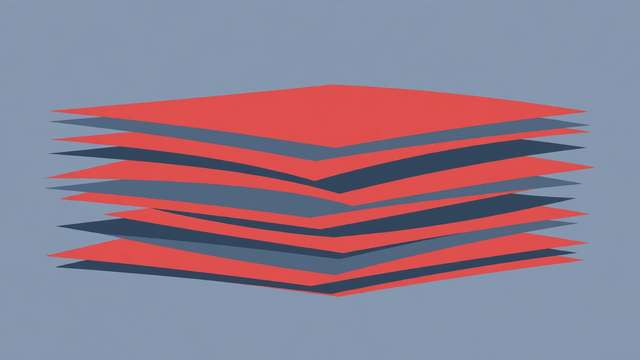
Merging two PDFs end-to-end is easy. But what if the pages need to be woven together — page 1 from document A, page 1 from document B, page 2 from A, page 2 from B? That is called interleaving, and it is the missing step in one of the most common scanning workflows in the world. This guide explains when interleaving is the right move and how to do it free, in your browser, in under a minute.
What interleaving actually does
Take two PDFs. Interleaving builds a new document by alternating their pages:
- File A: A1, A2, A3
- File B: B1, B2, B3
- Interleaved result: A1, B1, A2, B2, A3, B3
If one file is longer, the extra pages simply append at the end once the shorter file is exhausted — nothing is dropped. Some tools also offer reverse-interleaving, where the second file feeds in back-to-front (B3, B2, B1), which you need when a scanner outputs the second batch in reverse order.
The classic use case: single-sided scanners
Most office scanners and phone scanning apps capture one side at a time. So a 10-page double-sided contract becomes two PDFs: one with pages 1, 3, 5, 7, 9 and another with pages 2, 4, 6, 8, 10 (or 10, 8, 6, 4, 2 if the stack came out reversed). Neither plain merging nor manual dragging fixes this cleanly — interleaving rebuilds the correct reading order in one step.
Other situations where interleaving is exactly right:
- Booklet assembly. Combining separately scanned left and right pages.
- Translation overlays. Alternating original-language and translated pages for bilingual review.
- Before/after comparisons. Weaving “before” and “after” pages so reviewers flip through pairs.
- Form packets. Alternating instruction pages with the forms they describe.
Step-by-step: interleave two PDFs online
- Prepare your two files. Know which is “first” (A) and which is “second” (B). If the second scan came out back-to-front, note that you will need the reverse option.
- Upload both PDFs. Drag them into the interleaver. Try the free tool: /tools/interleave-pdfs/ — it runs 100% in your browser, so your files never leave your computer, which matters for legal and medical documents.
- Choose the interleave direction. Normal (A1, B1, A2, B2…) for standard front/back scans; reverse-second-file if your scanner output the second batch backwards.
- Preview the page order. A good tool shows the planned sequence before building the file — confirm it reads A1, B1, A2, B2 as expected.
- Build and download. Generate the interleaved PDF and save it. Open it and skim the first few pages to confirm the order is right.
Interleave vs. merge vs. alternate: picking the right operation
These three get confused constantly:
- Merge (append): A1, A2, A3, B1, B2, B3. Use when the documents are sequential chapters or attachments.
- Interleave: A1, B1, A2, B2, A3, B3. Use for front/back scan reconstruction.
- Insert/overlay: placing pages of B at specific positions in A. Use when only a few pages need weaving, not the whole file.
If your “two PDFs” are actually the odd and even pages of one document, interleaving is the answer roughly 100% of the time. If they are two complete documents that belong back-to-back, you want a plain merge instead.
Troubleshooting common interleave problems
- Pages come out in the wrong order. You probably need the reverse-second-file option — flip it and rebuild.
- Blank pages appear between content. Some scanners insert blank separators; remove blank pages from each PDF before interleaving.
- One file has extra pages. Normal — leftovers append at the end. If the extras are junk (blank scans), delete them first so they do not land mid-document.
- Page sizes differ between the two scans. Mixed letter/A4 or mixed orientations look messy interleaved. Normalize page size in each file first for a clean result.
- The file is huge. Two full-resolution scans interleaved can be enormous — compress the result afterward if you need to email it.
A note on privacy
Interleaved documents are very often sensitive — signed contracts, medical intake forms, legal filings. Browser-based tools that never upload your files are the right choice here; anything that sends your documents to a server creates a copy you cannot control. As a rule, if a “free” PDF tool requires an account before it will process your file, find another one.
Interleaving is one of those operations you need rarely but desperately — and when you need it, doing it by hand (dragging 40 pages one by one) is miserable. One alternating pass, one download, and your double-sided scans read like a real document again.
Frequently asked questions
What does it mean to interleave PDF pages? Interleaving alternates pages from two PDFs — page 1 from file A, page 1 from file B, page 2 from file A, page 2 from file B, and so on — producing one document with the pages woven together in order.
Why would I interleave two PDFs instead of just merging them? The classic case is a single-sided scanner: you scan all odd pages, flip the stack, scan all even pages, and interleave the two PDFs to rebuild the document in correct reading order.
Can I interleave PDFs if one file has more pages than the other? Yes. The tool alternates until the shorter file runs out, then appends the remaining pages of the longer file at the end, so nothing is lost.
Is it safe to interleave PDFs online? Use a tool that processes files entirely in your browser. Then the documents never upload anywhere, which matters for contracts, medical records, and anything confidential.
Keep reading

How to Build a Morning Routine That Actually Sticks (7-Day Starter Plan)
Build a morning routine that actually sticks: start tiny, stack habits, and follow a simple 7-day starter plan that survives real life.
Read more →
How to Remove Annotations and Comments from a PDF Online Free
Remove highlights, sticky notes, and comments from a PDF online free — clean up marked-up documents before sharing, without installing software.
Read more →
How to Validate a PDF File Online Free (Check for Corruption Before You Send It)
Validate a PDF online free: check for corruption, broken pages, and unreadable files before you send an important document — in seconds, in your browser.
Read more →