How to Convert TIFF to JPG Online Free (3 Easy Methods)
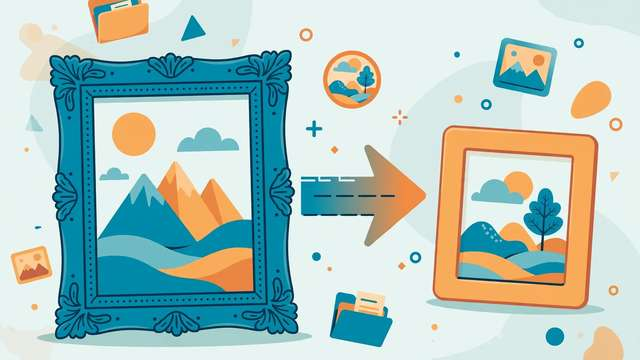
TIFF files hold stunning detail — which is exactly why they are a pain to share. A single scanned photo or camera export can weigh in at 50 MB or more, far too big to email, upload to a website, or attach to a message. Most apps and platforms will not even open a TIFF. The fix is simple: convert it to JPG, the universally supported format that shrinks files dramatically while keeping them looking great.
This guide walks you through three free ways to convert TIFF to JPG — a fast browser method, a free desktop option, and the tools already installed on your computer. No accounts, no watermarks, no cost.
Why TIFF files are so hard to share
TIFF (Tagged Image File Format) was built for print shops, photographers, and archivists. It stores images at maximum fidelity — often uncompressed, sometimes at 16-bit color depth, and frequently with multiple layers or pages. That fidelity has a price: enormous file sizes.
JPG, by contrast, uses smart lossy compression that throws away data your eyes barely register. A 40 MB TIFF routinely becomes a 2–4 MB JPG at high quality. The trade-off is one-way: you can always go from TIFF to JPG, but a JPG can never regain the discarded detail. That is why the golden rule of this guide is to keep your original TIFF file and treat the JPG as the shareable copy.
Common reasons to convert include emailing photos, uploading images to a website or social media, submitting forms that only accept JPG, and freeing up storage space. In almost every sharing scenario, JPG is the right destination format.
Method 1: Convert TIFF to JPG in your browser (fastest)
The quickest method needs no software at all. A browser-based converter processes your file locally on your machine — nothing is uploaded to a server — which also makes it the most private option.
- Open the converter. Head to our free TIFF to JPG converter in any modern browser, on desktop or mobile.
- Drop in your TIFF file. Drag and drop the file or tap to browse. There is no file-size gatekeeping and no sign-up.
- Pick your quality. A quality setting around 85–92% is the sweet spot: small files with detail that holds up on screen and in print at normal sizes.
- Convert and download. Hit convert, wait a few seconds, and save the JPG. The whole process typically takes under a minute.
This method is ideal for one-off conversions and for files on a phone or Chromebook where installing software is not practical. Because conversion happens entirely in your browser, even large TIFFs never leave your device — a meaningful privacy advantage over upload-based converter sites.
Method 2: Convert with free desktop software
If you convert images regularly, a desktop app gives you batch conversion and finer control. GIMP is the best free option and runs on Windows, Mac, and Linux:
- Open your TIFF in GIMP (File > Open).
- If the image has an alpha channel you do not need, flatten it via Image > Flatten Image — JPG does not support transparency.
- Go to File > Export As, choose JPG as the file type, and set the quality slider to 90 or above.
- Click Export and choose your save location.
For batch work — say, fifty scanned TIFFs — GIMP is not the most efficient choice. XnConvert (also free) converts entire folders in one pass with the same quality controls, and ImageMagick handles it from the command line if you are comfortable with a terminal.
Method 3: Use the tools already on your computer
You may not need to install anything. Both major operating systems ship with TIFF-capable tools:
On Mac (Preview):
- Double-click the TIFF to open it in Preview.
- Choose File > Export from the menu.
- Select JPEG as the format, drag the quality slider to Best or near-maximum, and click Save.
On Windows (Paint):
- Right-click the TIFF, choose Open with > Paint.
- Click File > Save as > JPEG picture.
- Name the file and save. Paint uses a fixed high quality, which is fine for sharing but offers no slider for fine-tuning.
These built-in tools are perfect for occasional conversions. Their only real limitation is the lack of batch processing and quality fine-tuning compared to dedicated software.
What you lose (and gain) converting TIFF to JPG
It helps to be honest about the trade. Here is what changes:
| Aspect | TIFF | JPG |
|---|---|---|
| File size | Very large | 5–20x smaller |
| Compression | None or lossless | Lossy |
| Transparency | Supported | Not supported |
| Layers / pages | Supported | Flattened to one image |
| Universal support | Limited | Opens everywhere |
The quality loss at high JPG settings is genuinely hard to spot — side-by-side, most people cannot tell a 90%-quality JPG from its TIFF source on screen. Where you will notice it: heavy editing after conversion, large prints, and images with sharp text or line art, where compression artifacts appear as smudgy halos around edges. If you plan to edit the image extensively later, do the edits on the TIFF and export the JPG last.
Tips for the best conversion quality
- Convert from the original, not a copy of a copy. Every TIFF-to-JPG-to-JPG cycle compounds the loss. Always convert fresh from the master TIFF.
- Use quality 85–95%. Below 80%, artifacts become visible; above 95%, file sizes balloon with almost no visible gain.
- Watch the color profile. If your TIFF uses Adobe RGB or ProPhoto RGB, the JPG may look washed out in some viewers. Converting to sRGB before export keeps colors consistent across devices.
- Check multi-page TIFFs. Scanned documents sometimes pack several pages into one TIFF. Converters typically export only the first page — split the pages first if you need them all.
- Downscale when appropriate. A 6000-pixel-wide scan does not need to stay that large for a web page. Resizing to the display size before or during conversion cuts the file even further.
Frequently asked questions
Can I convert TIFF to JPG for free?
Yes. Use our free TIFF to JPG converter for instant browser-based conversion with no sign-up, or free desktop tools like GIMP and XnConvert. Mac Preview and Windows Paint also convert TIFF to JPG at no cost.
Will converting TIFF to JPG reduce image quality?
Slightly. JPG uses lossy compression, so some data is discarded — but at quality settings of 85–95% the difference is nearly invisible on screen. Keep your original TIFF as the master copy and avoid re-saving the JPG repeatedly.
How do I convert TIFF to JPG without Photoshop?
Open the free TIFF to JPG converter in your browser and convert in seconds, or use GIMP for desktop control. On Mac, Preview exports TIFF as JPG via File > Export; on Windows, Paint saves TIFF files as JPG.
Why is my TIFF file so large compared to JPG?
TIFF stores full, uncompressed (or losslessly compressed) image data at high bit depth — ideal for printing and archiving. JPG discards data the eye barely notices, producing files 5–20x smaller that are perfect for sharing online.
Keep reading
How to Convert PDF to TXT Online Free
Turn any PDF into clean plain text in seconds. What survives conversion, how to handle scanned PDFs, and a free in-browser converter.
Read more →
TIFF vs PNG: Which Image Format Should You Use?
TIFF vs PNG explained: quality, file size, transparency, and best uses. Learn which format fits your project — and how to convert between them free.
Read more →
PNG vs JPG vs WebP: Which Image Format Should You Use?
PNG vs JPG vs WebP explained: transparency, quality, file size, and browser support — plus a free converter to switch formats in your browser.
Read more →