How to Convert PDF to TXT Online Free
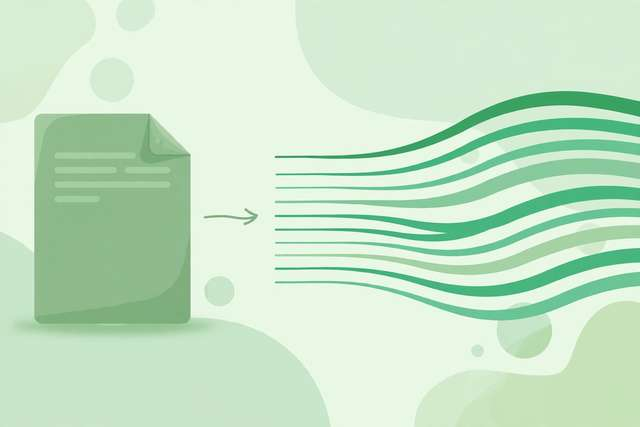
Somewhere inside that PDF is the text you need — a contract clause, a research passage, a recipe, lines of a log file someone “helpfully” exported as a document. Copy-pasting works for a paragraph. For twenty pages, you want the whole thing as plain text: clean, searchable, editable, and ready to drop into any app ever made.
Converting PDF to TXT strips away everything except the words themselves. No fonts, no layout, no images — just characters in reading order. This guide explains what you gain and lose, the critical difference between text PDFs and scanned PDFs, a four-step conversion walkthrough, how to clean up the result, and what to do when the PDF is really just pictures of pages.
PDF vs TXT: what you gain and lose
A PDF is a picture of a page that happens to contain text; a TXT file is the text with nothing else. Conversion keeps the words and discards the presentation:
| Kept in TXT | Lost in TXT |
|---|---|
| All text content in reading order | Fonts, sizes, bold, italics |
| Paragraph breaks | Colors and backgrounds |
| Basic line structure | Images, charts, diagrams |
| Numbers and symbols | Tables (structure collapses to spaced text) |
| Hyperlink URLs (as text) | Clickable links and bookmarks |
What you gain is universality. A TXT file opens in Notepad, TextEdit, VS Code, Google Docs, your phone, a terminal from 1998 — everywhere, instantly, at a few kilobytes. It pastes cleanly into emails, code editors, spreadsheets, and AI chatbots without dragging along mystery formatting. For analysis, archiving, and repurposing words, plain text is the most durable format in computing.
Text PDFs vs scanned PDFs: the one thing to check first
Before converting, select some text in the PDF with your mouse. This ten-second test decides your whole approach:
- You can select the text. The PDF has a real text layer. Conversion is instant and near-perfect — the converter just reads the characters out. This covers most exported reports, ebooks, invoices, and office documents.
- You cannot select anything. Every page is an image — a scan or a photo of paper. There is no text to extract until OCR reads the image and reconstructs it. A plain converter will hand you an empty file; you need an OCR step first (more on that below).
Most conversion failures are really this mismatch: someone runs a scanned PDF through a text extractor, gets nothing, and concludes the tool is broken. Check first, and you will never waste the trip.
How to convert PDF to TXT in 4 steps
- Do the selection test. Open the PDF, drag across a sentence. Selectable means a straight text extraction will work; not selectable means you need OCR.
- Open the converter. Our free PDF to TXT converter extracts text entirely in your browser — the document never uploads to a server, which matters for contracts, resumes, and anything confidential.
- Convert and download. Drop in the file, run the extraction, and download the resulting .txt file. Multi-page documents come out as one continuous text file in page order.
- Spot-check the output. Open the TXT file and skim the first and last pages plus any page with tables or columns. Text extraction follows the PDF’s internal order, which occasionally differs from what your eyes see — a quick skim catches surprises early.
Cleaning up converted text
Extracted text is faithful, not pretty. Five minutes of cleanup makes it genuinely usable:
- Fix broken line breaks. PDFs often end every visual line with a hard break, turning paragraphs into staircases. A find-and-replace of single line breaks (keeping double breaks between paragraphs) reassembles them.
- Rejoin hyphenated words. Line-end hyphens like “conver-sion” need joining back into “conversion.” Search for hyphen-plus-line-break and delete both.
- Strip repeated headers and footers. Page numbers, running titles, and “Confidential” banners repeat on every page. Delete one instance with find-and-replace-all.
- Watch for ligatures and odd characters. Some PDFs encode “fi” and “fl” as single glyphs that extract as strange symbols. A quick search for common ones (fi, fl) and replacement fixes them.
- Rebuild tables by hand. Tables collapse into spaced-out text columns. For small tables, realigning in a spreadsheet is faster than fighting the raw output.
What to do with scanned or image PDFs
When the selection test fails, you need OCR — software that looks at the page image and recognizes the letters:
- Use an OCR tool first, then convert. Run the scan through OCR to produce a searchable PDF or raw text, then clean it up as above. Accuracy on clean scans is typically 98%+; on skewed phone photos, expect to proofread.
- Improve the source before OCR. Straighten crooked pages, bump contrast, and work from the highest-resolution scan available. OCR accuracy lives or dies on image quality.
- Proofread numbers carefully. OCR confuses 0/O, 1/l/I, and 5/S more than any other characters. If the document contains account numbers, dates, or measurements, verify every one against the image.
- Handwriting is a different game. Standard OCR handles printed text well and handwriting poorly. For handwritten pages, specialized handwriting recognition — or manual transcription — is the honest answer.
5 mistakes to avoid
- Expecting tables to survive. Tables are layout, and TXT has no layout. Export tables to CSV or spreadsheet format instead of mourning them in plain text.
- Converting the wrong PDF. Many “text” PDFs are actually scanned — always run the selection test before assuming extraction will work.
- Pasting into Word and re-saving as TXT. Round-tripping through Word injects smart quotes, odd dashes, and encoding quirks. Download the TXT directly from the converter.
- Ignoring encoding. Non-English text needs UTF-8. If accented characters come out as boxes or mojibake, re-save the file explicitly as UTF-8.
- Uploading confidential PDFs to server converters. Contracts, medical records, and financial statements should never transit a stranger’s server for a task your browser can do locally.
Frequently asked questions
How do I convert a PDF to TXT for free?
Upload the PDF to a converter, extract the text, and download the .txt file. Our free PDF to TXT converter runs entirely in your browser — no upload, no sign-up, and your document never leaves your device.
Will I lose formatting when converting PDF to TXT?
Yes — TXT stores only plain characters. Bold, fonts, colors, images, and tables are stripped; the text itself, in reading order, is preserved. If you need formatting, convert to DOCX instead.
Can I convert a scanned PDF to text?
Not directly — scanned pages are images with no text layer. You need OCR (optical character recognition) first, which reads the image and reconstructs the text. Many converters flag scanned PDFs and offer OCR as a separate step.
Is TXT better than DOCX for plain text?
For pure text workflows — code, data, notes, feeding text to other tools — yes. TXT files are tiny, open everywhere, and never carry hidden formatting that breaks pasting. DOCX wins only when you need styles and layout.
Keep reading
How to Check Text Similarity Online Free (Plagiarism Basics)
Learn how to check text similarity online for free: how similarity checkers work, what your score means, and the exact steps to fix overlapping text.
Read more →
How to Compress a PDF to 500KB Online Free
Shrink any PDF down to 500KB for uploads and applications. Why PDFs get bloated, what survives compression, and a free in-browser tool.
Read more →
How to Convert TIFF to JPG Online Free (3 Easy Methods)
Convert TIFF to JPG free in seconds with three easy methods — a browser-based converter, free desktop software, and built-in OS tools, plus quality tips.
Read more →