How to Convert GIF to MP4 Online Free
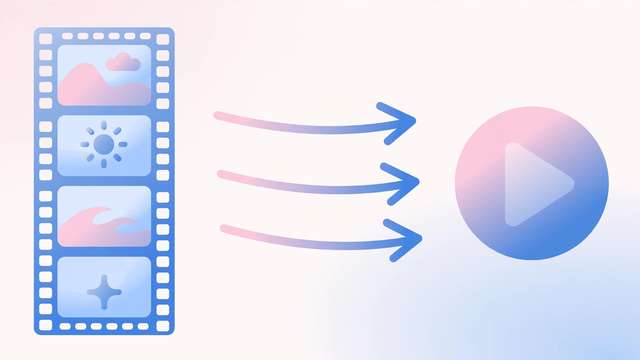
GIFs are everywhere — reactions, memes, tutorials — but they are terrible video files. A 10-second GIF can weigh 10–15 MB, load slowly, and drain mobile data. Converting that same animation to MP4 often cuts it to under 1 MB with barely visible quality change. Here is why MP4 wins, which settings to pick, and how to convert any GIF free in your browser.
Why MP4 is smaller than GIF
GIF was designed in 1987, before video compression as we know it existed. It is limited to 256 colors per frame and stores each frame almost in full, with only simple tricks to reduce repetition.
MP4 (using the H.264 codec) is a real video format. It does two things GIF cannot:
- Inter-frame compression: instead of storing every frame completely, MP4 stores one full frame, then records only what changed in the frames that follow. An animation of a talking head changes very little between frames — MP4 exploits that, GIF mostly does not.
- Unlimited colors: MP4 uses full 24-bit color, so gradients look smooth instead of banded, while still compressing better.
The practical result: MP4 versions of the same animation are routinely 5–20x smaller than the GIF. A 12 MB GIF becomes a 0.8 MB MP4. That means faster page loads, lower data usage, and uploads that do not hit size limits.
When converting GIF to MP4 makes sense
Convert when:
- You are embedding the animation on a website — MP4 loads faster and scores better on performance metrics.
- You are sending it over messaging apps with file-size limits — WhatsApp, Discord, and email all choke on large GIFs.
- You want to upload to YouTube, TikTok, or Instagram — they all accept MP4 natively, and some downscale huge GIFs badly.
- You are archiving animations and want to save storage space.
Keep the GIF when:
- You need guaranteed auto-looping with zero setup — some email clients and forums only animate GIFs.
- The animation is tiny (under a second, a few frames) — the savings are negligible and GIF is simpler.
- You need transparency — MP4 (H.264) does not support transparent backgrounds; GIF does.
Step-by-step: convert GIF to MP4 online
- Pick your GIF. Any standard .gif file works — saved memes, screen recordings exported as GIF, animated stickers.
- Open the converter in your browser. Try the free tool: /tools/gif-to-mp4/ — everything happens in your browser, so your files never leave your device.
- Upload or drag in the file. Because processing is local, even large GIFs start converting immediately — no waiting for an upload to finish.
- Choose your quality setting. Most converters offer a quality or bitrate choice (more on the right setting below).
- Convert and download. The tool re-encodes the animation as an MP4 and offers the file for download. Compare the two side by side — you will likely not see a difference, but the size drop will be dramatic.
Which quality settings to use
The only setting that really matters is bitrate (or the quality slider that controls it). A few guidelines:
- Same-look, big savings: keep the original dimensions and pick a medium quality setting. For most GIFs this alone gives 5–10x smaller files.
- Screen recordings and tutorials: text-heavy GIFs need a slightly higher bitrate to keep edges crisp — bump quality one notch above the default if text looks fuzzy.
- Simple animations (flat colors, few moving parts): these compress extremely well; even low bitrates look clean.
- Frame rate: match the source (usually 10–20 fps for GIFs). Raising it does not add smoothness — the GIF never had more frames.
A useful sanity check: if the MP4 is less than one-tenth the GIF’s size and still looks clean, you nailed it. If edges look blocky, re-convert one step higher.
GIF to MP4 vs. other options
- GIF → WebM: WebM (VP9) compresses even better than MP4, but support is spottier — notably, Apple devices and Safari were late to full support. MP4 is the safe universal choice.
- Keeping the GIF: simplest, but you pay in file size every single time someone loads it. On a website with multiple GIFs, that adds up to seconds of load time.
- APNG: animated PNG supports full color and transparency, but browser support is inconsistent and files are still large. A niche pick.
For maximum compatibility with minimum size, MP4 remains the default answer — it plays on every phone, browser, and social platform that matters.
Common problems and fixes
- “The MP4 does not loop like my GIF did.” Set your player or the embedding code to loop. In HTML5 video, that is the
loopattribute; in most social apps, short videos loop automatically. - “Text in the MP4 looks blurry.” Re-convert at a higher quality/bitrate. Text-heavy screen-capture GIFs are the one case where the default setting may be too aggressive.
- “The colors look slightly off.” GIF’s 256-color palette sometimes dithers colors; MP4 renders the full-color version, which is actually more accurate. What looks “off” is usually the GIF being wrong.
- “My file has transparency and now the background is black.” Expected — H.264 MP4 cannot do transparency. Either keep that file as a GIF or accept a solid background.
Converting GIF to MP4 is one of the easiest wins in media handling: same animation, a fraction of the size, playable everywhere. Convert once, and stop paying the GIF tax on every view.
Frequently asked questions
Why is MP4 smaller than GIF? GIF is an old format with a 256-color palette and no real video compression — it stores every frame almost in full. MP4 uses modern inter-frame compression, so a GIF that is 10 MB can often become an MP4 under 1 MB at the same visual quality.
Does converting GIF to MP4 reduce quality? It can, slightly: MP4 compression is lossy, so very fine detail may soften. At sensible settings the difference is nearly invisible, and the huge size savings make it worthwhile for sharing.
Can I convert GIF to MP4 without uploading my file? Yes. Browser-based converters process the file entirely on your device — nothing is uploaded to a server. This is also the fastest option since there is no upload or download round-trip.
Will a converted MP4 play everywhere a GIF does? Almost. MP4 (H.264) plays natively in browsers, phones, and social apps. The one exception: some platforms auto-loop GIFs, so you may need to enable looping in your player or app settings.
Keep reading
How to Convert AVI to MP4 Online Free (Fast & Private)
Convert AVI to MP4 online free: why AVI fails on phones and browsers, the best settings, and a free browser converter that keeps quality high.
Read more →
WebM vs MP4: Which Video Format Should You Use?
WebM vs MP4 compared honestly: file size, quality, browser support, and platform compatibility — so you pick the right format every time.
Read more →
How to Convert FLV to MP4 Online Free: 3 Easy Methods
Convert FLV to MP4 online free — why FLV is obsolete, 3 free conversion methods that keep your file private, and settings for best quality.
Read more →