How to Blur Faces in Photos Online Free
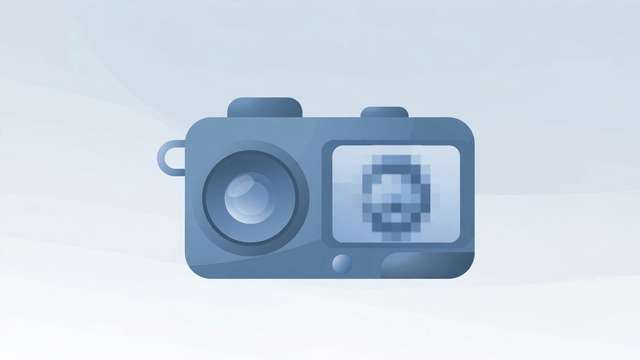
You took a great photo at the park, but a stranger’s kid is clearly visible in the background. Or you are posting a screenshot and your friend’s face is in it. Blurring faces is the quick, respectful fix — it protects people’s privacy without ruining your photo. Here is when to blur, which blur style actually protects privacy, and how to do it free in your browser.
When to blur faces (and other details)
Blur faces when:
- Children appear in photos you plan to post publicly — this is the big one. Kids cannot consent, and once an image is online you lose control of it.
- Strangers are recognizable in the background of your shots — at events, on the street, in restaurants.
- Someone asked you to — if a friend does not want to be in your post, respect it fully rather than cropping awkwardly.
- Posting screenshots that include profile pictures, video-call participants, or bystanders.
Blur more than faces when:
- License plates are visible — they can be traced to a home address.
- Documents, mail, or screens appear in the background — addresses, names, and account numbers leak constantly this way.
- House numbers and street signs — especially in real-estate or moving-day posts.
A good habit: before posting any photo publicly, do a 5-second scan for faces that are not yours and details that identify locations. It becomes automatic fast.
Pixelate vs. gaussian blur: which actually protects privacy?
Both hide faces, but they are not equal:
Gaussian blur smooths the area into soft, blended tones. At a strong setting it destroys fine detail completely — eyes, nose shape, skin markings all dissolve. This is the better choice for privacy because the smoothing is hard to reverse.
Pixelate (mosaic) reduces the area to large chunky blocks. It looks more dramatic, but at light settings the block pattern can preserve enough structure for facial-recognition software — or a determined person — to make a guess.
The honest rule: whichever style you pick, make it heavy. A timid blur that leaves the face “kind of visible” protects nobody. Crank the intensity until the face is genuinely unrecognizable — you should not be able to tell who it is even knowing the person.
One more critical point: the blur must be baked into the saved image. Some apps apply blur as a removable filter or a separate layer — if the original pixels survive underneath, the blur can be stripped off. Always verify by reopening the saved file and checking the blur is permanent.
Step-by-step: blur faces in a photo online
- Open your photo. Any common format works — JPG, PNG, WebP from your phone or camera.
- Open the blur tool in your browser. Try the free tool: /tools/blur-image/ — everything happens in your browser, so your files never leave your device.
- Select the area to blur. Draw a box or circle over each face (and any license plates or text you want hidden). Cover the whole face with margin — blurring just the eyes is not enough.
- Choose your blur style and strength. Pick gaussian blur for the safest result, then raise the intensity until the face is fully unrecognizable. If you prefer the pixelated look, use large blocks, not small ones.
- Check every face in the frame. Background faces are easy to miss — zoom in and scan the whole image, including reflections in mirrors and windows.
- Download the blurred image. Save it as a new file (keep your original untouched), then reopen the download to confirm the blur is baked in and permanent.
Blur strength: how much is enough?
People consistently under-blur. Use this test: show the blurred photo to someone who knows the person, and ask if they can identify them. If they can — even with a guess — increase the strength.
Rough guidelines:
- Gaussian blur: radius high enough that no facial features remain — no eyes, no mouth line, no glasses outline. When in doubt, go stronger.
- Pixelate: blocks large enough that the face becomes 4–6 blocks wide at most. Fine mosaics (dozens of tiny blocks) preserve too much structure.
- Multiple faces: apply the same heavy treatment to every face. One weakly blurred face in a group photo defeats the purpose.
Remember that AI upscaling tools are getting better every year. A blur that barely hides a face today may be partially recoverable tomorrow. Heavy blur now is insurance against better reconstruction later.
Common mistakes to avoid
- Blurring only the eyes. The classic “black bar over the eyes” hides almost nothing — face shape, nose, mouth, and hair are plenty for identification. Blur the entire face.
- Forgetting reflections. Faces appear in mirrors, windows, sunglasses, and shiny car panels. Scan for these before posting.
- Using a reversible filter. Some phone gallery apps and social-media editors apply blur as an editable layer. If you can tap “undo” and the face returns, so can anyone with the file. Re-save the image with the blur baked in.
- Posting the original by accident. Keep blurred copies in a separate folder or with a clear filename (e.g.,
photo-blurred.jpg) so you never upload the unblurred original. - Ignoring metadata. Photos carry EXIF data — GPS location, device info, timestamps. Blurring the face but leaving location metadata intact still leaks privacy. Strip metadata before posting sensitive photos.
Beyond faces: full photo-privacy checklist
Before sharing any photo publicly, run through this list:
- Faces of children, strangers, or anyone who did not consent — blurred
- License plates — blurred
- House numbers, street signs, mail — blurred or cropped
- Screens showing names, messages, or accounts — blurred
- EXIF/location metadata — stripped
- Final check: reopen the saved file and confirm everything is permanent
It takes under a minute per photo once it is habit — and it is the difference between sharing a moment and sharing someone else’s identity without permission.
Frequently asked questions
Should I use pixelate or gaussian blur to hide a face? Gaussian blur is generally better for privacy: a strong blur destroys detail smoothly, while light pixelation can sometimes be partially reversed. Whichever you choose, make it heavy — a weak effect can still leave a face recognizable.
Can blurred faces be unblurred? A properly heavy blur or pixelation applied to the saved image cannot be reversed by viewers — the detail is gone. But weak blurs, and blurs applied as a removable layer or filter rather than baked into the pixels, can sometimes be undone.
Do I need to blur faces before posting photos online? Legally it depends on your jurisdiction, but as a rule of thumb: blur children’s faces, strangers, and license plates before sharing publicly. It is basic courtesy and protects people who never consented to appear in your post.
Can I blur a face without uploading my photo to a server? Yes. Browser-based tools process the image entirely on your device — the photo never uploads anywhere. This matters doubly for privacy work, since the whole point is keeping control of the image.
Keep reading

How to Pixelate an Image Online Free (Blur Faces & Sensitive Areas)
Pixelate faces, license plates, and sensitive details in any photo in seconds. Free in-browser method, when to pixelate vs blur, and privacy tips.
Read more →
100 Blog Introduction Hooks That Keep Readers Reading
100 copy-paste blog introduction hooks that stop the bounce: curiosity openers, story leads, mistake hooks, and bold promises. Free download.
Read more →
100 Instagram Caption Templates for Photos
100 Instagram caption templates for photos: travel, food, nature, friends, work, home, celebrations, fitness, style, and seasons. Free download.
Read more →