CSV to HTML Table: Free Online Converter
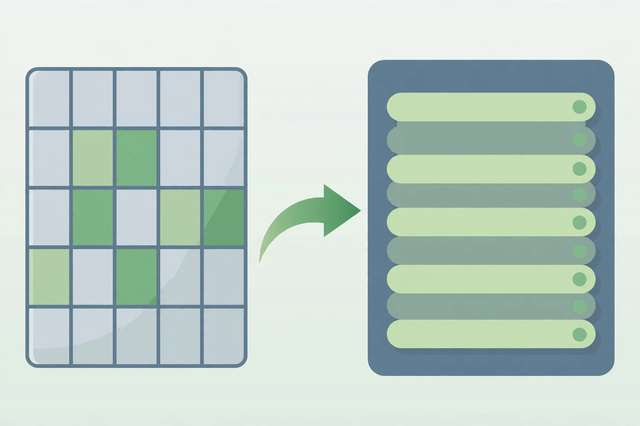
Spreadsheets are great for working with data, but terrible for publishing it. If you need to put a price list, schedule, dataset, or comparison chart on a web page, you need an HTML table — and hand-writing <tr> and <td> tags for 200 rows of CSV is a special kind of misery. A CSV to HTML converter does it in seconds, producing clean, semantic markup you can drop straight into any page.
How to convert CSV to an HTML table (free)
- Open the CSV to HTML table converter in your browser.
- Add your data. Paste CSV text directly or upload a
.csvfile from your device. Everything is processed locally — your data never leaves your browser. - Set the delimiter. Choose comma, semicolon, tab, or pipe to match your file’s format. If columns look wrong in the preview, the delimiter is almost always the culprit.
- Mark the header row. If your first row contains column names, enable the header option so it renders as
<thead>with<th>cells — better semantics, better accessibility, better SEO. - Generate and copy. Grab the table markup and paste it into your page, CMS, or template.
The output uses proper semantic structure — <table>, <thead>, <tbody>, <th>, <td> — so screen readers and search engines understand your data correctly.
Semantic markup: thead, tbody, and headers matter
A table isn’t just rows and cells; its structure carries meaning. Here’s what a well-formed generated table looks like:
<table>
  <thead>
    <tr>
      <th>Product</th>
      <th>Price</th>
      <th>In stock</th>
    </tr>
  </thead>
  <tbody>
    <tr>
      <td>Widget A</td>
      <td>$12.99</td>
      <td>Yes</td>
    </tr>
  </tbody>
</table>
The <thead>/<tbody> split isn’t decoration: screen readers announce header cells as labels for each data cell, search engines treat tables as structured data, and CSS targeting (thead th, tbody tr:nth-child(even)) becomes trivial. Always use <th> for headers rather than bolded <td> — assistive technology depends on it.
Styling tips: striped rows and responsive wrappers
Raw tables work, but a few lines of CSS make them look professional:
Striped rows. Alternating row colors (tbody tr:nth-child(even) { background: #f8f9fa; }) dramatically improve readability for wide tables — the eye tracks across rows without losing its place.
Header styling. Give thead th a distinct background, bolder weight, and slightly larger padding. Sticky headers (position: sticky; top: 0) keep column labels visible while scrolling long tables.
Cell padding and borders. Generous padding (8–12px) and subtle bottom borders on cells beat the default cramped look every time. Avoid heavy grid borders unless the design calls for them.
Responsive wrapper. This is the big one:
.table-wrapper {
  overflow-x: auto;
  -webkit-overflow-scrolling: touch;
}
Wrap your table in <div class="table-wrapper"> and wide tables scroll horizontally on phones instead of breaking the page layout or shrinking text to unreadable sizes.
Numeric alignment. Right-align numeric columns (td.numeric { text-align: right; }) — it makes figures scannable and comparable, the way financial tables have done for centuries.
Escaping special characters
HTML has five characters that need escaping inside table cells: &, <, >, ", and '. A proper converter handles this automatically — AT&T becomes AT&T, and <script> in your data renders as harmless text instead of executing. If you’re building tables by hand or with a script, never skip this step: unescaped markup is both a rendering bug and a security hole (XSS). When pasting converter output into a CMS, use the HTML/source view so the CMS doesn’t double-escape your entities.
Common pitfalls (and how to avoid them)
Commas inside quoted fields. Addresses like "Springfield, IL" must be wrapped in double quotes per CSV rules — a good converter won’t split them, but a malformed source file will break any tool. Fix the CSV first.
Wrong delimiter. European spreadsheet exports often use semicolons; TSV files use tabs. If your table renders as one giant column (or one giant row), switch the delimiter setting and regenerate.
Inconsistent column counts. Rows with more or fewer fields than the header create ragged tables. Scan your CSV for stray line breaks inside unquoted fields — they’re the usual cause.
Encoding issues. CSVs from older Excel versions may be Windows-1252 instead of UTF-8, turning special characters into mojibake. Re-save as UTF-8 before converting.
Huge datasets. Tables with thousands of rows make pages slow and hard to navigate. For big data, consider paginating, adding a search filter with JavaScript, or linking to a downloadable CSV instead of rendering everything inline.
Once your table looks right, drop it into any page — the semantic markup works everywhere from WordPress to hand-coded HTML. Try the free CSV to HTML table converter and turn your next spreadsheet into publish-ready markup in under a minute.
Frequently asked questions
How do I convert a CSV file to an HTML table for free? Paste or upload your CSV into a free online converter, set the delimiter and header-row option, then generate and copy the semantic table markup. Add a few lines of CSS for striped rows and responsiveness.
What delimiter should I use when converting CSV to HTML? Match your file: comma is standard, but European exports often use semicolons and some use tabs. Wrong delimiters merge or split columns — check the preview and adjust.
How do I make an HTML table responsive on mobile?
Wrap it in a div with overflow-x: auto so it scrolls horizontally on small screens. For very wide tables, hide less-important columns with CSS at small breakpoints.
Why do my commas inside quotes break the CSV conversion? They shouldn’t if the CSV is well-formed — quoted fields containing commas are standard. If conversion still breaks, your source file likely has missing or mismatched quotes; fix it before converting.
Keep reading

JSON to TypeScript: Convert JSON to TS Interfaces Online
Convert JSON to TypeScript interfaces free: paste JSON, get clean TS types with nested objects, arrays, and optional fields handled.
Read more →
Alabama Income Tax 2026: Brackets, Rates, and Free Calculator
Alabama income tax for 2026: illustrative brackets and rates, deductions, credits, a calculation example, and a free calculator.
Read more →
Audio Converter Guide: MP3 vs WAV vs FLAC — Which Format Should You Use?
Confused by MP3 vs WAV vs FLAC? This guide explains lossy vs lossless audio formats, bitrates, when to use each, and how to convert audio free online.
Read more →