Video Editing Keyboard Shortcuts Cheat Sheet (Premiere, DaVinci, CapCut)
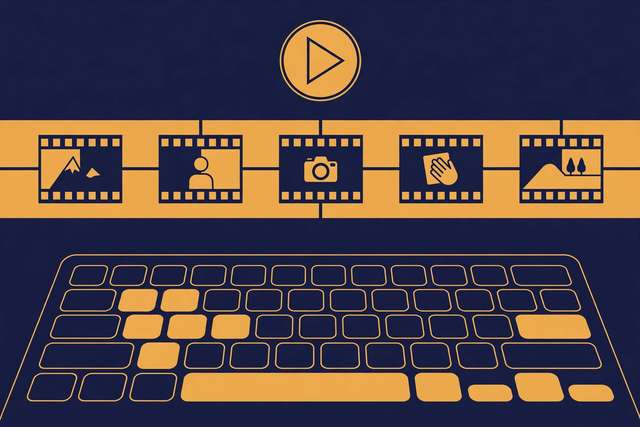
Professional editors barely touch the mouse. Every cut, trim, zoom, and undo happens through keyboard shortcuts, and the speed difference is enormous — a shortcut-driven editor finishes a project in a fraction of the time a menu-clicker needs. The problem is that every editor uses different keys, and learning them from scattered forum posts is slow. This cheat sheet puts the essential shortcuts for the three most popular editors — Premiere Pro, DaVinci Resolve, and CapCut — side by side in one printable reference. It covers the 40 shortcuts that matter most: transport, cutting and trimming, timeline navigation, and the power keys that separate beginners from pros.
What’s inside this cheat sheet
The shortcuts are grouped by what you actually do while editing. Transport controls (8 shortcuts) cover play, pause, shuttle, and frame stepping — the keys your left hand lives on. Cutting and trimming (10 shortcuts) handle blade cuts, ripple deletes, trims, and nudge moves across all three editors. Timeline navigation (8 shortcuts) covers zooming, jumping between edits, and marker management. Selection and clips (7 shortcuts) handle linking, grouping, speed changes, and nesting. Power shortcuts (7 shortcuts) are the pro moves: multicam switching, audio keyframes, and the J-K-L shuttle system. YouTubers, course creators, and freelance editors get one page that works whether they are cutting in Premiere today and trying Resolve tomorrow.
10 sample shortcuts
A taste of the pack — the full 40-shortcut comparison table is in the free download below.
- Play / Pause — Space (all three editors)
- Cut / Split clip — C (Premiere) · Ctrl+\ (Resolve) · Ctrl+B (CapCut)
- Undo — Ctrl+Z (all three editors)
- Ripple delete — Shift+Delete (Premiere) · Shift+Backspace (Resolve)
- Zoom timeline in/out — + / − (Premiere & Resolve) · Ctrl+= / Ctrl+− (CapCut)
- Add marker — M (Premiere & Resolve) · M (CapCut)
- Speed / duration — Ctrl+R (Premiere) · Ctrl+R (Resolve) · Ctrl+R (CapCut)
- Export — Ctrl+M (Premiere & Resolve) · Ctrl+E (CapCut)
- J-K-L shuttle — J reverse · K pause · L forward (Premiere & Resolve)
- Save project — Ctrl+S (all three editors — use it constantly)
How to use this cheat sheet
- Print it or keep it open on a second screen during your next three editing sessions.
- Learn five shortcuts at a time — start with transport and cutting, the ones you will use most.
- Force yourself to use a new shortcut instead of reaching for the mouse, even when it feels slower at first.
- After a week, add the next group: timeline navigation, then selection, then power shortcuts.
- Remap only the keys that genuinely fight your habits — most defaults are defaults for a reason.
Muscle memory takes about two weeks of consistent use. Editors who commit to the cheat sheet for one full project rarely go back to clicking menus.
Frequently asked questions
Is it worth learning shortcuts if I only edit occasionally? Yes — even casual editors benefit from the top ten. Play/pause, cut, undo, zoom, and export cover 80% of what occasional editors do, and they take an afternoon to learn.
Why do some shortcuts use different keys on Mac? On macOS, Ctrl becomes Cmd for most shortcuts (Cmd+Z, Cmd+S, Cmd+M). The letter keys (C, M, V, Space, J-K-L) stay the same. The download notes the Mac equivalents where they differ.
Download the full shortcut cheat sheet
Keep reading

How to Build a Morning Routine That Actually Sticks (7-Day Starter Plan)
Build a morning routine that actually sticks: start tiny, stack habits, and follow a simple 7-day starter plan that survives real life.
Read more →
How to Convert FLV to WebM Online Free
Convert FLV to WebM online free: turn old Flash videos into modern web-friendly files that play in any browser — no software to install.
Read more →
Podcast Video Repurposing Checklist
A free podcast and video repurposing checklist: turn one episode into clips, posts, articles, and guides with 28 steps, start to finish.
Read more →