Live Stream Setup Checklist for Beginners
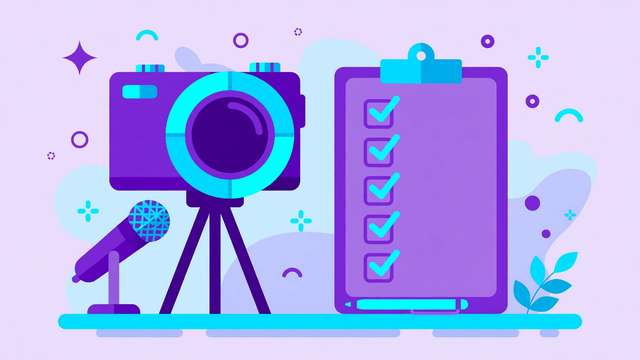
Going live for the first time is exciting — and a little nerve-wracking. Between the camera, the microphone, the streaming software, the internet connection, and the platform settings, there are dozens of small things that can go wrong, and they tend to go wrong in front of an audience. The good news is that almost every streaming disaster is preventable. The streamers who look effortless on day one are simply the ones who prepared with a checklist.
This free checklist gives you 25 concrete steps across five phases: planning your stream, setting up your gear and software, running a proper test, going live with confidence, and wrapping up afterward. It is written for absolute beginners streaming to YouTube, Twitch, Facebook, or any other platform. You do not need expensive equipment — most of these steps are about settings, preparation, and habits, not hardware.
What’s inside this checklist
The checklist walks you through the full journey of a first stream. The planning phase helps you pick your topic, platform, and schedule, and set one clear goal for the stream. The setup phase covers the essentials — camera, microphone, lighting, streaming software, and internet — with practical placement and settings advice. The test phase is a short private rehearsal that catches audio glitches, echo, and connection drops before they embarrass you. The go-live phase covers your opening minute, chat interaction, and what to do when something breaks mid-stream. Finally, the wrap-up phase shows you how to end cleanly, save your recording, and learn from the replay.
Every item is a single actionable step you can check off, and each one has a copy button so you can paste steps into your own notes.
The full 25-step live stream checklist
Phase 1 — Plan your stream
- Choose your platform (YouTube, Twitch, Facebook, or other) and confirm your account can live stream.
- Pick one clear topic or goal for the stream — one topic keeps you focused and viewers engaged.
- Write a short outline: your opening line, 3 to 5 talking points, and your closing line.
- Write a clear stream title and description with the main keyword near the front.
- Schedule the stream in advance so the platform notifies your followers.
Phase 2 — Set up gear and software
- Position your camera at eye level and frame yourself from the chest up.
- Face your main light source — a window or lamp in front of you beats overhead lighting.
- Plug in your microphone and set it 6 to 12 inches from your mouth, off to the side.
- Install your streaming software (such as OBS Studio) and add your camera and mic as sources.
- Connect the software to your platform using the stream key from your channel dashboard.
- Set your output to 1080p at 30fps for your first streams — it is smoother and more forgiving than 60fps.
- Connect your computer with an ethernet cable instead of Wi-Fi for a stable connection.
- Close unnecessary apps and browser tabs to free up CPU and avoid notification pop-ups.
- Tidy the background visible on camera or enable a simple virtual background.
Phase 3 — Test before you go live
- Run an internet speed test and confirm at least 10 Mbps upload speed.
- Do a 10-minute private or unlisted test stream on your platform.
- Watch the test replay and check audio levels — your voice should peak around -12 to -6 dB.
- Check for echo, background noise, and audio delay in the test recording.
- Confirm your lighting looks good and text or graphics on screen are readable.
Phase 4 — Go live
- Start the stream 2 to 3 minutes early and greet early viewers while people join.
- Open with your hook: say what the stream is about and what viewers will get from it.
- Read and respond to chat regularly — name viewers when you reply to build connection.
- If something breaks, stay calm, narrate what you are doing, and keep talking while you fix it.
Phase 5 — Wrap up and improve
- End with a clear sign-off: summarize the stream, thank viewers, and say when you will be back.
- Save the recording and download it as a backup before the platform processes it.
- Watch 10 minutes of your own replay and write down one thing to improve next time.
How to use this checklist
- Download the checklist below and work through Phase 1 at least a day before your stream.
- Set up your gear and software in Phase 2, giving yourself a full hour with no rush.
- Run the Phase 3 test stream and actually watch the replay — this step catches 90 percent of problems.
- On stream day, arrive early, open with your hook, and keep the checklist nearby for the go-live steps.
- After the stream, do the wrap-up steps the same day while everything is fresh.
Your first stream will not be perfect, and that is completely fine — every experienced streamer has a story about their disastrous debut. What matters is that the basics work: viewers can see you, hear you, and the stream does not drop. This checklist covers exactly those basics. Nail them, improve one thing per stream, and by your tenth broadcast you will look like you have been doing it for years.
Frequently asked questions
What equipment do I need to start live streaming? Less than you think: a computer or phone, a webcam or phone camera, a microphone (even earbuds beat a built-in laptop mic), and a stable internet connection with at least 10 Mbps upload. Upgrade your gear only after your first few streams, once you know what actually limits your quality.
How fast does my internet need to be for streaming? For 1080p streaming, aim for at least 10 Mbps of stable upload speed, and use a wired ethernet connection if possible. Always run a speed test right before going live, since network conditions change through the day.
Should I do a test stream before my first real one? Absolutely. Every major platform lets you stream privately or unlisted. A 10-minute test catches audio problems, lighting issues, and connection drops before any real viewers arrive — it is the highest-value step in this entire checklist.
Download the Live Stream Setup Checklist for Beginners
Keep reading
Audio Editing Checklist for Beginners
A beginner-friendly audio editing checklist — noise removal, EQ, compression, loudness targets, and export settings for podcasts and videos.
Read more →
How to Open Your First Brokerage Account (A Beginner's Guide)
Opening your first brokerage account is simpler than you think. Learn how to choose a broker, fund your account, and start investing with confidence.
Read more →
11 Best Money Books for Beginners That Are Actually Worth Reading
Skip the hype. These 11 best money books for beginners actually teach you to budget, save, invest, and build wealth — plus which one to read first and how to finish them.
Read more →