How to Split an Audio File Into Parts Online Free
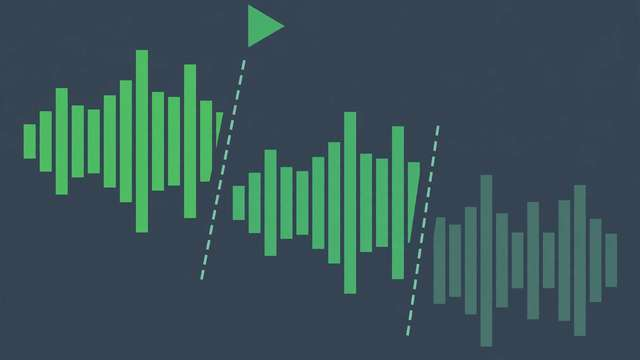
Long audio files are unwieldy. A two-hour podcast, a full lecture recording, or a DJ mix is hard to navigate, harder to share, and impossible to use as a ringtone. Splitting it into parts solves all three problems at once: chapters become skippable, highlights become shareable, and the best thirty seconds become your new ringtone.
This guide covers three free ways to split an audio file into parts — a fast online method, a precise desktop editor, and a command-line option for automation — plus tips for making clean, professional-sounding cuts.
Why split audio files?
Splitting is one of the most common audio tasks, and the reasons are practical:
- Podcast chapters. Divide an episode into titled segments so listeners can jump to the topics they care about.
- Ringtones and alerts. Cut the perfect 20–30 second clip from a song or recording.
- Lecture and meeting notes. Break a long recording into per-topic parts that are easy to revisit and share.
- Removing sections. Cut out dead air, mistakes, or private segments before publishing.
- Sample creation. Musicians and producers slice recordings into loops and one-shots for new tracks.
Whatever the reason, the workflow is the same: find the cut points, split, and export the pieces.
Method 1: Split audio online in your browser (easiest)
The fastest path needs no installation. A browser-based splitter processes everything on your device, so your audio never gets uploaded anywhere.
- Open the splitter. Go to our free audio splitter in any modern browser.
- Load your audio file. Drag and drop an MP3, WAV, M4A, or other common format — or browse to select it.
- Mark your cut points. The waveform display shows the whole recording. Drag markers (or enter timestamps) at each point where one part should end and the next begin. Zoom in for precision on music or speech boundaries.
- Preview each segment. Play a few seconds around each cut to confirm you are splitting at a natural pause rather than mid-word.
- Split and download. Export each part separately — typically as MP3 for sharing or WAV for maximum quality.
This method shines for quick jobs: chaptering a podcast, extracting a clip to send a friend, or cutting a ringtone in under five minutes. For surgical precision or dozens of cuts, the desktop method below gives you more control.
Method 2: Split audio precisely with Audacity (free desktop)
Audacity is the free, open-source audio editor that professionals have used for decades. It offers sample-accurate cuts, which matters when you need splits exactly on a beat or between words:
- Import the audio. Drag the file into Audacity or use File > Open.
- Find your cut points. Click on the waveform where you want to split. Use the zoom tools (Ctrl/Cmd + scroll) to get frame-level precision, and listen with the spacebar to audition.
- Split the track. Place the cursor at a cut point and press Ctrl+I (Cmd+I on Mac) to split the clip — repeat at each boundary. Alternatively, select a region and use Edit > Clip Boundaries > Split.
- Label the parts (optional). Tracks > Add Label at Selection lets you name each segment, which helps when exporting many parts.
- Export each part. Select one clip, then File > Export > Export Selected Audio. Choose MP3 or WAV and repeat per segment — or use File > Export Multiple to batch-export labeled sections in one pass.
Audacity also lets you add short fades at cut points (Effect > Fade In/Out on the clip edges), which hides any tiny clicks where the waveform was divided.
Method 3: Split audio with ffmpeg (fast, scriptable)
If you are comfortable with a terminal, ffmpeg splits audio without even opening an editor — and it can do it without re-encoding, which means zero quality loss and blazing speed:
ffmpeg -i input.mp3 -ss 00:00:00 -to 00:12:30 -c copy part1.mp3
ffmpeg -i input.mp3 -ss 00:12:30 -to 00:25:00 -c copy part2.mp3
The -ss and -to flags set start and end timestamps; -c copy copies the audio stream untouched instead of re-encoding. For MP3 files this produces clean splits in seconds. One caveat: MP3 can only be cut at frame boundaries (about every 26 milliseconds), so cuts land within a tiny fraction of your timestamp — inaudible in practice, but not sample-perfect like Audacity.
This method is unbeatable for batch jobs: a simple script can split dozens of files or generate parts from a timestamp list automatically.
Tips for clean, professional splits
- Cut on silence. Splitting during a pause, breath, or beat gap sounds seamless. Splitting mid-word or mid-note produces an audible click or a chopped syllable.
- Zoom in before cutting. At full-track zoom, a cut that looks precise can be hundreds of milliseconds off. Zoom until you can see individual waveform peaks.
- Add micro-fades. A 5–10 millisecond fade at each new segment’s start and end eliminates clicks. Most editors apply these automatically; check the setting if you hear pops.
- Keep a master copy. Always split a copy of the original. If you later want different cut points, you will thank yourself.
- Mind the format. Splitting WAV or FLAC is mathematically lossless. Splitting MP3 with re-encoding loses a tiny amount of quality per generation — use
-c copyor a no-re-encode splitter when you can. - Name parts clearly.
podcast-ep12-part1-intro.mp3beatsaudio_final_v2.mp3when you revisit the files in six months.
Frequently asked questions
How can I split an audio file for free?
Open our free audio splitter in your browser — upload the file, mark cut points on the waveform, and download the parts. No sign-up needed. For desktop precision, Audacity is free and open-source.
Can I split an MP3 without losing quality?
Yes. Tools that cut without re-encoding (like ffmpeg with -c copy, or a splitter that preserves the stream) lose nothing at all. If the tool does re-encode, one pass at a high bitrate (192 kbps+) is virtually indistinguishable from the original.
How do I split a podcast into chapters?
Load the episode in the audio splitter, drag a marker to each topic change, preview the few seconds around each cut, then export each chapter separately. Name the files clearly so listeners can navigate them.
What is the best free audio splitter?
For quick browser-based splitting with no install, a free online audio splitter is fastest. For precise, sample-accurate editing with fades and batch export, Audacity (free, open-source) is the gold standard.
Keep reading

How to Check Text Similarity Online Free (Plagiarism Basics)
Learn how to check text similarity online for free: how similarity checkers work, what your score means, and the exact steps to fix overlapping text.
Read more →
How to Combine Keywords Into Long-Tail Lists in Seconds (Free Tool)
Turn a handful of seed keywords into a long-tail keyword list in seconds. Learn the combining method, power modifiers, and how to clean the list.
Read more →
How to Compress a PDF to 500KB Online Free
Shrink any PDF down to 500KB for uploads and applications. Why PDFs get bloated, what survives compression, and a free in-browser tool.
Read more →