How to Resize an Image Without Losing Quality (Free Methods)
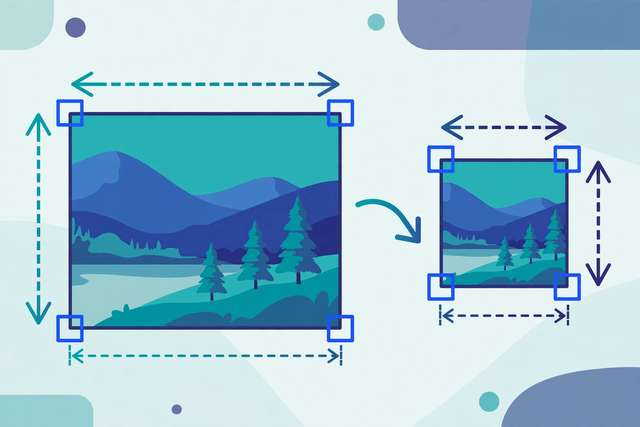
Whether it’s a profile picture that must be exactly 400×400, a blog image that should be 1200px wide, or a job portal demanding “under 200KB” — resizing images is a weekly chore for almost everyone. Done right, it’s instant and lossless. Done wrong, you get stretched faces and blurry thumbnails.
Here’s how to resize images correctly for every common situation.
Downsizing vs. upsizing: the one rule that matters
- Making an image smaller (downscaling): safe and quality-preserving. A 6000px photo shrunk to 1200px looks sharper, not worse, because redundant pixels are averaged away.
- Making an image bigger (upscaling): cannot create detail that isn’t there. Enlarging beyond about 110% of the original gives you a bigger, softer image.
Most resizing tasks are downscaling — which means there’s no reason to lose quality at all.
Method 1: The fastest free way — resize in your browser
DollarWise’s free image resizer runs entirely in your browser (no uploads, no sign-up) and offers three resize modes:
- Exact pixels — type the width and height you need. The aspect-ratio lock adjusts the other dimension automatically so nothing gets distorted.
- Percentage — shrink a batch of photos to 50% in one go.
- Target file size — enter “200 KB” and the tool iteratively tunes quality and dimensions until the file lands there.
Upload your image, choose the mode, click resize, and download. For photos, JPEG output is the default; the tool fills any transparent areas with white so nothing renders black.
Method 2: Resize on your phone (no app needed)
- iPhone: Photos → open the image → Share → there’s no native resize, but the Shortcuts app has a “Resize Image” action you can add once and reuse forever.
- Android: Google Photos → open image → Edit → Crop gives limited options; for exact sizes, Samsung Gallery’s Edit → resize icon works well.
Method 3: Resize on desktop without installing anything
- Windows: Right-click the image → Open with → Paint → Resize → enter percentage or pixels.
- Mac: Open in Preview → Tools → Adjust Size → enter the width; Preview keeps proportions locked automatically.
What size should your image be?
Common targets, in pixels:
| Use case | Recommended size |
|---|---|
| Blog content image | 800–1200px wide |
| Website hero/banner | 1600–2000px wide |
| Instagram post | 1080×1080 (square) or 1080×1350 |
| Profile picture | 400×400 |
| Email attachment | Max 1600px wide |
| Job portal photo | Per their spec — often under 200KB |
A good workflow: resize to display size first, then compress. Resize removes unneeded pixels; compression removes unneeded data. Together they routinely turn a 6MB phone photo into a 150KB web-ready image.
Avoid these mistakes
- Stretching instead of locking proportions — uncheck “maintain aspect ratio” and faces go wide. Always keep the lock on unless you’re intentionally cropping.
- Upscaling tiny images for print — a 300px web image will print blurry at any real-world size. You need the original high-res file for print.
- Resizing a JPEG repeatedly — every save re-compresses. Do all your edits at full size, then resize and save once at the end.
Frequently asked questions
Can I resize an image without losing quality? Downsizing (making an image smaller) preserves quality perfectly — the image stays sharp. Upsizing (making it bigger) cannot add real detail, so enlarging beyond ~110% of the original size produces a softer image.
What is the best image size for a website? Match the displayed size: most blog content images display at 800–1200px wide, so resize to that width. Keep hero/banner images under 2000px wide and compress afterwards for fast loading.
How do I resize an image to a specific KB size? Use a resizer with a target-file-size mode (like DollarWise’s free image resizer), which iteratively adjusts quality and dimensions until the file lands at your target size — perfect for job portals with KB limits.
How do I resize without distorting the image? Lock the aspect ratio so width and height scale together. Every decent resizer has this option — in our tool it’s the “Keep original proportions” checkbox, enabled by default.
Keep reading

How to Compress Images for the Web Without Losing Quality
Compress images for your website, email, or social media without visible quality loss. Learn the best formats, settings, and free methods that work in 2026.
Read more →
How to Convert Images Between PNG, JPG, and WebP (Free)
Convert images between PNG, JPG, and WebP in seconds. Learn which format to use when, and convert single images or whole batches free in your browser.
Read more →
How to Merge PDF Files Online for Free (No Upload Needed)
Merge multiple PDFs into one document for free. Learn the fastest methods — including a private browser-based merger that never uploads your files.
Read more →