How to Create a QR Code Online Free
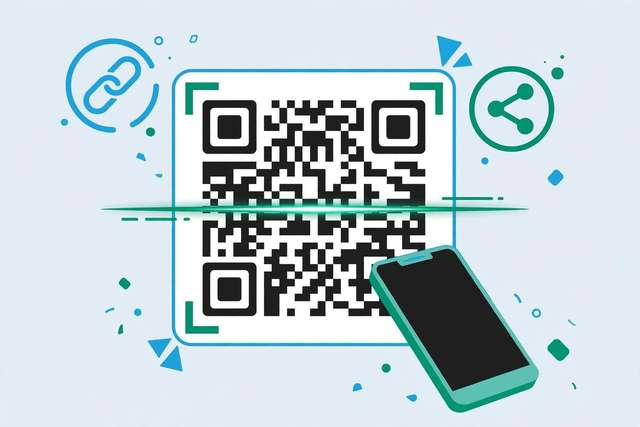
QR codes are everywhere now — restaurant menus, business cards, product packaging, event tickets, payment apps. That little square of black-and-white blocks is the fastest bridge between the physical world and a link, and making one takes about ten seconds.
With our free QR code generator, you can create a QR code for any link, text, WiFi password, or contact card right in your browser. No signup, no cost, no watermark — and static QR codes never expire.
How to create a QR code online (step by step)
1. Choose what to encode. Open the QR code generator and pick your content type: website URL, plain text, WiFi credentials, contact card, email, or phone number.
2. Enter your content. Paste the link or type the details. For URLs, use the full address including https://. For WiFi, enter the exact network name, password, and security type (WPA2 is most common).
3. Customize (optional). Adjust the size and error-correction level. Higher error correction lets the code survive partial damage or a logo overlay, at the cost of a denser pattern.
4. Download and use. Save the QR code as a PNG and drop it into your flyer, business card, menu, presentation, or website. Test-scan it with your phone camera before printing — always.
What to put in a QR code
Website links. The classic use — send people from a poster, package, or card straight to your site, video, or social profile.
WiFi passwords. Print a WiFi QR code for your home or café and guests join in one scan instead of typing a 20-character password.
Business cards. Encode a vCard with your name, phone, email, and website. One scan saves the whole contact — no manual typing, no typos.
Menus and catalogs. Restaurants, salons, and shops use QR codes to link physical spaces to digital menus that update anytime.
Payments and tips. Link directly to your payment page or tip jar — street performers, freelancers, and small vendors all use this.
Event details. Encode the venue address, schedule link, or ticket page on invitations and posters.
QR code best practices
Size matters in print. A QR code should be at least 2 x 2 cm (about 0.8 inches) to scan reliably — bigger for posters viewed at a distance. When in doubt, print larger.
Always test-scan before publishing. Scan with both an iPhone and an Android if you can. A code that doesn’t scan is worse than no code.
Keep the destination stable. A static QR code encodes the link directly — if the link breaks, the code breaks. Use URLs you control and don’t plan to delete.
Add a call to action. “Scan to see the menu” or “Scan for 10% off” dramatically increases scan rates versus a bare code. People scan when they know what they get.
Mind the contrast. Black on white scans best. Decorative low-contrast color schemes look nice but fail in poor lighting — and most scans happen in poor lighting.
Static vs. dynamic QR codes
Static QR codes encode your content directly into the pattern. They’re free forever, never expire, and can’t be tracked or edited after creation. For a link that won’t change — your homepage, a WiFi password, a vCard — static is the right choice, and it’s what our free generator makes.
Dynamic QR codes encode a short redirect URL hosted by a service, which forwards to your real destination. The destination can be changed later and scans can be tracked — but the redirect depends on the service staying alive and usually requires a paid plan. If the service shuts down or your subscription lapses, the code dies.
Rule of thumb: use static codes unless you specifically need editable destinations or scan analytics. Most personal and small-business uses never need dynamic codes — and “free dynamic QR” offers that expire after a trial are a classic upsell trap.
Creative QR code uses
Digital tip jars. Street performers and freelancers link QR codes to payment pages — no cash needed.
Real-estate signs. “Scan for the full listing” turns a drive-by into a virtual tour.
Product packaging. Link to setup videos, manuals, or warranty registration — support that updates without reprinting.
Wedding invitations. RSVP forms, registry links, and venue maps in one elegant code.
Resumes. A QR code linking to your portfolio turns a paper resume into a multimedia one.
Tracking QR code scans
Static QR codes can’t track scans — that’s the trade-off for being free forever. If you need analytics (how many people scanned your flyer?), use a URL shortener with click stats or a UTM-tagged link as the QR destination; your analytics then capture every scan as a visit. For most uses this is plenty — you get the scan count without paying for dynamic QR services. Only upgrade to dynamic codes if you truly need to change the destination after printing.
Frequently asked questions
How do I create a QR code for free?
Enter your link or text at /tools/qr-code-generator/ and download the code. Free, unlimited, no signup, no watermark.
Do free QR codes expire?
Static QR codes never expire — they encode your content directly. Only dynamic codes from paid tracking services can expire.
Can I make a QR code for my WiFi password?
Yes — enter your network name, password, and security type, and guests connect with one scan.
What can I put in a QR code?
URLs, text, WiFi credentials, contact cards, emails, phone numbers, and event details. Website links are the most common.
Keep reading

How to Set an Alarm Online Free (No App Needed)
Set an alarm online free with no app or download — how browser alarms work, keeping the tab alive, and a free online alarm clock tool.
Read more →
How to Use an Online Stopwatch Free (Timing Tips & Uses)
Use a free online stopwatch with no app needed — lap timing, accuracy tips, and smart everyday uses from workouts to cooking to productivity.
Read more →
Free Text to Speech Online: No Sign-Up, No Limits
Convert text to speech online free with no sign-up. Learn how browser TTS works, the best uses, voice tips, and honest limits — plus a free tool.
Read more →