How to Convert a PDF to Grayscale Online Free (Save Ink)
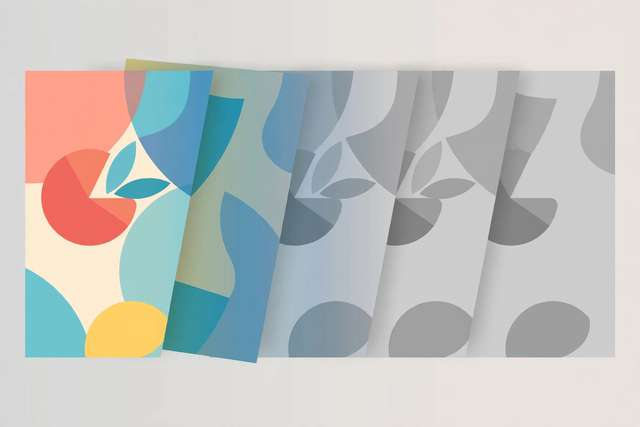
Color ink costs roughly ten times more per page than black ink — and most documents do not need color at all. That contract, that scanned textbook chapter, that 40-page report? Converting the PDF to grayscale before printing can cut your ink or toner costs dramatically, and as a bonus it often shrinks the file size too.
This guide shows how to convert any PDF to grayscale online for free, when grayscale helps and when it hurts, and how to avoid the classic pitfalls like unreadable color-coded charts.
Why convert a PDF to grayscale?
Three reasons, in order of impact:
- Save ink and toner. Color cartridges drain fast and cost more. A grayscale PDF prints using only black, which is cheaper per page and lasts far longer.
- Shrink the file. A color image carries three channels of data (red, green, blue); grayscale carries one. For scanned PDFs and photo-heavy documents, grayscale conversion alone can cut file size by half or more.
- Look professional. Grayscale documents look clean and formal — ideal for resumes, legal filings, and academic submissions where color adds nothing.
It also future-proofs documents for black-and-white printers: instead of letting the printer guess how to convert color (often badly), you control the conversion yourself.
How to convert a PDF to grayscale online free (4 steps)
- Open the free converter — DollarWise’s free PDF to Grayscale Converter works entirely in your browser.
- Upload your PDF — drag and drop the file. It never leaves your device, so confidential documents stay confidential.
- Convert — the tool maps every color to its grayscale equivalent, preserving text sharpness and layout exactly.
- Preview and download — flip through the pages to check that nothing important depended on color, then download.
If you only need one page in grayscale (say, a single color chart in a long report), convert the whole file, print the pages you need, and keep the color original for reference.
When grayscale is the wrong move
Grayscale is not free of trade-offs. Check for these before converting:
- Color-coded charts and graphs. If a bar chart distinguishes Q1 from Q2 by red vs blue, grayscale turns them into similar grays. Look for charts with patterns, labels, or a legend you can update.
- Highlighted text. Yellow highlighter on white becomes light gray on white — often unreadable. Darken or reformat highlights before converting.
- Photos where color matters. Medical images, maps, and design proofs can lose critical information. Keep those in color.
- Red text on dark backgrounds. Low-contrast color pairs can collapse into identical grays. Zoom in and verify legibility.
The fix for most of these: convert a copy, review every page at 100% zoom, and keep the color original.
Grayscale vs black-and-white vs “print in B/W”
These get confused constantly:
- Grayscale — 256 shades of gray. Photos look natural, text is crisp. This is what you want for almost everything.
- Pure black-and-white (1-bit) — only black or white pixels, no gray. Tiny file sizes, but photos look like harsh photocopies. Useful for text-only scans, terrible for photos.
- Printer “B/W” setting — tells the printer to use black ink, but the printer does its own color-to-gray mapping on the fly, sometimes poorly. Converting the PDF yourself gives better, predictable results.
For maximum ink savings on text documents, grayscale conversion plus your printer’s “draft” or “economy” mode is the unbeatable combination — readable text at a fraction of the normal cost.
Extra wins: grayscale for scanning and archiving
If you create PDFs by scanning, set your scanner to grayscale (or black-and-white for text) at 150–200 DPI instead of color at 300 DPI. You will get files that are 5–10x smaller with no loss of readability for documents — and you skip the conversion step entirely.
For archiving, grayscale scans are the sweet spot: small enough to store thousands, clear enough to read decades later, and immune to the “why is this 80MB” problem of color scans.
Pairing grayscale with printer settings
Grayscale conversion is half the savings; your printer dialog is the other half:
- Draft / economy mode — prints faster with less toner. Combined with a grayscale PDF, text documents cost a fraction of normal printing and remain perfectly readable.
- “Black ink only” cartridge setting — forces the printer to skip color cartridges entirely, which also extends their life (color ink dries out even when unused).
- Duplex (double-sided) — halves paper use. Nothing to do with grayscale, but if you are optimizing printing costs, do both at once.
- Print preview first — one wasted 40-page color print costs more than the two minutes a preview takes. Check that charts survived the conversion before committing.
For students and home offices, the grayscale-plus-draft combination is the closest thing to free printing that exists — a full ream’s worth of reading material for pennies in toner.
Frequently asked questions
How do I convert a PDF to black and white for free?
Use a free online PDF grayscale converter: upload the PDF, apply grayscale conversion, and download. Our free PDF to grayscale tool runs in your browser with no upload or sign-up.
Does converting a PDF to grayscale reduce file size?
Yes, often by 50–70% for image-heavy PDFs. Grayscale images store one channel of data instead of three, so scanned pages and photos shrink dramatically.
Will grayscale conversion make my PDF unreadable?
No — text and line art stay perfectly crisp. The only risk is content that relies on color to convey meaning, like color-coded charts or highlighted passages, which can become ambiguous.
Is grayscale the same as black and white?
Not exactly. Grayscale keeps 256 shades of gray, preserving photos and gradients. Pure black-and-white (1-bit) keeps only two tones and can look harsh. For printing and reading, grayscale is almost always better.
Keep reading

How to Compress a PDF to 1MB Online Free
Compress a PDF to 1MB online free — shrink oversized PDFs for email, uploads, and forms. Keep quality high with smart compression settings.
Read more →
How to Compress a PDF to 200KB Online Free
Squeeze a PDF down to 200KB for strict upload limits. What fits in 200KB, a step-by-step shrinking workflow, and a free exact-size compressor.
Read more →
How to Compress a PDF to 2MB Online Free (Exact-Size Guide)
Hit an exact 2MB PDF target for email and uploads. Why 2MB is the magic number, a 6-step shrinking workflow, and a free exact-size tool.
Read more →