How to Compress a PDF to 200KB Online Free
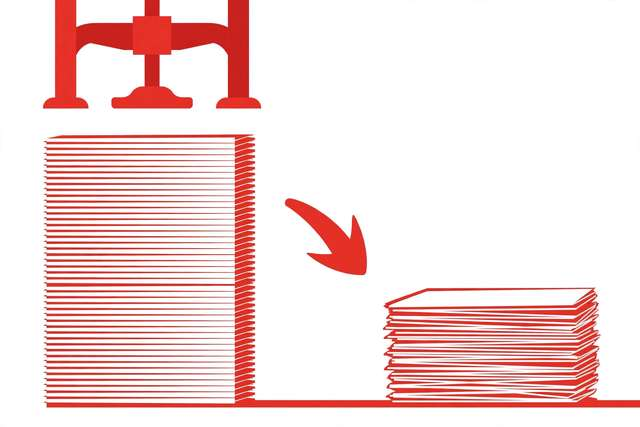
200KB is one of the strictest upload limits you will meet in the wild — government portals, exam applications, and some job sites enforce it. At this size there is no room for bloat: every image, font, and page must justify its bytes. The good news is that hitting 200KB is very achievable if you understand what actually makes PDFs large.
This guide explains what fits in 200KB, a step-by-step workflow to get there, and the escape hatches for when the math does not cooperate.
What fits in 200KB (and what does not)
Think of 200KB as roughly one good photo. That frames everything:
- Real text documents — PDFs with selectable text: a 20–30 page report with a few small images is often already under 200KB. Text is cheap.
- Scanned documents — each page is a photo. One color scan page at 300 DPI can be 500KB–2MB alone. Getting scans under 200KB means downscaling hard.
- Mixed documents — text plus a few photos: doable if you compress the images and keep page count modest.
The single biggest lever is scans. If your PDF is scanned pages, expect aggressive downscaling; if it is real text, you are probably closer than you think.
How to compress a PDF to 200KB (6 steps)
- Check what you have — open the PDF and try selecting text. If text selects, it is a real-text PDF (easy). If not, it is scanned images (harder).
- Remove dead weight first — delete blank pages, duplicate pages, and any pages the portal does not need. Fewer pages, fewer bytes.
- Use a target-size compressor — DollarWise’s free PDF Compress to 200KB tool lets you set 200KB as the target and balances image resolution and quality automatically, in your browser.
- Downscale images aggressively — for on-screen review, 100–150 DPI is plenty. A 300 DPI scan shrunk to 150 DPI loses 75% of its image bytes.
- Go grayscale for scans — color triples image data versus grayscale. If color is not required, grayscale conversion is the fastest big win.
- Verify and test-upload — check the output size, open it at 100% zoom, and confirm every page is still legible before submitting.
The heavy hitters: where the bytes really go
When a PDF refuses to shrink, one of these is usually the culprit:
- Embedded fonts — full font sets can add hundreds of KB. Some compressors can subset fonts (keep only used characters) or drop them.
- Hidden layers and annotations — flattened comments, form data, and invisible layers add weight. Flattening the PDF strips them.
- Uncompressed images — scans saved without compression are enormous. Any real compressor fixes this automatically.
- Metadata bloat — thumbnails, document history, and embedded previews. Minor, but free bytes when every byte counts.
When 200KB is genuinely impossible
Some documents cannot reach 200KB without becoming unreadable — a 50-page color-scanned contract, for example. Your options:
- Split the PDF — many portals accept multiple files. Two 180KB files beat one illegible 200KB file.
- Re-scan at lower settings — if you control the source, rescan at 150 DPI grayscale instead of compressing a 300 DPI color scan.
- Convert pages to text — run OCR on scans to produce real text, which compresses dramatically better than images.
- Ask for an exception — some portals accept larger files by email. It costs nothing to ask before mangling your document.
Never submit an unreadable PDF just to satisfy a size limit. A portal that cannot read your document is worse than a portal that asks you to split it.
Portal-specific survival tips
Strict-limit portals have personalities. A few patterns worth knowing:
- Government and exam portals are the strictest — they often validate file type, dimensions, and size server-side, and they rarely tell you why a file failed. Submit early, not at 11:58 PM, so you have time to fix rejections.
- “PDF only, max 200KB” usually means per file, not total. If the portal accepts five documents, each gets its own 200KB budget — do not merge them into one doomed file.
- Photo-plus-signature uploads are the classic 200KB trap: a color photo plus a scanned signature page. Compress the photo harder than the signature — reviewers zoom into signatures, not portraits.
- Keep a “portal-ready” copy alongside your full-quality original. Name it clearly (
resume-portal-200kb.pdf) so you never accidentally send the compressed version where quality matters.
When a portal rejects your file without explanation, the culprits in order are: size slightly over (check bytes, not the rounded KB), wrong file type, and password protection left on from an earlier step.
Frequently asked questions
How do I compress a PDF to exactly 200KB?
Use a target-size compressor: upload the PDF, set 200KB as the target, and the tool balances image resolution and quality to hit it. Our free PDF compress to 200KB tool runs in your browser with no sign-up.
What can fit in a 200KB PDF?
Real text documents easily — a 20-page text report is often under 200KB. What struggles is scanned pages and photos: one full-color 300 DPI scan page can exceed 200KB alone. Expect to downscale images or go grayscale.
Will compressing to 200KB ruin readability?
Text stays perfectly sharp because real text compresses almost for free. Only embedded images and scanned pages lose detail. At 100–150 DPI, scans remain readable on screen.
My PDF will not go below 200KB. What now?
Convert color scans to grayscale, drop image resolution to 100–150 DPI, delete unneeded pages, and remove embedded fonts if the tool allows. As a last resort, split the PDF into two files under the limit.
Keep reading

BMP vs PNG: Which Image Format Should You Use?
BMP vs PNG compared: file size, quality, transparency, and browser support. Learn which format fits your project — and convert between them free.
Read more →
How to Compress a PDF to 1MB Online Free
Compress a PDF to 1MB online free — shrink oversized PDFs for email, uploads, and forms. Keep quality high with smart compression settings.
Read more →
How to Compress a PDF to 2MB Online Free (Exact-Size Guide)
Hit an exact 2MB PDF target for email and uploads. Why 2MB is the magic number, a 6-step shrinking workflow, and a free exact-size tool.
Read more →