BMP vs PNG: Which Image Format Should You Use?

BMP and PNG are both lossless image formats, which makes the comparison sound like a fair fight. It isn’t. PNG wins in nearly every real-world scenario — but BMP still shows up in surprising places, from legacy Windows software to embedded systems, so it’s worth knowing exactly how the two differ and when (if ever) BMP is the right call.
If you already have BMP files eating your disk space, the fastest fix is our free BMP to PNG converter — it shrinks them dramatically with zero quality loss, right in your browser.
BMP vs PNG at a glance
| Feature | BMP | PNG |
|---|---|---|
| Compression | None (or weak RLE) | Lossless (highly efficient) |
| Typical file size | Huge | Small to moderate |
| Quality | Lossless | Lossless (identical pixels) |
| Transparency | Rarely supported | Full alpha channel |
| Color depth | Up to 32-bit | Up to 16-bit per channel |
| Browser support | Inconsistent | Universal |
| Best for | Legacy Windows apps, raw pixel data | Web, screenshots, graphics, sharing |
The short version: PNG delivers the exact same pixels as BMP in a fraction of the file size. The only reason to keep BMP is compatibility with old software that demands it.
Why BMP files are so enormous
A BMP file is essentially a raw dump of pixel values: every pixel’s color stored one after another, with little or no compression. A 1920×1080 photo at 24-bit color needs about 6 MB as a BMP — before any header overhead. The same image as a PNG is often under 2 MB, and frequently far less, because PNG’s compression (DEFLATE with predictive filtering) exploits the patterns in the image data.
This made sense in the 1990s when CPUs were slow and decompression cost real time. Today the tradeoff is backwards: storage and bandwidth are the expensive resources, and every modern device decompresses PNGs in milliseconds. BMP’s “advantage” of simplicity is a historical artifact.
There is one technical nuance: BMP can store uncompressed data with zero decode complexity, which is why some embedded systems, boot screens, and old Windows applications still use it. If you’re not writing firmware or supporting legacy software, this doesn’t apply to you.
When PNG is the clear winner
For everything on screens, PNG dominates:
- Web graphics. Logos, icons, illustrations, UI elements — PNG is smaller, sharper, and supports transparency that BMP generally lacks.
- Screenshots. PNG captures pixel-perfect screenshots at a fraction of BMP’s size. A BMP screenshot can be 5–10x larger with no visible difference.
- Sharing and email. A 6 MB BMP attachment versus a 1.5 MB PNG of identical quality — the choice makes itself.
- Transparency. PNG’s alpha channel lets you create cutouts, overlays, and watermarks. Most BMP variants can’t do this at all.
When BMP still makes sense (rarely)
BMP isn’t dead — just niche. Keep using it when:
- Legacy software requires it. Some old Windows applications, industrial equipment, and embedded displays only accept BMP. If the spec says BMP, send BMP.
- You need raw pixel simplicity. When writing low-level code that reads pixels directly without a decoder, BMP’s uncompressed layout is genuinely convenient.
- It’s an intermediate, not a deliverable. Some capture and scanning tools output BMP by default. That’s fine — just convert to PNG before archiving or sharing.
For archival purposes, note that PNG is actually the better archive format too: identical pixels, smaller files, checksums built into the format to detect corruption, and far wider software support going forward.
Converting BMP to PNG (lossless, of course)
Since both formats are lossless, converting BMP to PNG loses absolutely nothing — every pixel survives exactly. It’s a pure win: same image, much smaller file.
To convert in seconds, use our free BMP to PNG converter: drop in the BMP, convert, and download the PNG. The tool runs entirely in your browser, so even huge BMP files never upload anywhere. Going the other direction (PNG to BMP) is possible with the same tool if some legacy app demands it — just know the file will balloon in size with zero quality gain.
One practical tip: if you’re converting a whole folder of BMPs from an old project, convert them all and delete the originals only after spot-checking a few PNGs. The conversion is mathematically lossless, but verifying once builds confidence in the workflow.
Frequently asked questions
Is BMP better quality than PNG?
No. Both are lossless, so a BMP and a PNG rendered from the same source are pixel-for-pixel identical. PNG simply stores those identical pixels in a far smaller file. “Better quality” is a tie; everything else favors PNG.
Why are BMP files so large?
BMP stores pixel data with little or no compression — essentially a raw grid of color values. PNG applies efficient lossless compression to the same data, typically shrinking it to a fraction of the size. A photo that’s 6 MB as BMP is often under 2 MB as PNG.
Should I use BMP or PNG for the web?
Always PNG. BMP files are enormous, lack alpha transparency in most variants, and offer no advantage on the web. PNG is smaller, supports full transparency, and opens in every browser. There is no web use case where BMP is the better choice.
Can I convert BMP to PNG without losing quality?
Yes — the conversion is 100% lossless since both formats preserve every pixel. Use our free BMP to PNG converter to shrink your files in seconds with zero quality loss, all processed privately in your browser.
Keep reading

How to Add a Watermark to Photos Online Free
Learn how to add a watermark to photos online free — protect your images with text or logo watermarks in seconds, no signup or software needed.
Read more →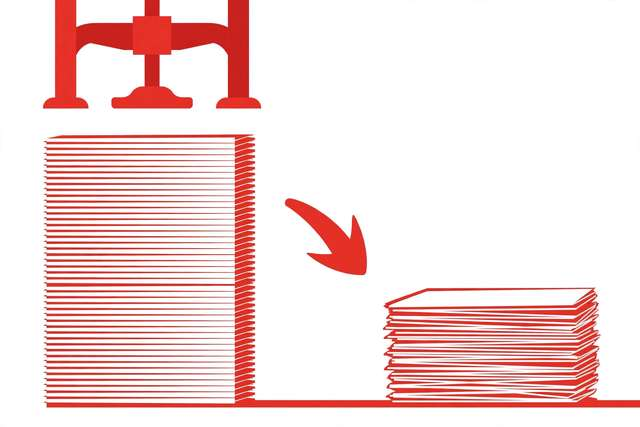
How to Compress a PDF to 200KB Online Free
Squeeze a PDF down to 200KB for strict upload limits. What fits in 200KB, a step-by-step shrinking workflow, and a free exact-size compressor.
Read more →
How to Pixelate an Image Online Free (Blur Faces & Sensitive Areas)
Pixelate faces, license plates, and sensitive details in any photo in seconds. Free in-browser method, when to pixelate vs blur, and privacy tips.
Read more →