Markdown Basics: A Beginner's Guide to Writing Online
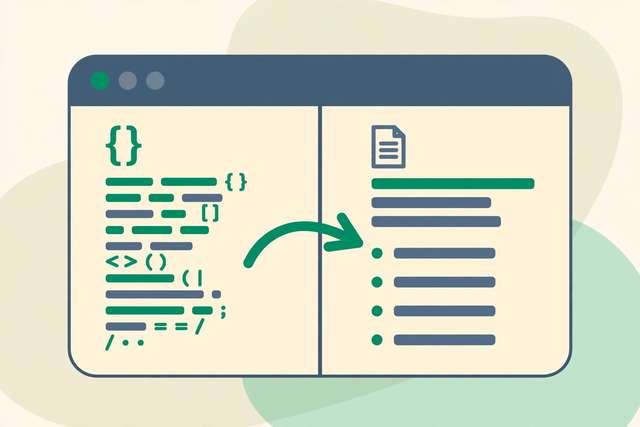
Markdown is the quiet superpower behind half the writing on the internet. READMEs on GitHub, documentation sites, notes apps, blog posts, even this website’s content — all written in Markdown. It looks like plain text, reads like plain text, and magically turns into formatted documents with a couple of symbols.
If you have ever fought with a word processor’s formatting gremlins, Markdown will feel like a breath of fresh air. Here is everything a beginner needs.
What Markdown is — and why writers and developers both love it
Markdown is a lightweight way to format text using simple characters. Instead of clicking toolbar buttons, you type symbols:
# Headingbecomes a heading**bold**becomes bold- itembecomes a list item
Why writers love it: no formatting distractions. You write in plain text, and the document looks clean everywhere — notes app, email draft, phone, desktop. No “why is this paragraph suddenly in a different font” moments.
Why developers love it: Markdown files work perfectly with version control (Git), render natively on GitHub, and convert to HTML with zero manual formatting. Documentation written in Markdown can be reviewed, tracked, and published like code.
Why you will love it: anything you write in Markdown is future-proof. It is plain text — readable in 50 years, convertible to HTML, PDF, Word, slides, ebooks. No proprietary formats, no lock-in. And because the source is just text, your notes, drafts, and documentation stay searchable, lightweight, and easy to back up — a single folder of .md files is an entire writing archive that opens in any editor on any device.
The Markdown cheat sheet (the 15-minute version)
Open a free editor like the DollarWise markdown editor and try each of these — you will see the preview update live.
Headings
# Heading 1
## Heading 2
### Heading 3
More # symbols = smaller heading. Most documents need only two or three levels.
Text formatting
**bold text**
*italic text*
~~strikethrough~~
`inline code`
Lists
- Bullet point
- Another bullet point

1. First step
2. Second step
3. Third step
Links and images
[link text](https://example.com)

Blockquotes and code blocks
> This is a quoted paragraph.

```python
print("This is a code block")
(That code block is wrapped in triple backticks — add the language name after the opening backticks for syntax highlighting.)

### Horizontal rules and tables

```markdown
---

| Name | Role |
|------|------|
| Sam  | Writer |
| Alex | Editor |
The quick reference
| You want | You type |
|---|---|
| Heading | # Title |
| Bold | **text** |
| Italic | *text* |
| Link | [text](url) |
| Bullet list | - item |
| Numbered list | 1. item |
| Code | `code` |
| Quote | > quote |
| Image |  |
That is 95% of daily Markdown. Everything else — footnotes, task lists (- [ ]), definition lists — you can learn as you need it.
Where you’ll meet Markdown in the wild
Once you know the syntax, you will start spotting it everywhere. GitHub README files, project documentation, and developer wikis are almost always written in Markdown. Reddit comments, Discord messages, and Slack posts support Markdown-style formatting for bold, italics, and code — the same **bold** and `code` you use in the cheat sheet above. Note-taking apps like Obsidian, Notion (in its Markdown import mode), and Joplin store your notes as plain .md files, which means your notes stay portable: switch apps and your formatting survives. Blog platforms from Ghost to static site generators like Hugo render Markdown directly, so a single source file can become a blog post, a PDF handout, and a web page without reformatting.
The export workflow: from Markdown to a published page
Writing in Markdown is only half the story. The real power is how easily it converts to other formats.
To HTML (for websites and blogs): paste your Markdown into a Markdown-to-HTML converter and copy the resulting HTML. Headings become <h1> tags, links become <a> tags, code blocks get proper <pre> formatting. This is exactly how blog content moves from a writer’s draft to a published page — and the same tool converts HTML back to Markdown when you need to rescue content from a web page.
To PDF: most Markdown editors include an export or print-to-PDF option, which is perfect for resumes, guides, and documentation handouts.
To Word or slides: tools like Pandoc (free, command-line) convert Markdown to .docx, PowerPoint, ePub, and dozens of other formats — one source document, infinite outputs.
A practical workflow that works: draft everything in Markdown in a free online editor (no formatting rabbit holes), convert to HTML when it is time to publish, and keep the original .md file as your permanent, readable archive. Writers call this “separating content from presentation” — you focus on words now and styling later, and the same text publishes to any platform.
Frequently asked questions
What is Markdown and why should I use it?
Markdown is a plain-text formatting language that uses simple symbols like # for headings and * for bold. It is fast, distraction-free, readable everywhere, and converts cleanly to HTML, PDFs, and documents — which is why writers and developers both love it.
Where can I practice Markdown online for free?
Any free online markdown editor works — open one, type in the left pane, and watch the formatted preview appear live. Try the DollarWise markdown editor: it runs entirely in your browser with no account needed.
How do I convert Markdown to HTML?
Paste your Markdown into a Markdown-to-HTML converter and copy the resulting HTML. This is how blog posts written in Markdown get published on the web — the converter turns your # headings into <h1> tags automatically.
Is Markdown hard to learn?
No — the basics take about 15 minutes. Headings, bold, italics, links, lists, and code cover 95% of what most people need, and everything after that is optional.
Keep reading
How to Create an Invoice Online Free (US Guide 2026)
Create a professional invoice online free. Learn what belongs on a US invoice, the step-by-step process, when to send it, and proven tricks to get paid faster.
Read more →
How to Extract Text From Images and Scanned PDFs Free
Extract text from images and scanned PDFs free with OCR. Learn how image-to-text extraction works, pull text from scanned PDFs, and get clean, copyable text in minutes.
Read more →
How to Remove Background From Image Free (4 Easy Methods)
Remove the background from any image free with 4 simple methods: a free online tool, Photoshop, phone apps, and Canva. Step-by-step guide for crisp cutouts in seconds.
Read more →